Data preparation often involves cleaning inconsistent text, extracting useful information, or validating data before analysis. While traditional string functions can handle simple tasks, they quickly become complicated when dealing with complex patterns.
The RegEx Tool in Alteryx simplifies these tasks by allowing you to search, extract, replace, and split text using Regular Expressions (Regex). ow complexity.
In this blog, we'll explore the four configuration methods available in the Alteryx RegEx Tool: Replace, Parse, Match, and Tokenize.
What is Regular Expression (Regex)?
A Regular Expression is a sequence of characters that defines a search pattern. Instead of searching for exact text, Regex looks for patterns, making it ideal for cleaning and transforming semi-structured data.
For example, Regex can identify:
- Email addresses
- Phone numbers
- Product IDs
- Dates
- Postal codes
- Customer names
The Alteryx RegEx Tool makes these operations accessible without requiring lengthy formulas.
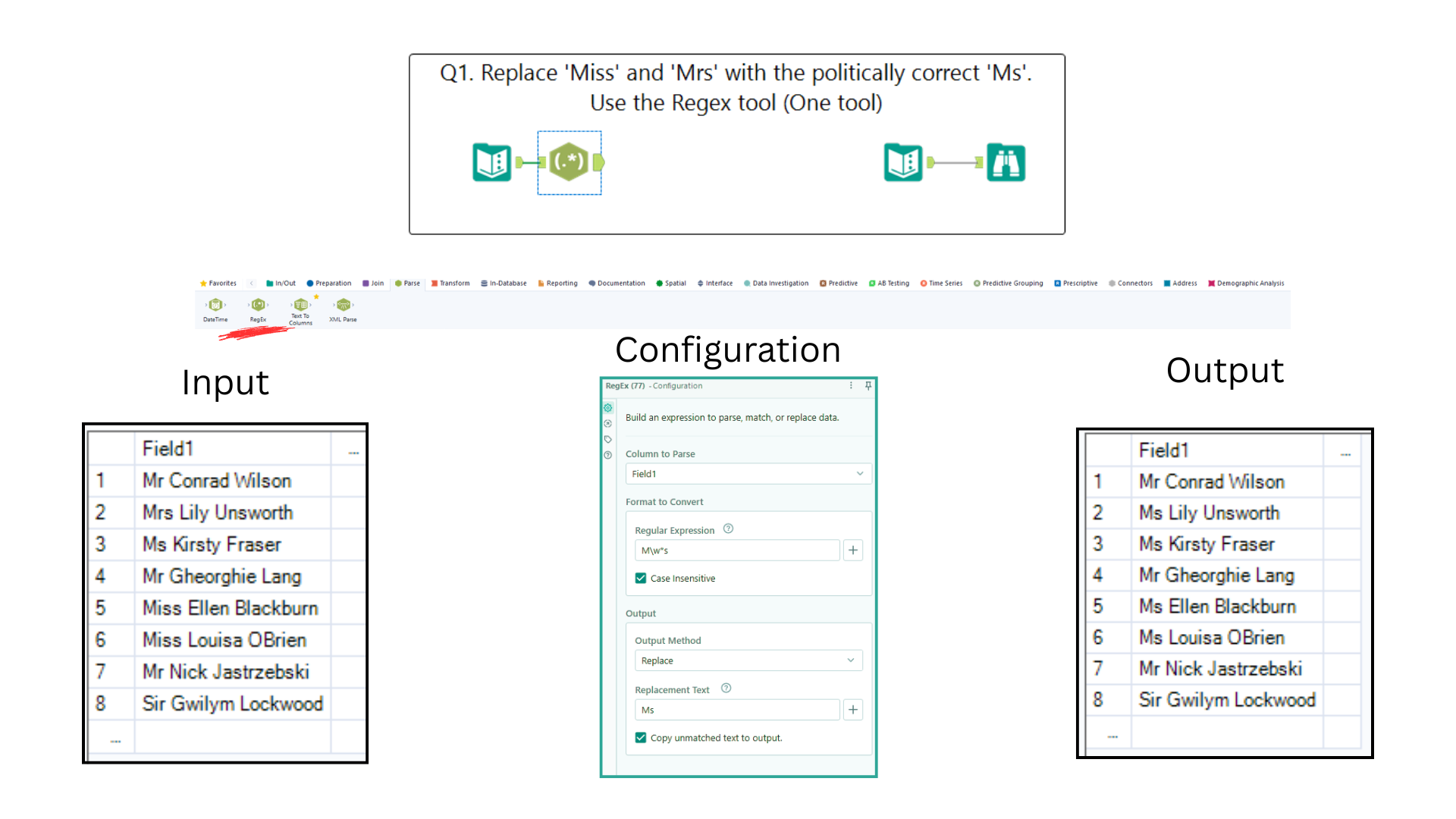
1. Replace (or check the example exercise below)
The Replace option searches for text matching a pattern and replaces it with another value.
This is one of the most commonly used configurations for cleaning data.
For example, imagine you have customer names stored with titles:
| Original Value |
|---|
| Mr. John Smith |
| Mrs. Sarah Jones |
| Dr. Emily Brown |
You may want to remove the titles while keeping the names.
Configuration
- Field: Customer Name
- Method: Replace
- Regular Expression:
^(Mr\.|Mrs\.|Dr\.)\s*- Replacement Text: (Leave blank)
Output
| Result |
|---|
| John Smith |
| Sarah Jones |
| Emily Brown |
In this example, the Regular Expression searches for common titles (Mr., Mrs., or Dr.) at the beginning of the text and replaces them with nothing, effectively removing them from the field.
Common Use Cases
- Remove special characters
- Remove spaces
- Replace multiple delimiters
- Standardize IDs
- Clean imported text
2. Parse
The Parse option extracts portions of text into separate output columns using capture groups.
Instead of manually splitting strings, Parse automatically creates new fields based on the Regex pattern.
Example
Input:
John Smith
Mary Johnson
David Brown
Regex Pattern:
(\w+)\s(\w+)
Output:
| First Name | Last Name |
|---|---|
| John | Smith |
| Mary | Johnson |
| David | Brown |
Each capture group enclosed in parentheses becomes its own output column.
Common Use Cases
- Separate first and last names
- Extract product codes
- Parse addresses
- Split invoice numbers
- Separate city, state, and ZIP code
3. Match
The Match option validates whether an entire string matches a specific Regex pattern.
Instead of modifying data, Match simply returns True or False.
Example
Suppose you want to validate email addresses.
Regex Pattern:
^[A-Za-z0-9._%+-]+@[A-Za-z0-9.-]+\.[A-Za-z]{2,}$
Results:
| Match | |
|---|---|
| john@email.com | True |
| support@company.org | True |
| john@email | False |
This is particularly useful when checking data quality before loading information into a database.
Common Use Cases
- Validate email addresses
- Check phone number formats
- Verify customer IDs
- Validate postal codes
- Check date formats
4. Tokenize
The Tokenize option splits text into multiple rows based on a delimiter or Regex pattern.
Unlike Parse, which creates new columns, Tokenize creates additional records.
Example
Input:
Apple,Banana,Grapes,Orange
Delimiter:
,
Output:
| Fruit |
|---|
| Apple |
| Banana |
| Grapes |
| Orange |
Each value becomes a separate row.
Common Use Cases
- Split comma-separated values
- Break lists into rows
- Separate keywords
- Process tags or categories
- Normalize text fields
Choosing the Right Configuration
| Configuration | Purpose | Output |
|---|---|---|
| Replace | Replace matching text | Updated text |
| Parse | Extract information into columns | Multiple fields |
| Match | Validate a pattern | True or False |
| Tokenize | Split text into rows | Multiple records |