


As Tableau puts it, Tableau Pulse helps users “Make smarter, faster decisions with an AI-powered experience.” AI integration, however, can mean a very wide range of things. Tableau itself notes that “generative AI can produce inaccurate or harmful responses,” so it is important to understand where AI is actually being used inside Tableau Pulse to get a better understanding of the tool you are using.
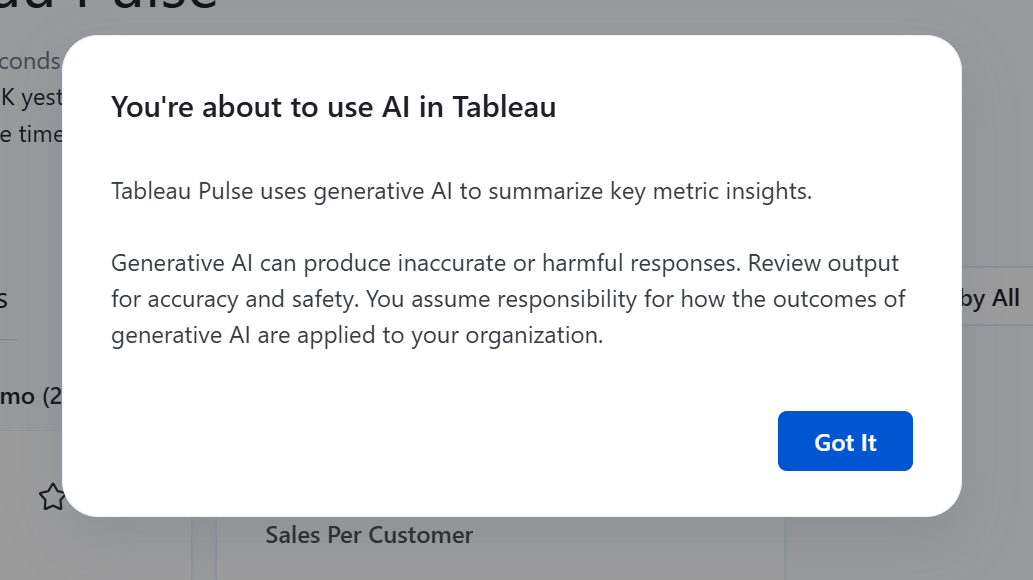
A simple way to understand where AI is used — and where it is not — is by looking at the differences between turning the AI settings for Tableau Pulse on and off.
Below is the settings pane for AI usage in Tableau Pulse.
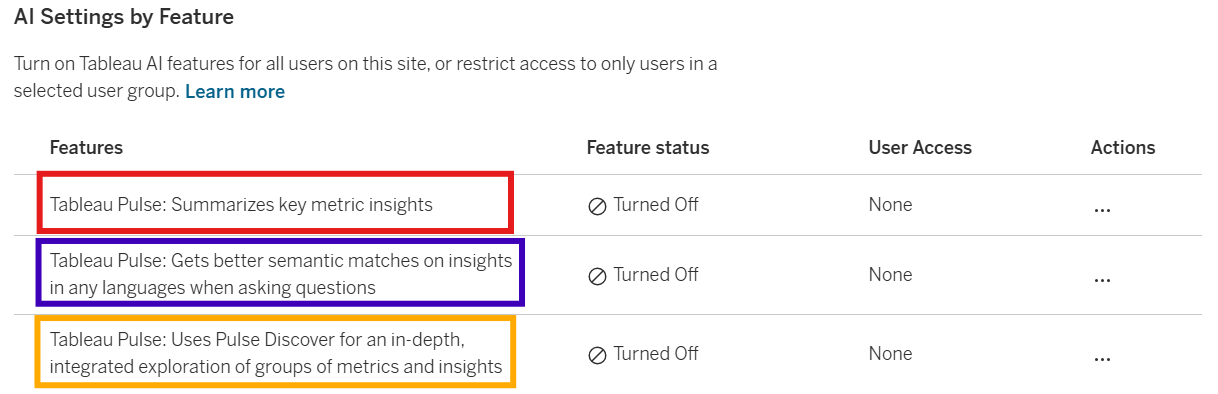
Notice that there are three main parts. The first in red, is the Insight Summary. The second in blue, is the semantic matching used for the “Ask” button. The third, highlighted in yellow, is Pulse Discover. I will show where these features appear in the user interface and how each one enhances the user experience.
First, let’s go over the Tableau Pulse home page, which displays the metrics that you follow. With the AI settings turned off, it looks like the example below.
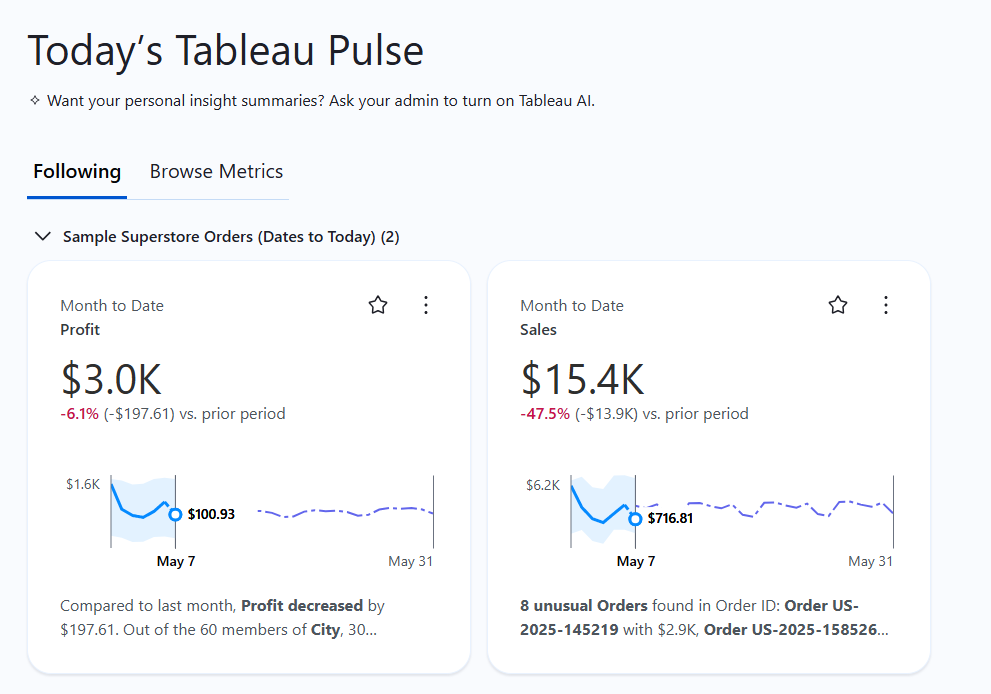
Notice that once AI is turned on, two additional features appear. The first, highlighted in red, is the Insight Summary, and the second, highlighted in yellow, is Pulse Discover AI.
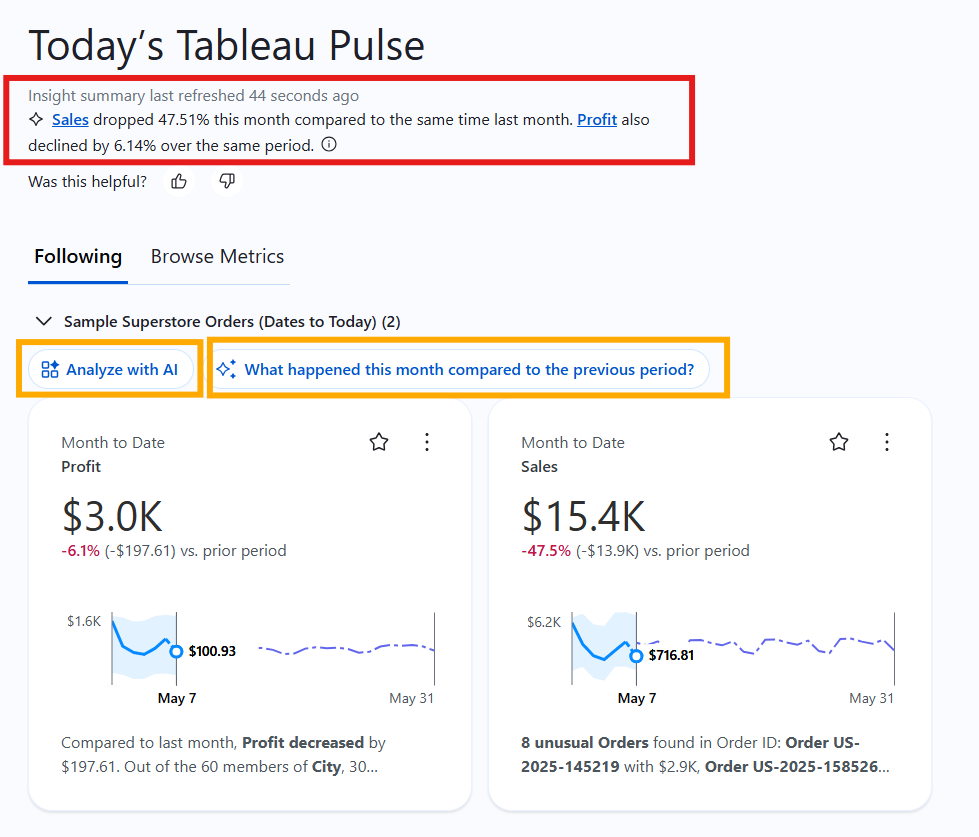
I will go deeper into how these features work, but first let’s go over the services that they provide.
Insight Summaries are AI-generated natural language overviews that summarize important changes across the metrics you follow. They are designed to quickly highlight notable trends, period-over-period changes, and unexpected values without requiring users to manually inspect every metric individually.
Pulse Discover is a conversational AI experience that allows users to explore metrics and insights using natural language. For example, clicking “Analyze with AI” brings you into a chat interface where the AI generates responses, explanations, and follow-up insights based on the metrics and analytical context available in Tableau Pulse.
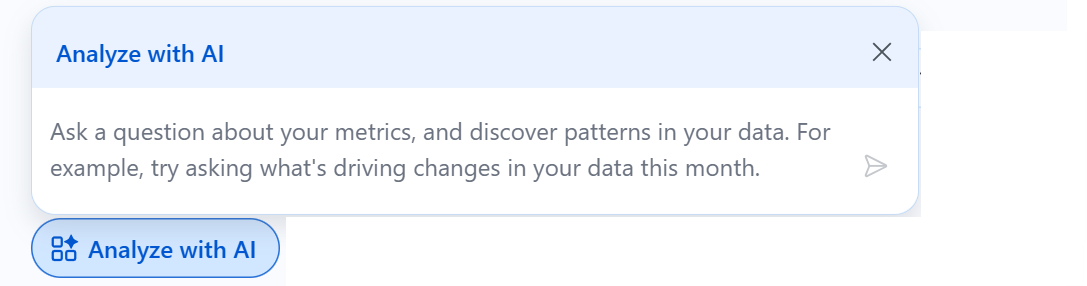
Note: Pulse Discover is a Tableau+ feature, so without Tableau+ you will not have access to the chat-like AI experience within Tableau Pulse.
Now let’s look at the interface for a specific metric. In this example, I clicked into the Profit metric, and this is what the interface looks like with the AI settings turned off.
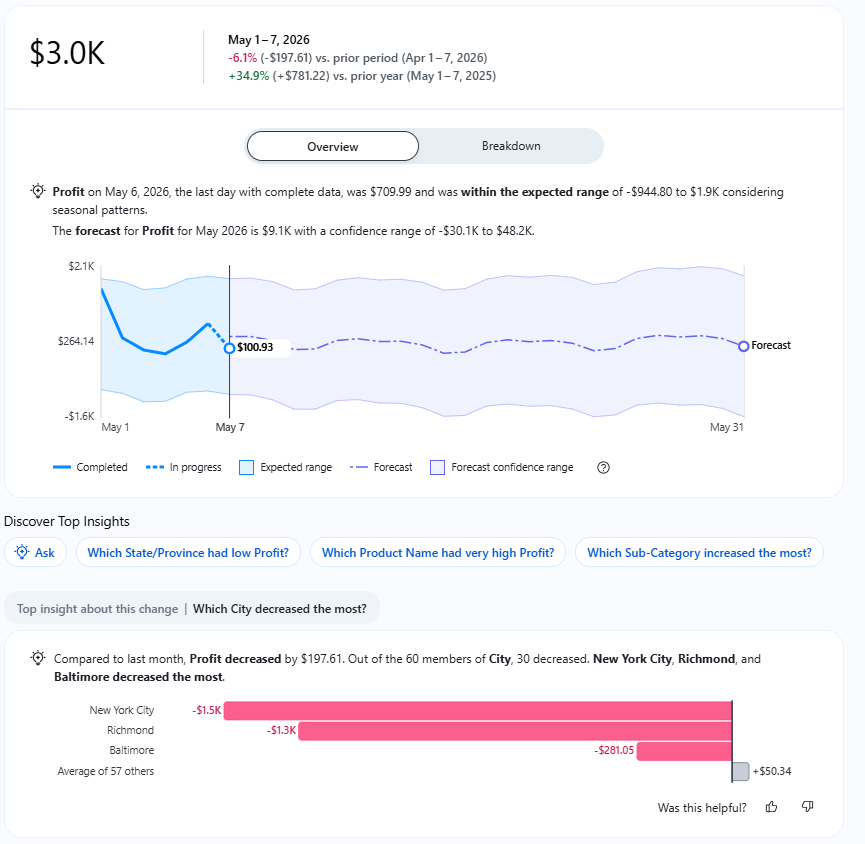
Actually, within an individual metric, turning the AI settings on or off does not directly change the interface itself. What changes is the interaction that happens through the “Ask” button.
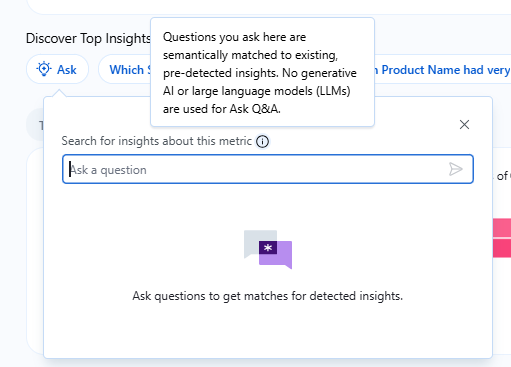
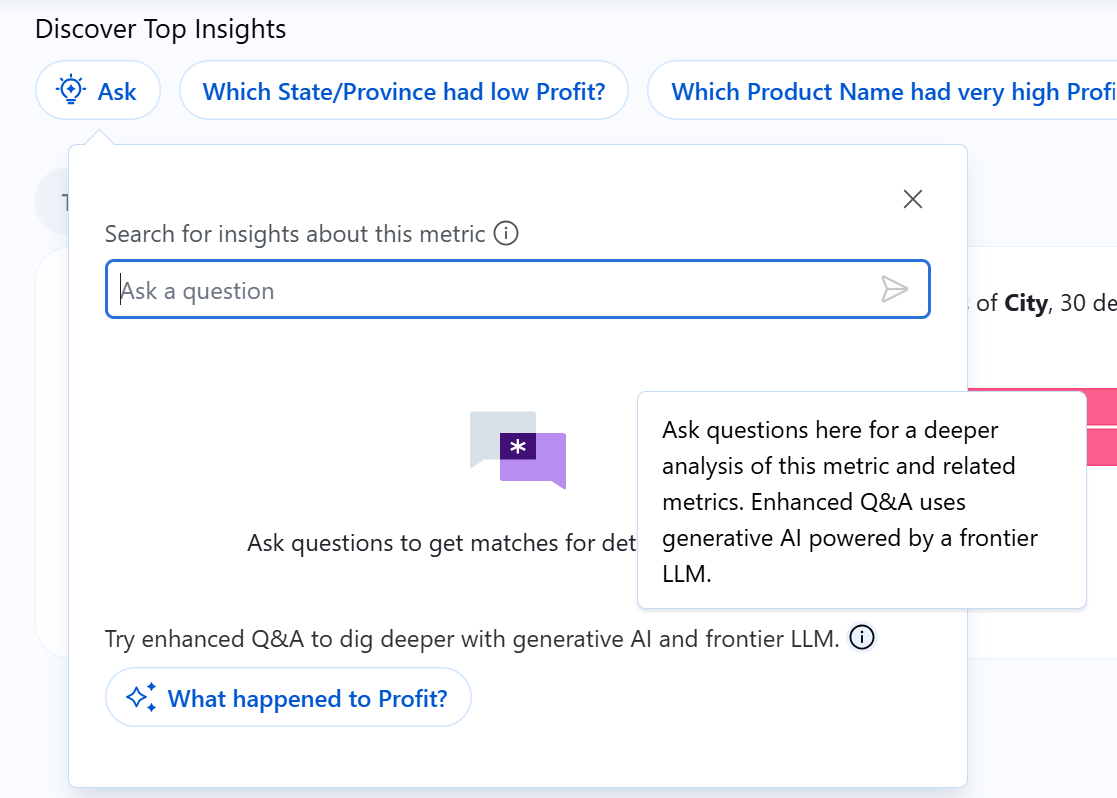
First, let’s look at what happens when clicking “Ask” with the AI settings turned off. You can see below that you are able to type questions, and Tableau explains that these questions are semantically matched to pre-detected insights without the use of generative AI.
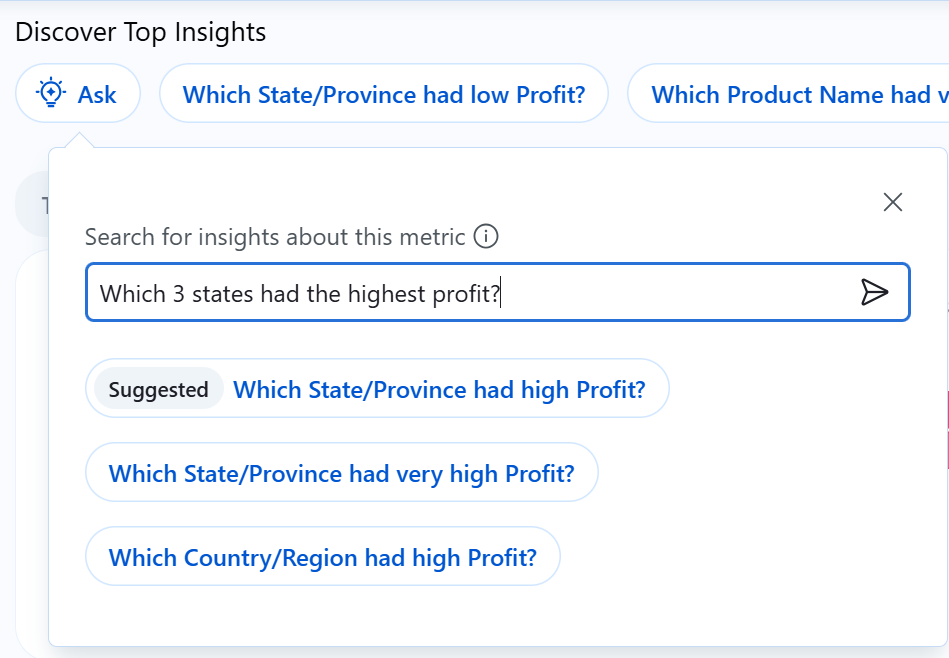
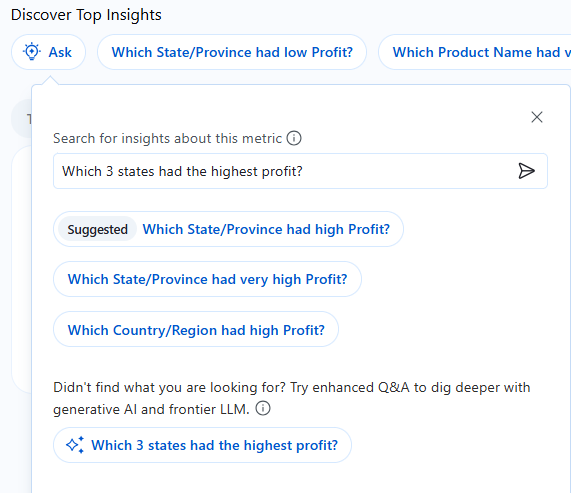
Below is an example of what happens when you type a question. For example, entering “Which 3 states had the highest profit?” brings up a list of suggested questions that you can select from. Instead of using generative AI to freely answer questions, Tableau semantically matches your input against pre-detected insights to surface relevant suggested questions and responses.
When the AI for Pulse Discover (Enhanced Q&A) is enabled, the experience changes to include a generative AI-powered layer for answering questions.
When you ask the same question, you still see suggested questions appear, but now there is also an option to ask your exact question at the bottom. Selecting this takes you into a conversational interface where the AI generates a response and allows you to continue interacting through follow-up questions.
Similar to what you saw on the home page with “Analyze with AI,” these features are part of Pulse Discover — the integration of generative AI in Pulse, where users can directly talk to AI.
Before we move on to how the AI works in Pulse, there is one last setting to cover. If you remember, in the AI settings there was an option for improved semantic matching (colored in blue).
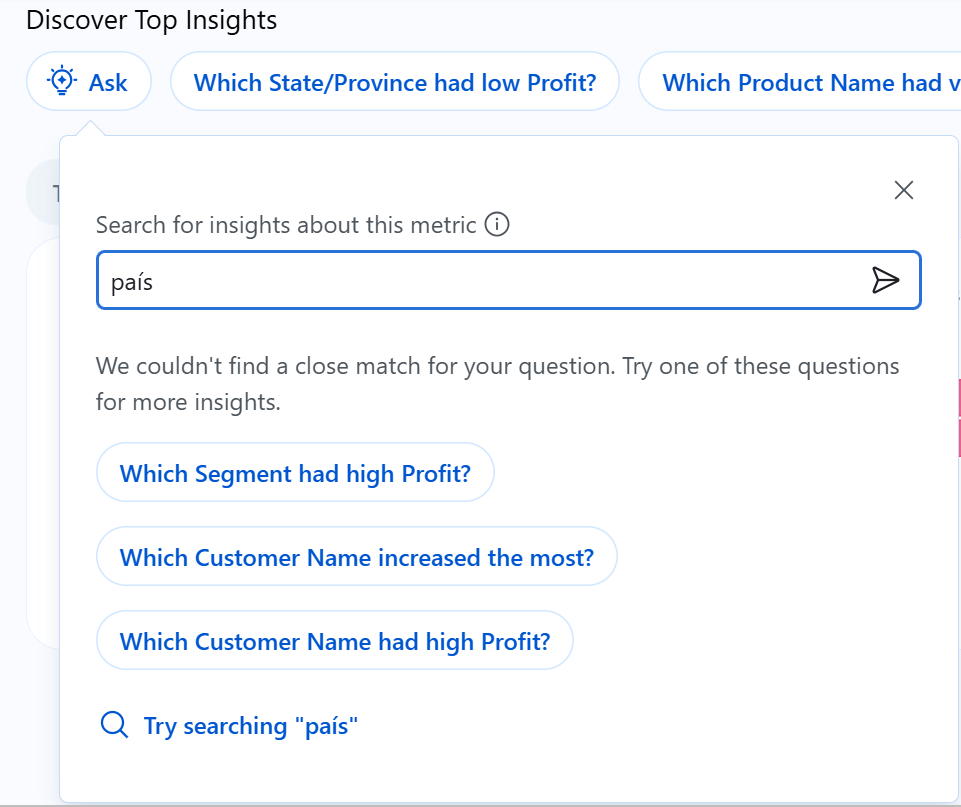
Below is what happens when you type “country” (país) in Spanish with the AI setting for improved semantic matching turned off. You can see that the suggested questions do not surface any insights related to “country.”
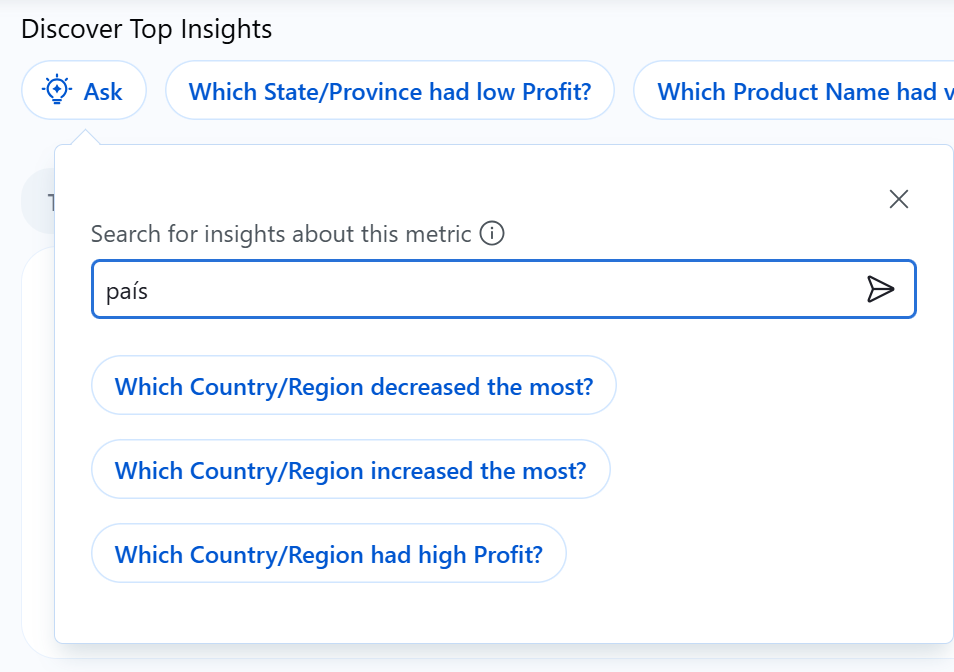
However, when this setting is turned on, the suggestions show improved semantic matching and language handling, allowing it to surface relevant insights related to “country” more effectively.
These were the features and interactions enabled by turning the AI settings on in Tableau Pulse.
Next, we move on to how AI is used within Pulse in more detail — specifically: what you can ask the AI, and what data it has access to. This is a separate post which you can read here.