


This is a very simple way to make an interactive dashboard that toggles between light and dark themes.
Tip - You will be building two dashboards. Add dark mode at the very end of the workbook making process because if you need to make edits after adding dark mode it takes twice the effort (or more).
Step 1: Make a dashboard with a light theme background
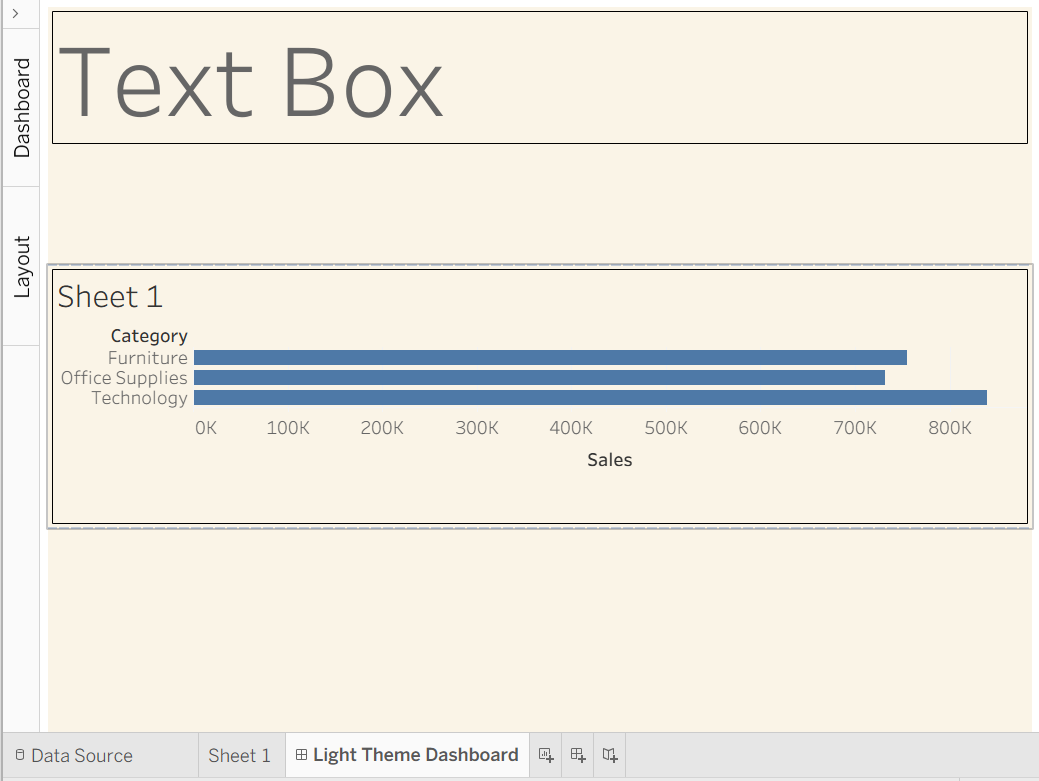
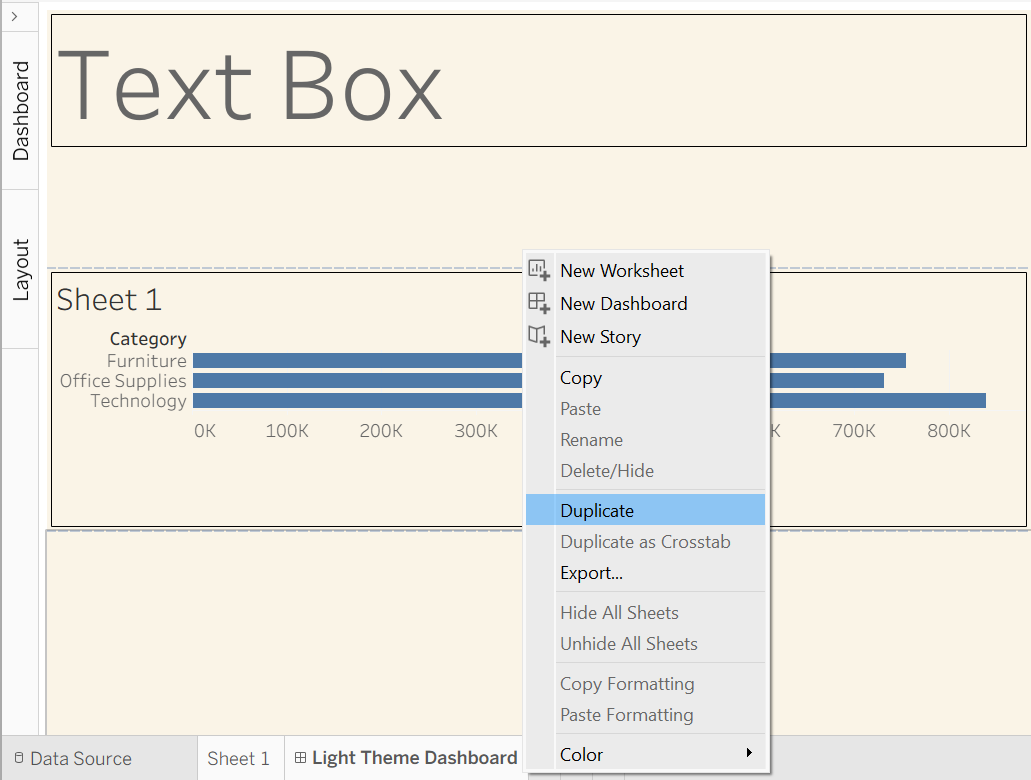
Step 2: Duplicate the dashboard and the sheets inside it
Step 3: Change the background color of the duplicate Dashboard
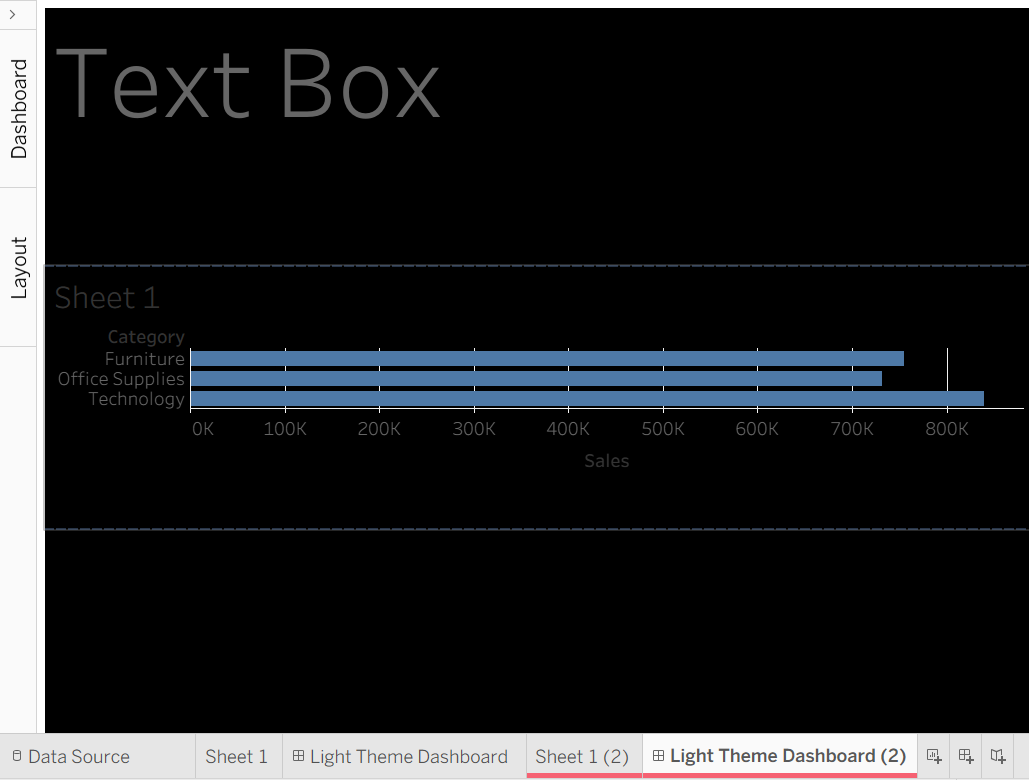
Step 4: Change the text color in the text box
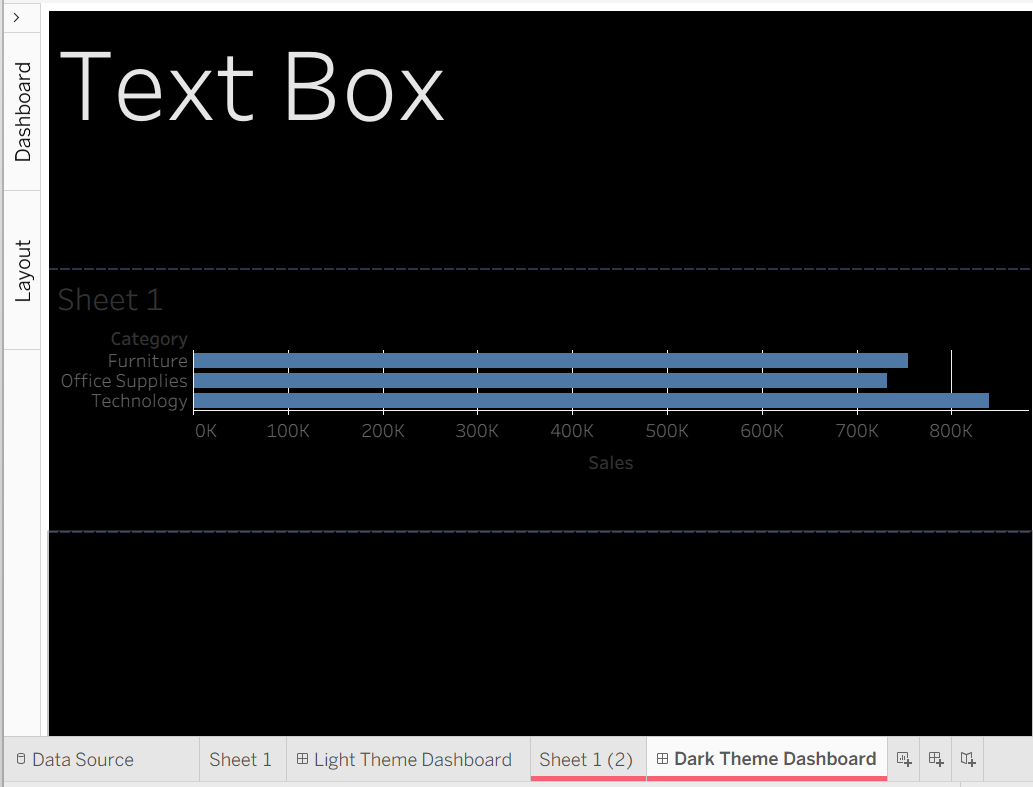
Step 4: Replace the sheet with the duplicated sheet
WARNING: Sheets are shared between dashboards. If you edit the sheet without replacing it with a duplicated sheet, it will affect the light theme dashboard.
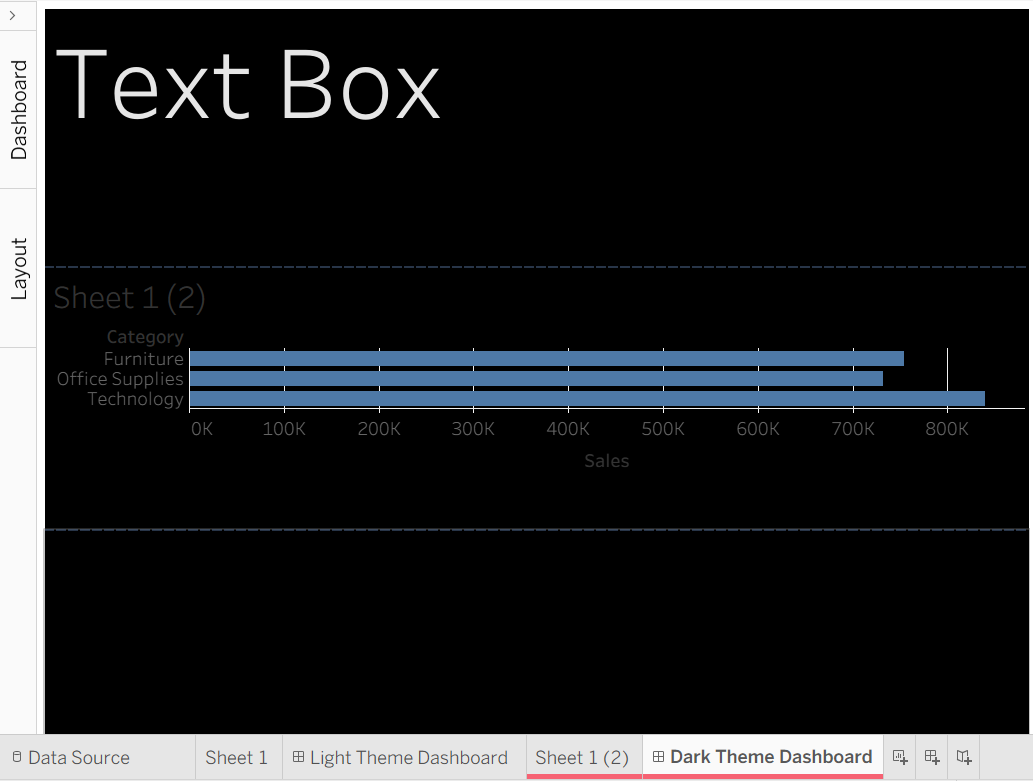
Step 5: Change the colors in the duplicated sheet

Step 5: Get a Navigation Button on the dashboard
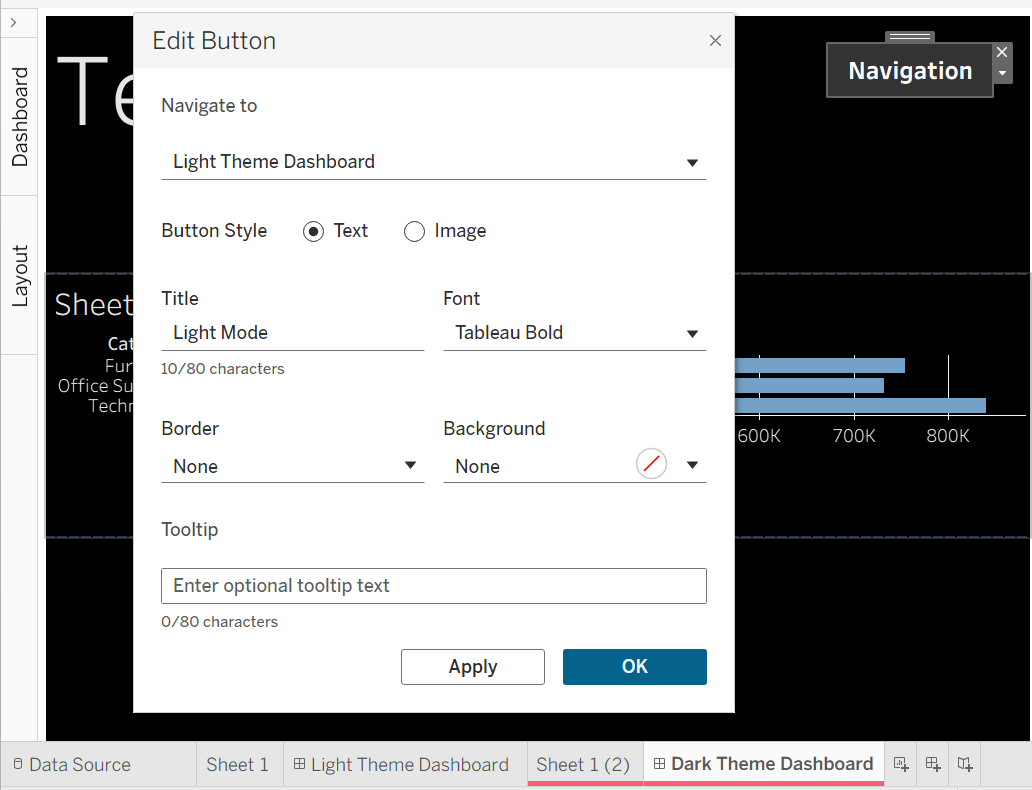
Step 6: Put a Navigation Button in the Light Theme Dashboard
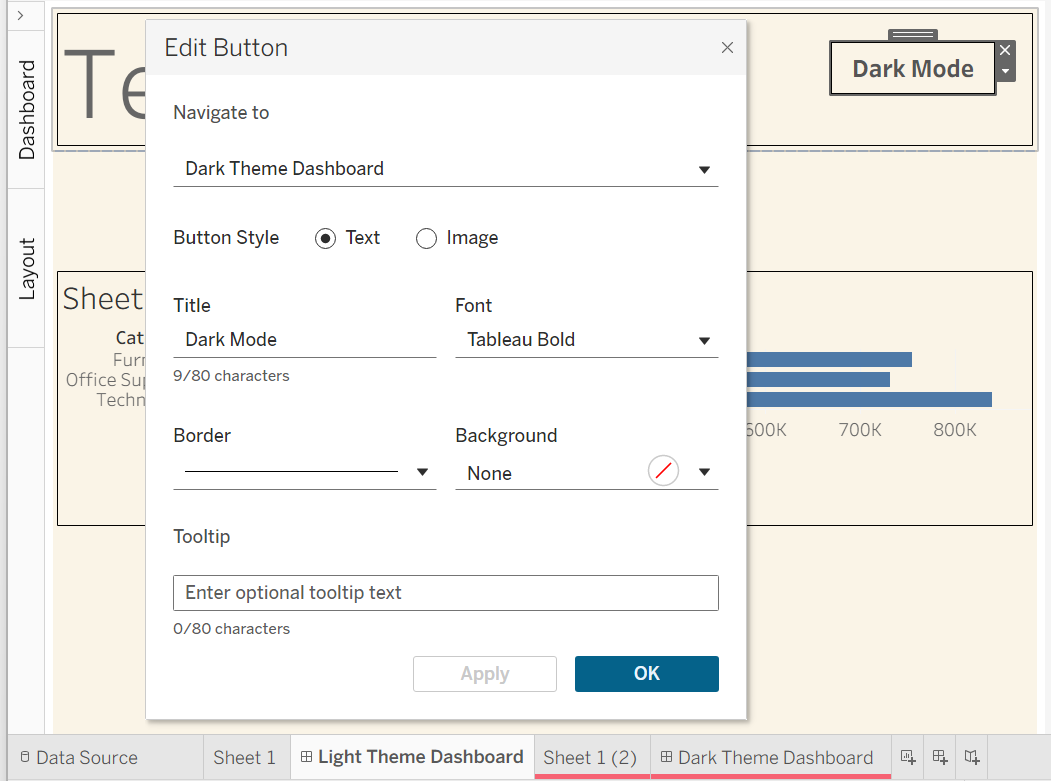
Now if users click the button they will shift between light and dark mode!
Here is a dashboard that I built - click on the icon on the top right to toggle between light and dark mode.