


You might encounter a situation where you receive packaged workbooks from a colleague or client that include a custom color palette. While you can use that custom palette within the workbook itself, any new work you create won’t automatically have access to it. To use the palette in your own work, you’ll need to extract it and add it to your Tableau repository. Here’s a quick tutorial on how to do just that.
Step 1: Download and locate the workbook

Step 1b (optional): Check the color palette inside the workbook
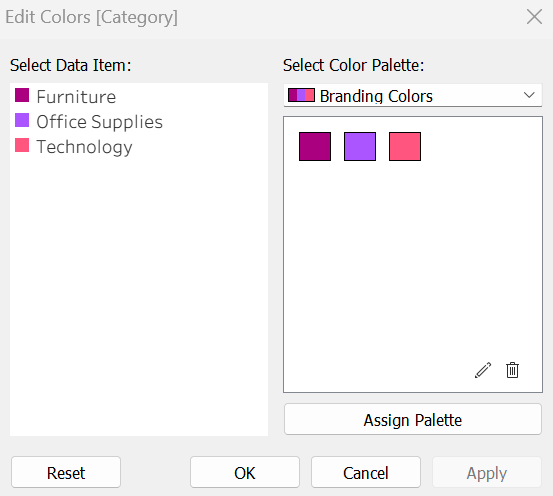
This workbook has a custom color palette named "Branding Colors".
Step 1c (optional but recommended): Make a copy of the workbook. What you are about to do from step 2 will change the packaged workbook file itself, so I recommend continuing step 2 from a copy of the packaged workbook.
Step 2: Change the packaged workbook into a zip file

Right click and rename the packaged workbook to have a .zip extension.

You will be prompted with this warning - click yes.
Now you should see the packaged workbook as a zip file.

Step 3: Unzip the zip file
Right click and "Extract All" from the zip file

This will separate the data from the workbook. You will now see a workbook (twb and not twbx) and a data folder.

Step 4: Open the workbook with a text editor
Right click and open the workbook in a text editor (I am using Notepad)
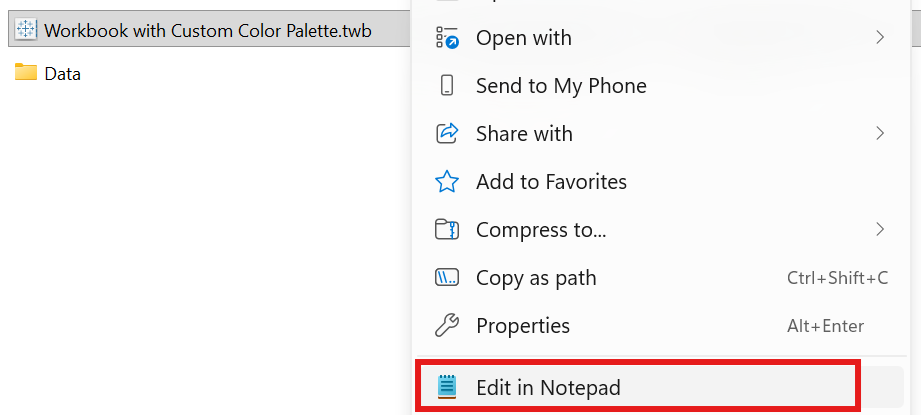
Now you will see the workbook in its XML format
Step 5: Search for "<color-palette"
In the text editor, search for "<color-palette"
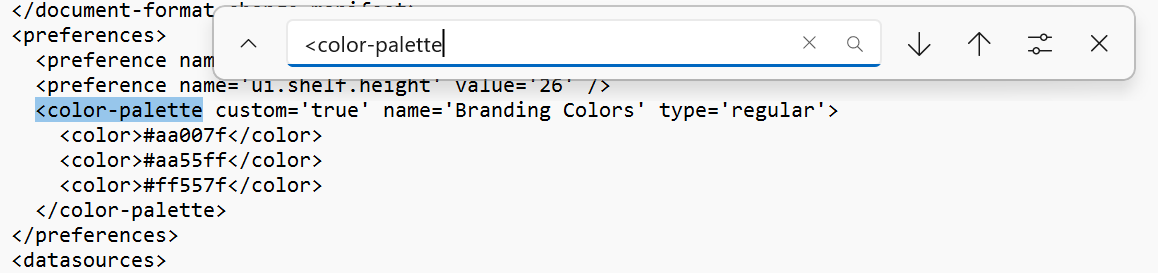
You will find a match (or matches if there are multiple custom palettes).
You can see that the name of the <color-palette> tag is set to 'Branding Colors', which is the palette that we want to extract.
Step 6: Copy the entire <color-palette> tag(s)

I am copying the entire contents of the <color-palette> tag. The hexacodes inside the <color> tag is the colors used in the custom palette.
Step 7: Paste the copied tag inside your own Tableau Repository
Locate your "My Tableau Repository" folder in your documents.

Open the "Preferences.tps" with a text editor
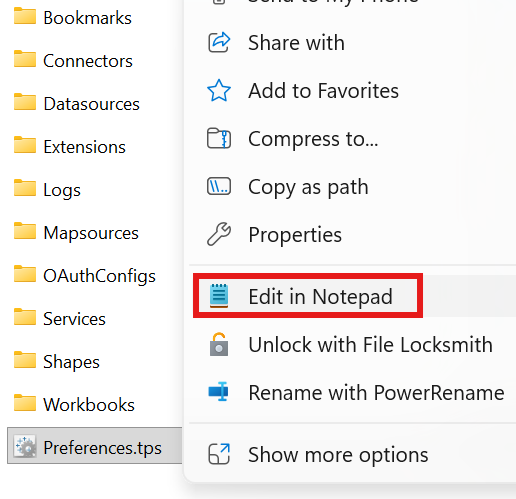
And paste the color palette tag you copied inside the <preferences> tag.
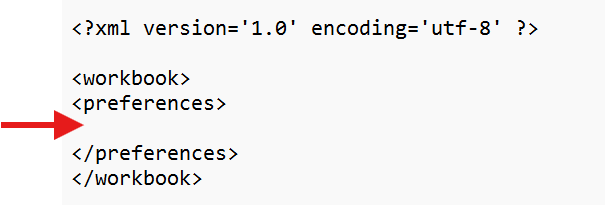
If you already had some custom color palettes, there should already be some <color-palette> tags inside the <preferences> tag, so paste below it.
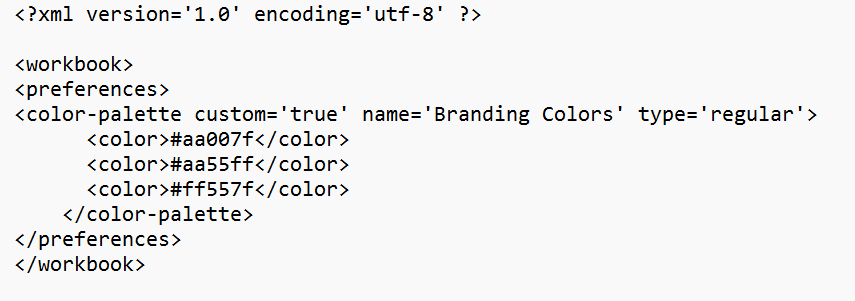
Once you add the color palettes into your "Preferences.tps", every new workbook you make will have access to those color palettes!