


Filter panes and parameters take up valuable space in dashboards, especially when they are not relevant to your current view. Last week we were taught dynamic zone visibility, which addresses this issue. It provides a toggle to hide or show different views based on the user's selection. Use cases range from swapping views entirely to building a guided story. In this tutorial, I will go over a simple but important use case for Dynamic Zone Visibility: quickly hiding filters or a settings pane on a dashboard.
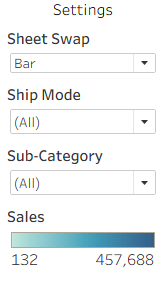
The problem: Let's say these are the filters and legends we want hidden, underneath a toggle called “Show Settings”.
1. Put all your filters and parameters in the same container on the dashboard.
- DZV operates on the container level, so anything you want to hide has to live together.
2. Create a toggle parameter:
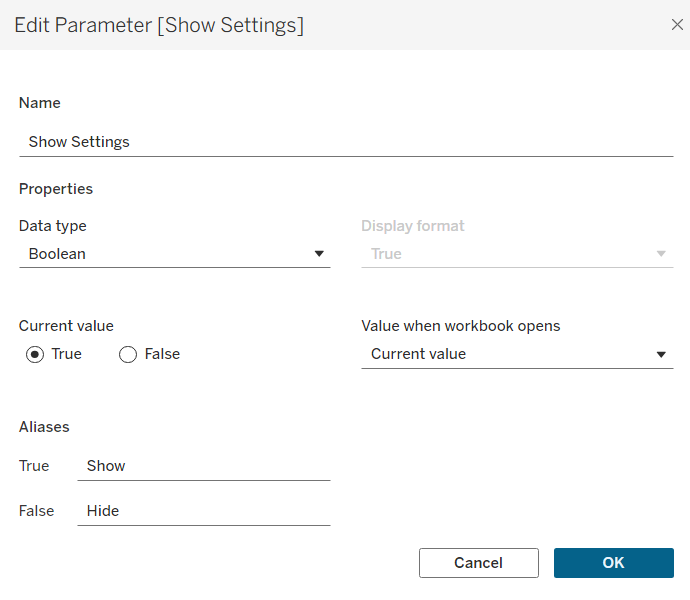
- Name it “Show Settings” with a Boolean type.
- Set Allowable values to List, and under Display As alias, change True to "Show" and False to "Hide" so users see readable labels that make sense.
3. Show the Parameter
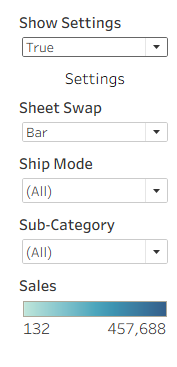
- Within your dashboard, show the parameter, but outside the filter container.
- Drag it above the container holding all the filters.
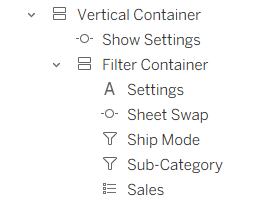
- Your hierarchy should look like this:
- Outer vertical container
- Show Settings parameter control
- Inner container (all filters and parameters)
- Outer vertical container
This is important because if you place it in the same container, the parameter toggle will disappear with all your filters.
4. Apply Visibility Control
- Select the container holding all the filters, open the layout pane → check the “Control visibility using value”, and choose “Show Settings”.
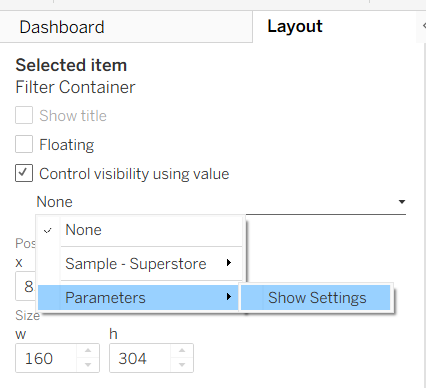
Now, when you toggle hide, the whole container disappears, along with your filters and settings.
There are many use cases for this, and we have already used them in our client projects. Most notably, for one of our projects, one view let users switch between comparing whole groups and comparing members within a group. Each mode required four parameters to determine what to compare, and the two sets differed. Without DZV, all eight sat on the dashboard at once, four of them irrelevant, confusing, and taking up space at any given moment. Wrapping each set in its own container and utilizing DZV meant users only ever saw the four that applied, resulting in a much cleaner look.
One limitation to be aware of is that the visibility option only appears for floating objects or objects inside a container. A tiled worksheet won’t have this option, so you must container your objects first.