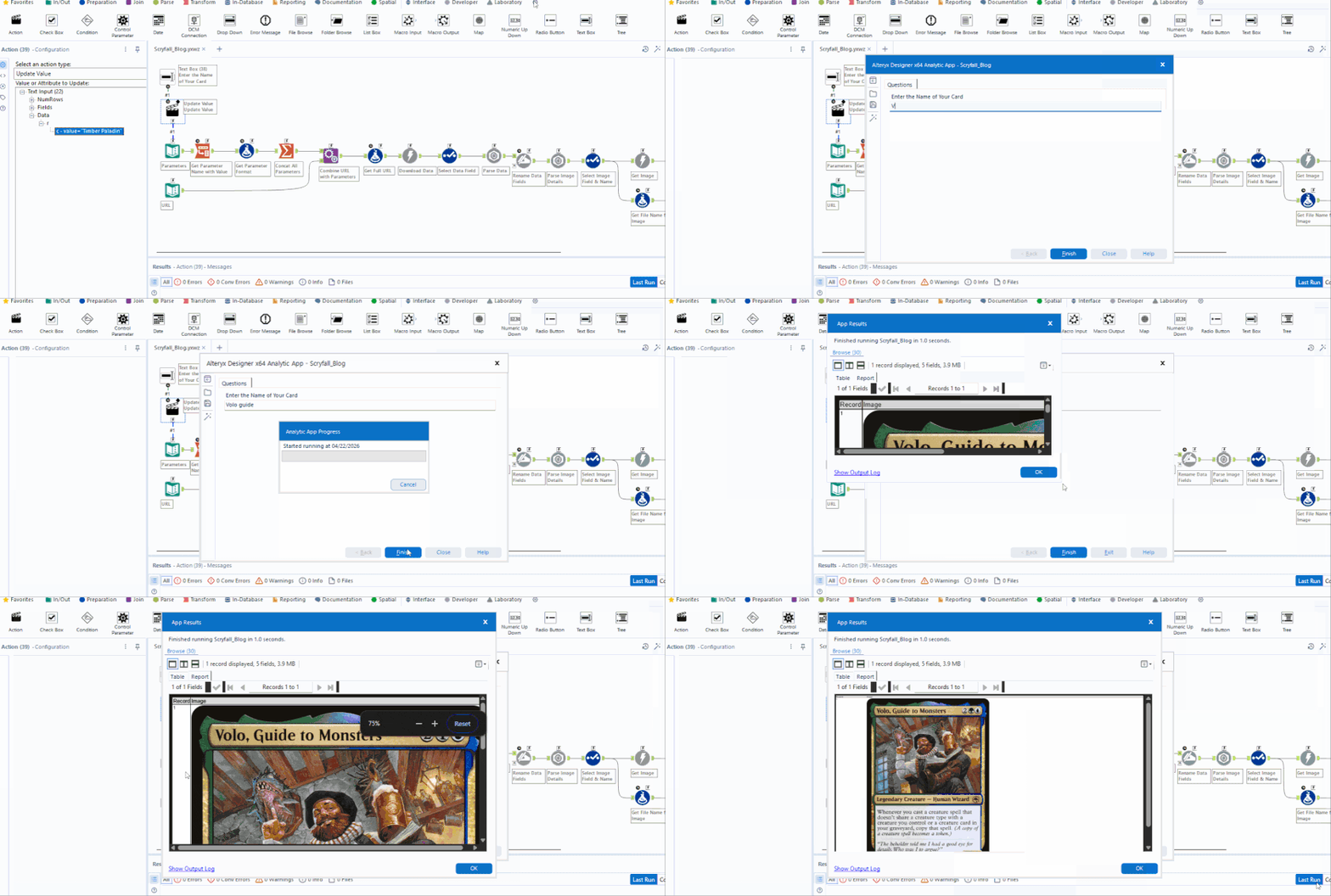
As a follow-up to a previous blog post of mine on APIs in Alteryx, this one will be covering how a workflow in Alteryx can be transformed to be interactive to the user by making it into an app. Here we'll be working with the Scryfall API again, which was previously used to return a random card. Instead, we'll be looking at a different request: the fuzzy search.
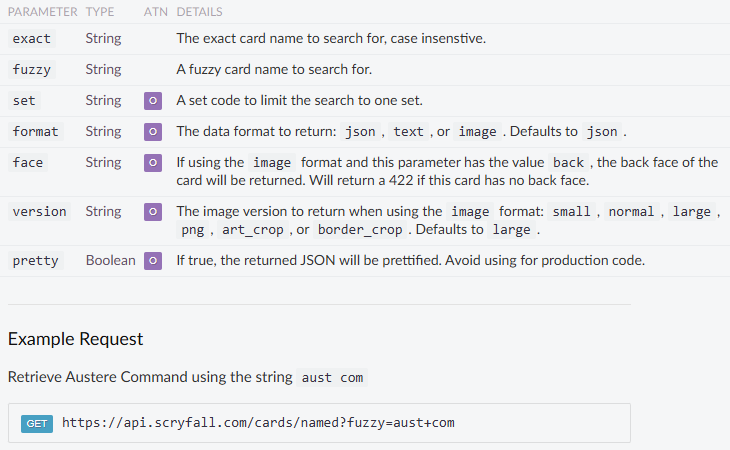
With the /cards/named request, there are various different parameters that we can append onto the URL to change the response that we get from the server. They are documented well here, showing what the different possible options are for the parameters.
When working with APIs, we can define parameters in the URL by adding a question mark '?' to the end of the URL, followed by the name of the parameters and the value for the parameter. When we want to join together multiple parameters, we use the ampersand symbol '&' after a parameter to lead into the next one. A different request that uses multiple parameters could be:
GET https://api.scryfall.com/cards/named?exact=blasphemous+act&version=png
This would return the card Blasphemous Act with the version of the image being a png type.
But if we use parameters, we could also let the user decide what card it is that they want to see. This is where converting the Alteryx Workflow into an App comes in handy. An Alteryx App allows for user interaction within the workflow, typically deciding what values are used in the workflow.

For an Alteryx App, this uses the Interface suite of tools in Alteryx to define how the user can interact with the workflow. Most of these tools decide how the user interacts with the workflow. But the key one that defines how the interaction is done within the workflow is the Action tool. The Action tool links the Interface tool with the target tool it wants to replace values in.
The first thing to do when building an Alteryx App is to build the workflow that will be eventually converted into an App. This includes having some default values that will be replaced by the user input. For this task, I want to be able to see and download the image of a card provided. This can use the basis of the previous workflow, changing the URL provided to match the new one used for this request.
An addition of a parameters text input also lets us eventually add on the information of the parameters onto the URL. For this workflow, this is another text input with two fields: parameter name and parameter value. The App will eventually replace the parameter value with the User Input, but for now it will be populated with some values.
With some preparation, we can get the text input into a single field and row that can be appended onto the URL, which is then fed into the download tool for the API request. The results from that API request is processed, unnesting the JSON and eventually using another download tool to download the image locally.
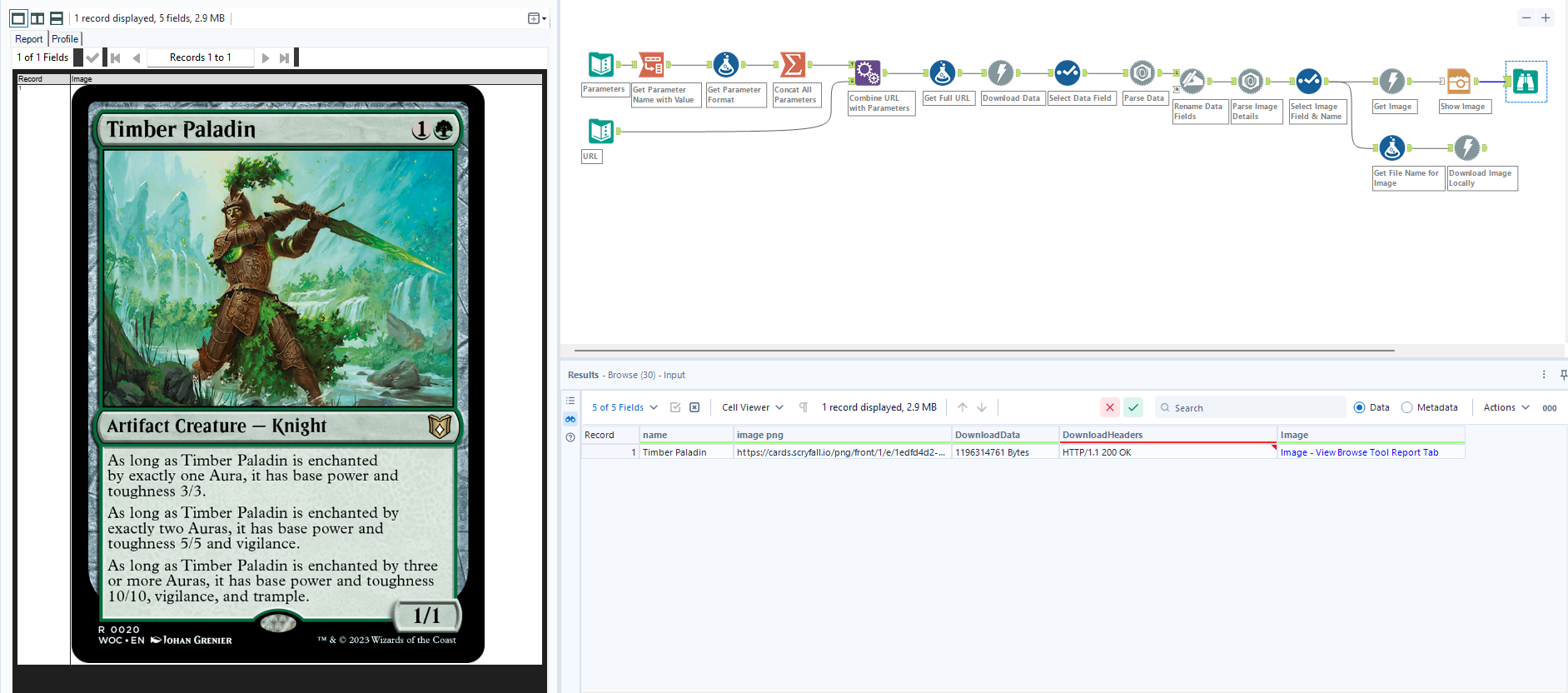
Now that we have our workflow, we can see where we want to have user input. In the case of this workflow, it will be to replace the parameter value for the card name with whatever the user wants to type in. This will be the text box option from the Interface tools to get the value we need.
As soon as this is dragged in, some changes will happen to the workflow. New icons appear over the existing tools and a wand appears next to the run button. The new icons above your tools represent where the Interface tools can interact with the other tools. The wand is when you want to run the App itself, bringing up the UI for the Alteryx App.
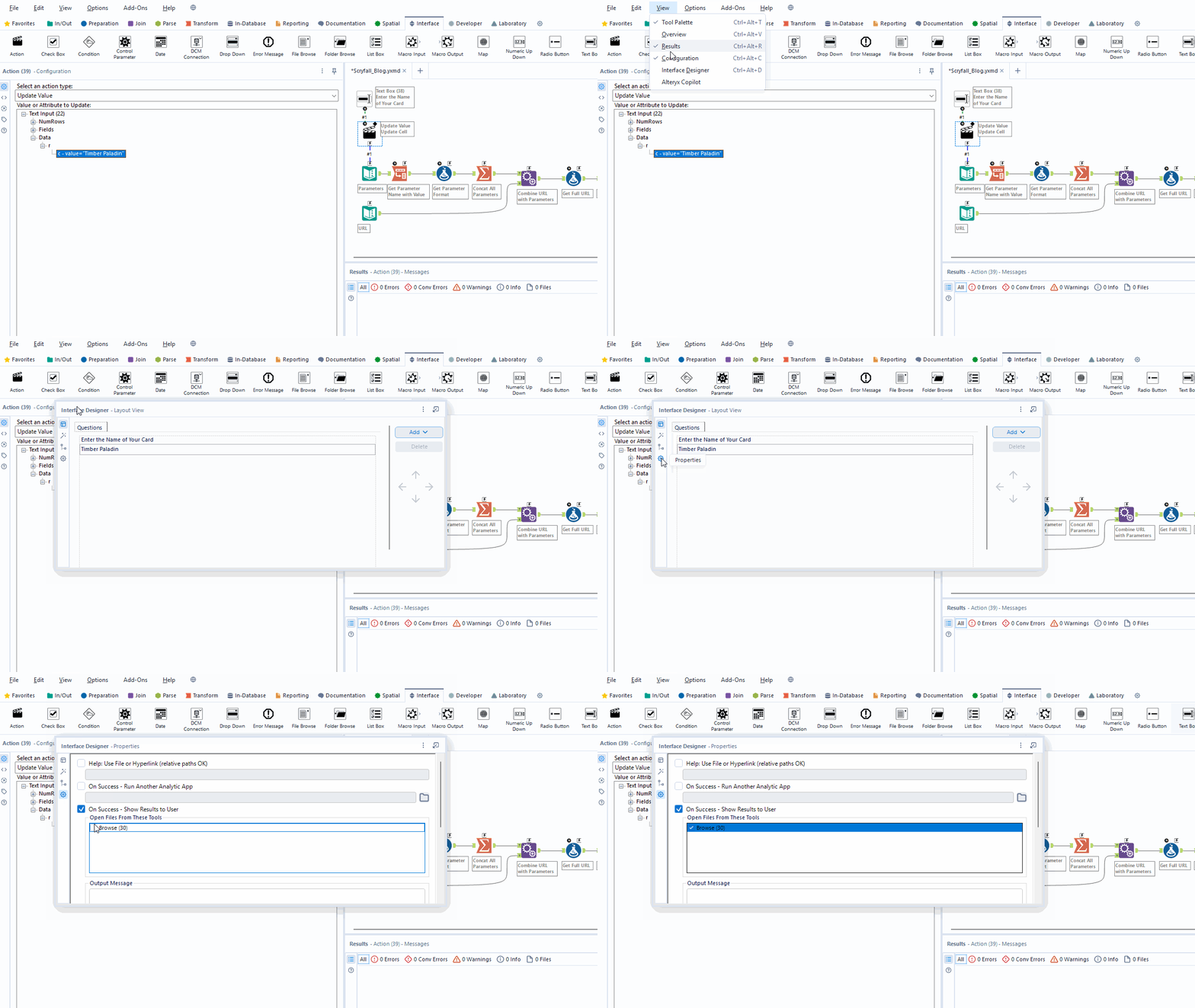
We can use the Action tool to determine how the Interface tool will interact with the Text Input that is being used for the parameter. The Action tool has several different ways it can be used, but here we will be updating a specific value. Here we can navigate through the different details about the Text Input and select the value we want to update with the Text Box result.
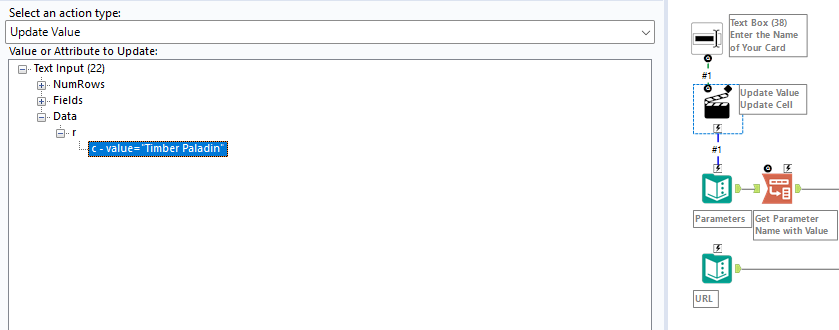
There is also the option to replace a specific part of a string with the input from Interface tool. This can be helpful if you are receiving a list of some kind and only want to replace a specific part of a larger input. One example of this is replacing the values being used to check against in an IN function by swapping the value already present for the result from the Interface tool.
Now that the interface tool is set up, we can set up how the App will look. We can navigate to the Interface Designer under the Views tab. Here we can see what the app will look like when it is run, in this case showing the text box. We can then set the extra properties of the App, such as what to do when it succeeds. For this case, we'll have it show the results of the Browse tool at the end of the workflow.
Now we can use the wand next to the run option to see how the App will run. Clicking on it will go through the run, using the Interface tool to interact with the results of the workflow. Since this was using the fuzzy name parameter when searching for a card, the specific name isn't required, leading to a smooth use case. This is then saved as a .yxwz type, rather than the more usual .yxmd or .yxzp files used for Alteryx workflows.