


When designing a Tableau workbook, simply choosing the right connection type between Live and Extract is one of the simplest but most effective changes you can implement. Aside from database optimisation itself, how Tableau is connected to your data source can also be optimised for performance, ensuring a fast and responsive user experience.
Below is a guide to understanding Live and Extract connections, along with ways to optimise both types of connections.
1. Live Connections
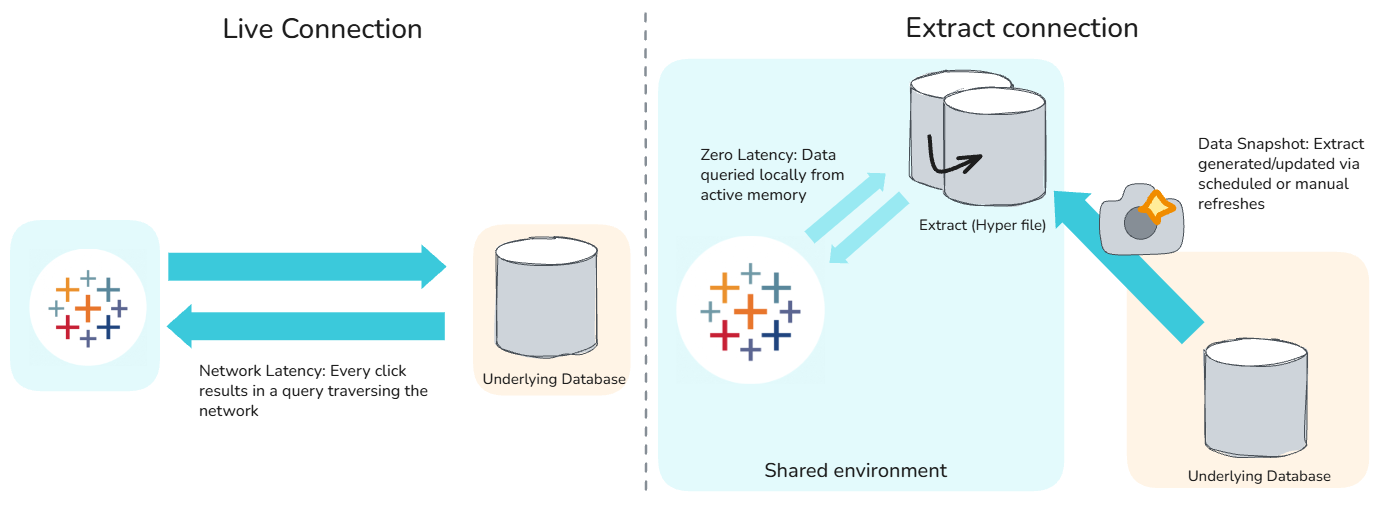
A live connection turns Tableau into a visual query generator. Every time a user interacts with a dashboard, Tableau translates those actions into a SQL query, sends it over the network to the underlying database, waits for the database to process the logic, and then renders the results on screen.
If the underlying database is slow, the Tableau workbook will be slow. Because data queries go directly through the database, they can only be as fast or as optimised as the database itself. Many traditional operational databases are not optimised for heavy analytical queries, which adds significant slowness. Performance is entirely dependent on the database processing power, network latency, and current traffic.
You should generally only use a live connection if business requirements dictate real-time data monitoring, or when utilising highly optimised, cloud based data warehouses like Snowflake or Google BigQuery.
Optimising Live Connections
If a live connection is mandatory, the guiding principle is to push the heavy lifting back to the database.
Avoid Custom SQL
Tableau treats Custom SQL as a subquery, wrapping its own SELECT statements around your code. This creates complex nested queries that databases struggle to execute efficiently.
Instead of using Custom SQL in Tableau, you could create a View/Materialised View in the database and have a live connection directly to this pre-prepared view. This approach allows you to maintain real-time updates through a live connection, while benefiting from the database engine's ability to execute its own native views more efficiently than nested Custom SQL
Assume Referential Integrity
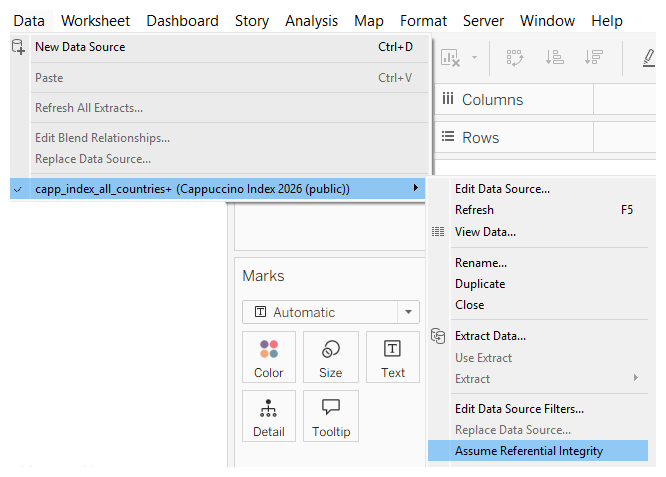
Tableau’s modern Logical Tables (Relationships) automatically optimise queries. However, if your data model requires traditional Physical Joins, you can manually speed up your live database queries by selecting 'Assume Referential Integrity' from the Data menu. This tells Tableau that every record in a secondary table has a guaranteed matching record in the primary table. With this, Tableau can dynamically drop tables from a query if they are not required to render the current visualisation.
2. Tableau Extracts (Hyper)
For the vast majority of use cases, extracts are the recommended best practice. Instead of constantly asking the database for information, an extract takes a static snapshot of your data at a specific point in time. When you generate an extract, Tableau queries the original database once, downloads the results, and saves them in its proprietary Hyper format within the Tableau environment (whether on your local machine in Tableau Desktop, or hosted on Tableau Cloud or Server).
When a user opens the dashboard, this extract is loaded into the active system memory of the machine running Tableau. This architecture improves performance for two main reasons.
- First, because the data and the dashboard now reside in the exact same environment, the network latency caused by sending queries back and forth to an external database is eliminated
- Second, the Hyper format is a columnar data store. Traditional databases often read data row by row, which is inefficient for analytics. A columnar database stores data by column. For example, if your chart only needs 'Sales' and 'Region', the Hyper engine only reads those two specific columns and ignores the rest
Benefits of Extracts
- Performance and Reduced Wait Time: Because network latency is eliminated and the columnar data is loaded directly into active memory, Tableau can query the data and render visualisations with minimal delay
- Reduced Database Load: By offloading the processing to Hyper, you prevent heavy Tableau user traffic to databases
- Portability: Extracts can be packaged with a workbook into a .twbx file, providing an easy option for offline sharing and collaboration
- Data Freshness via Incremental Refreshes: While an extract is a static snapshot, you do not always have to rebuild the whole file. Using incremental refreshes allows Tableau to only pull in the new rows added since the last refresh. This keeps data up to date while being far more performant than a full refresh
Optimising Extract Connections
Creating an extract is just the first step. The extract itself can be further optimised to maximise performance potential.
Hide All Unused Fields
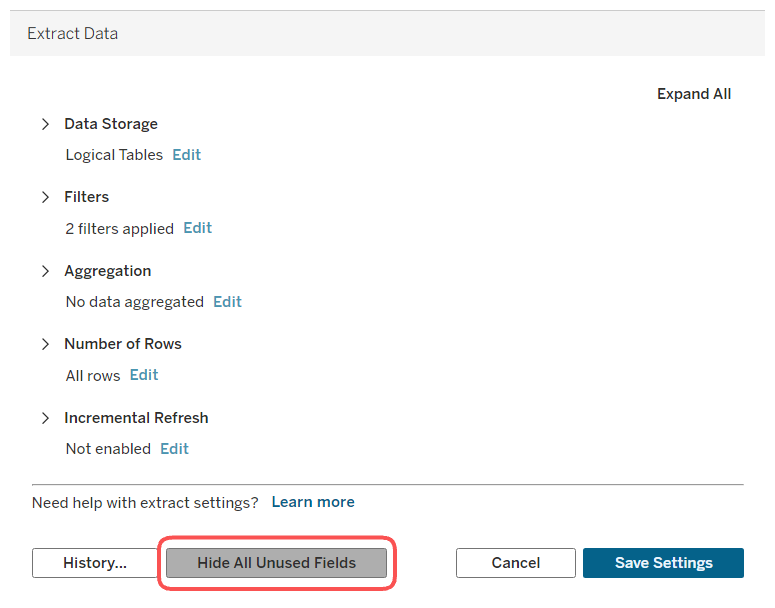
This is the single easiest way to shrink the size of your extract. If a database table contains 100 columns but your dashboard only requires 15, clicking 'Hide All Unused Fields' before generating the extract excludes those 85 columns. This reduces the memory footprint and speeds up query execution. If you later unhide a field, you will need to perform a full extract refresh to pull that specific data back from the original database.
Aggregate to Visible Dimensions
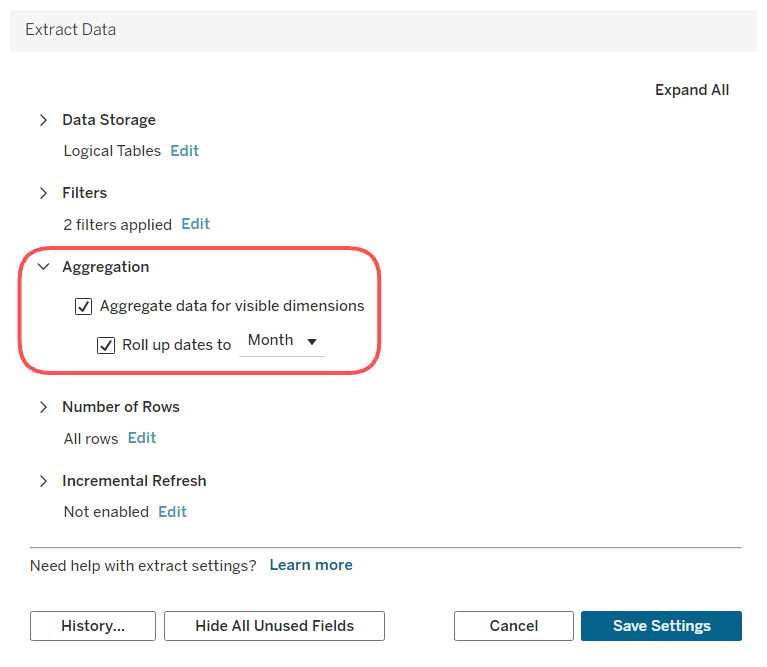
Instead of pulling granular data, you can choose to aggregate the extract. By selecting 'Aggregate data for visible dimensions', you can roll up the data to the exact level needed. For example, if your dashboard only displays sales at the monthly level, Tableau will roll up the dates during the extract creation, condensing the number of rows.
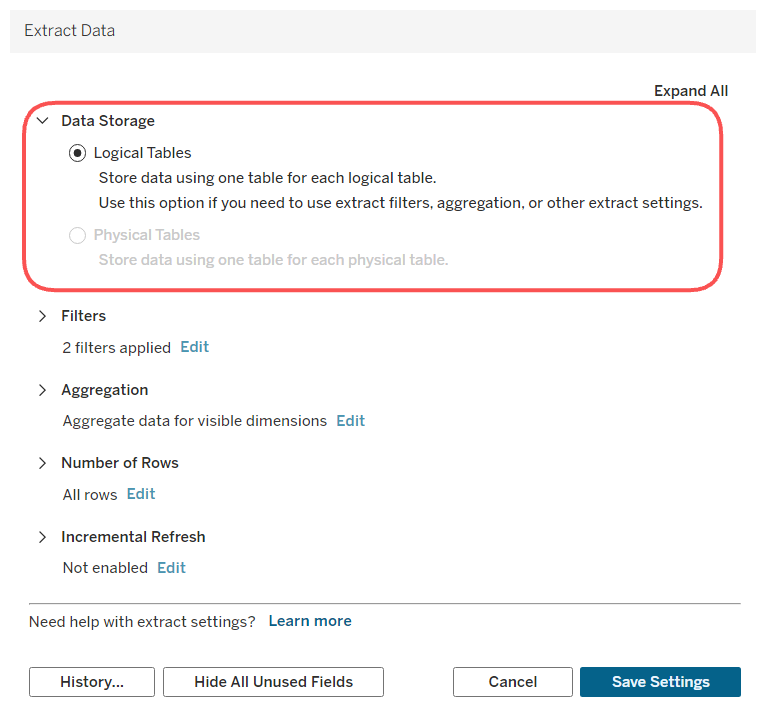
Logical Tables
When setting up your data source, Tableau defaults to using Logical Tables (Relationships) rather than Physical Tables (traditional joins). Sticking with the Logical layer is highly recommended for performance. Traditional physical joins can duplicate rows when combining tables of different granularities, which inflates the size of your extract file. Logical tables respect the native granularity of your data, keeping the extract small and efficient.
Materialise Calculations
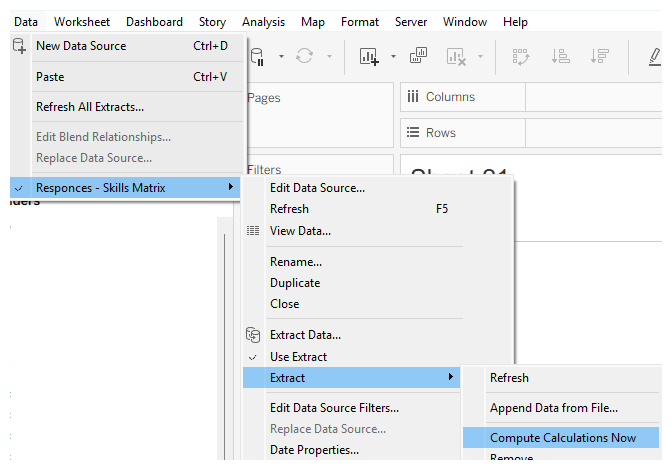
Pushing complex calculations to the database so they are computed overnight is always recommended. However, if you do not have write access to the database or cannot get a view created, materialising your calculations in Tableau is the next best option.
If your workbook contains processor heavy calculations (e.g. string manipulations), you can force Tableau to pre-calculate these fields when the extract is created. Instead of computing the logic on the fly every time a user loads the dashboard, Tableau simply reads the pre-calculated static column.
Embedded Extracts vs. Published Data Sources
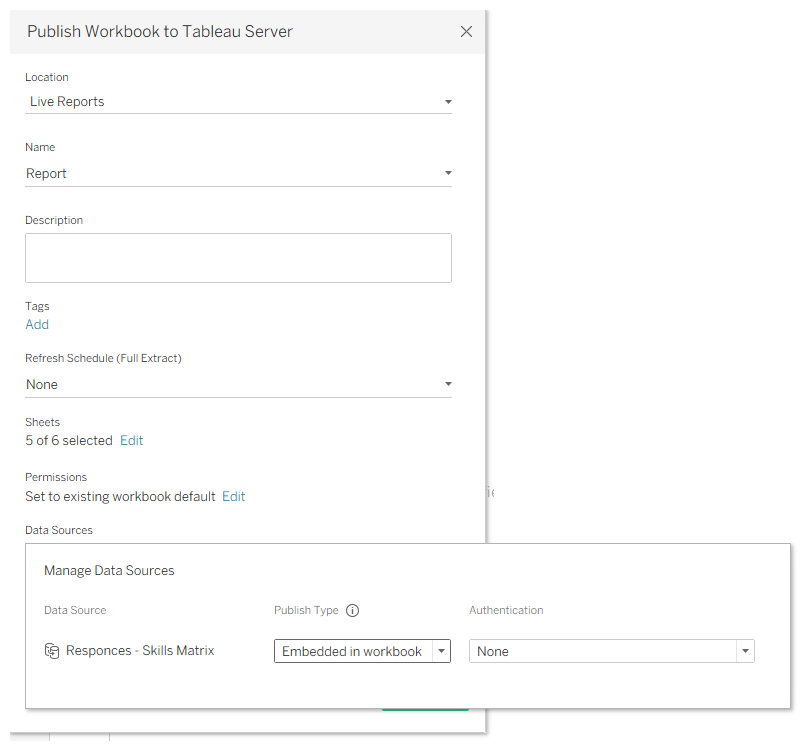
When you publish a dashboard to Tableau Cloud/Server, you have two choices for how the extract is hosted.
Embedded Extracts
An embedded extract is packaged directly inside that specific workbook. You can still set up a schedule on Tableau Server to refresh it on schedule (e.g. daily or hourly). The performance benefit is that Tableau heavily optimises this extract specifically for that single dashboard. The Hyper engine can create temporary, smaller summary tables specifically for the filters used on that exact page, making user interaction faster.
Published (Shared) Data Sources
Alternatively, you can publish the extract independently to the server and connect your workbook to it. The main benefit is maintainability. If you build five different dashboards using the exact same data, they can all connect to this one shared extract, meaning the server only has to execute the database refresh query once. However, Tableau cannot optimise the data structure for all of them as in an Embedded Extract.
For mission-critical or highly visible dashboards where maximum speed is the top priority, embedding the extract is often the better technical choice. For standard reporting where server resource management and governance are the priorities, a published data source is usually the preferred route to maintain a fast, scalable environment.
Summary
Choosing the right connection type is a critical step in Tableau workbook design. Live connections are necessary when real-time data is a strict requirement, but they make the dashboard's performance entirely dependent on the processing power and current load of the underlying database. In these scenarios, pushing the analytical processing back to the database using native views and referential integrity is the most effective approach.
Extracts eliminate network latency and offload processing to Tableau's optimised Hyper engine, making them the most suitable choice for the majority of analytical use cases. By taking the time to hide unused fields, roll up data, and use logical tables, you can build lean, performant extracts that ensure a responsive user experience.