


What is Regex?
Regular Expressions (Regex) are a sequence of characters used to define a search pattern. They allow you to efficiently search, match, extract, validate, and replace text based on specific patterns.
Why is Regex useful?
- Extract values from unstructured text
- Validate emails, phone numbers, dates, and postcodes
- Standardise inconsistent data
- Remove unwanted characters
- Search for complex text patterns
- Replace text efficiently
Basic Regex syntax
Before diving into the examples, let's look at some of the most commonly used Regex syntax. Understanding these symbols will make it easier to read and write regular expressions.
| Syntax | Description | Example |
|---|---|---|
[] | Matches any character in the brackets. | [A-Z] → A, B, Z |
[^] | Matches any character except those in the brackets. | [^0-9+] → space, -, (, ) |
() | Captures the matched text. | ([A-Z]{3}) → LAP |
\d | Matches any digit (0–9). | \d{3} → 231 |
\s | Matches a whitespace character. | SW1A␣1AA |
^ | Matches the start of the text. | ^([A-Z]{3}) → LAP-231-UK |
$ | Matches the end of the text. | ([A-Z]{2})$ → UK |
? | Makes the previous character optional. | colou?r → color, colour |
{n} | Matches exactly n times. | [A-Z]{3} → LAP |
{n,m} | Matches between n and m times. | [A-Z]{1,2} → M, SW |
+ | Matches one or more of the previous character or pattern. | \d+ → 12345 |
Examples
Here are some examples of what you can do with Regex.
Example 1: Extract product category
Output method: Parse
Let's say the first three letters in Product_Code column represent the product category. The goal is to extract them for further analysis.
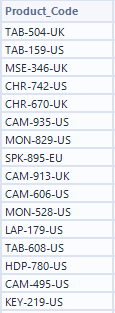
In the Regex configuration, select the column to parse
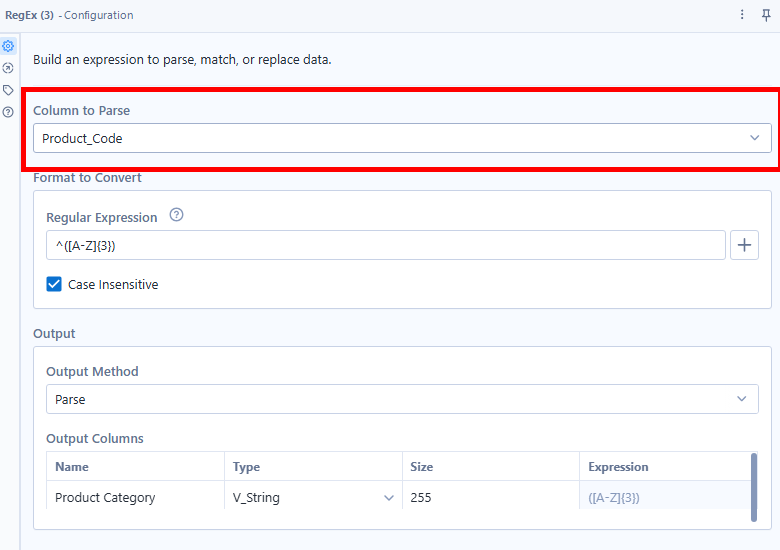
Then specify Format to Convert
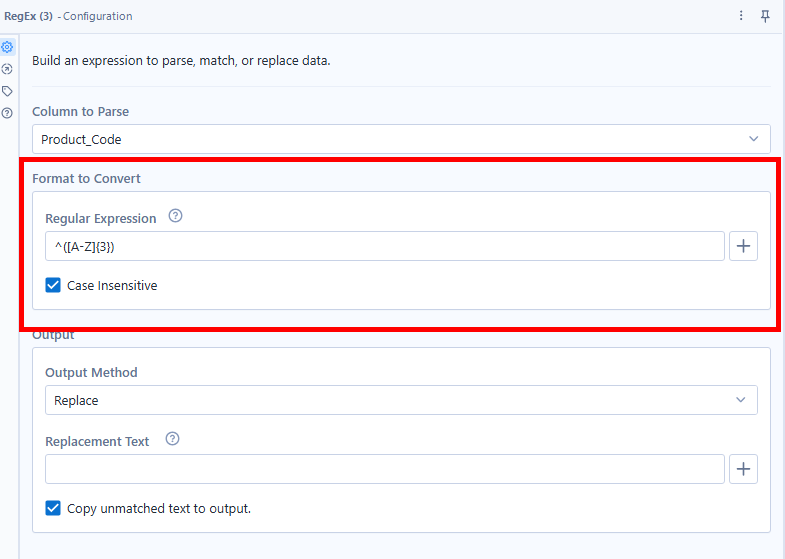
This regular expression extracts the first three letters.
- ^ = start of the text
- [A-Z] = uppercase letter
- {3} = exactly three letters
- () = return this part
Parse extracts text and puts it into new columns.
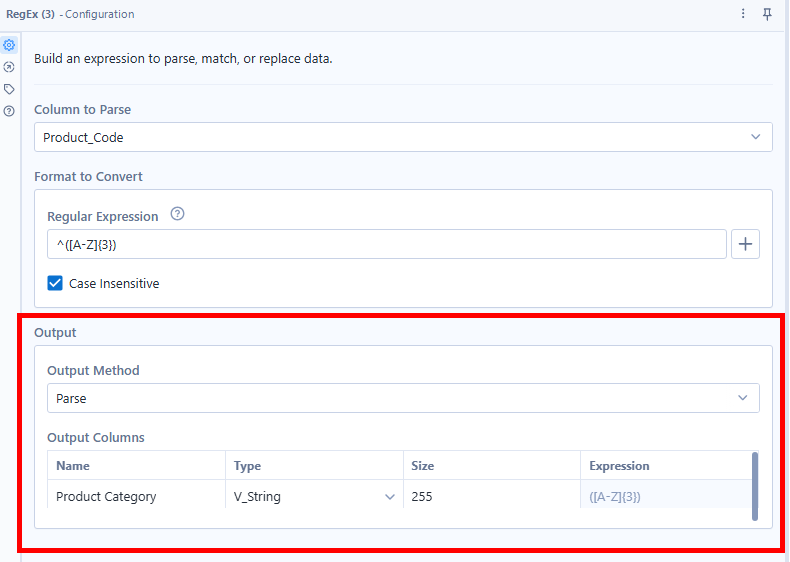
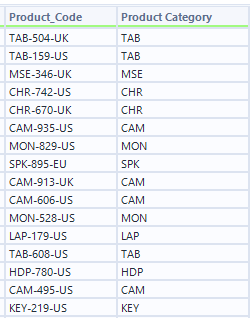
Select Parse as the output method. Rename the output field to Product Category. Expression shows which capturing group each output field is extracted from, providing a preview of what each output column will contain.
The output is shown below:
Example 2: Standardise phone numbers
Output method: Replace
Telephone numbers can appear in different formats when there are no input restrictions for users.
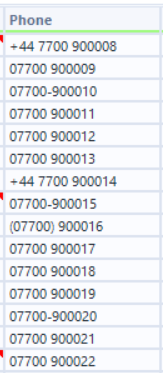
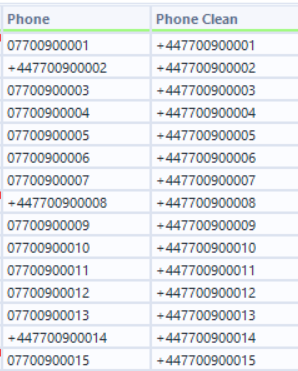
The phone numbers are entered in different formats. The goal is to standardise them into +44XXXXXXXXXX format.
The first step is to remove any unwanted characters.
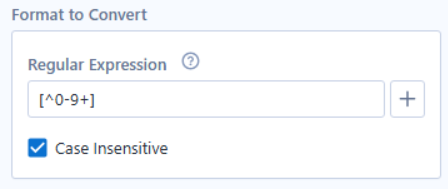
The syntax specifies "find everything except digits and +"
- [^ ] = Not those characters
- 0-9 = digits
- + = Keep the plus sign
In the output section, specify what the matched characters should be replaced with.
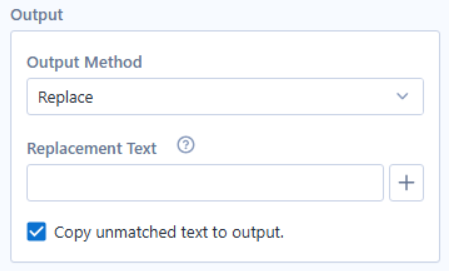
Leaving this blank means I want to replace it with nothing (remove it).
The output is shown below:
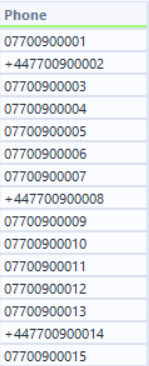
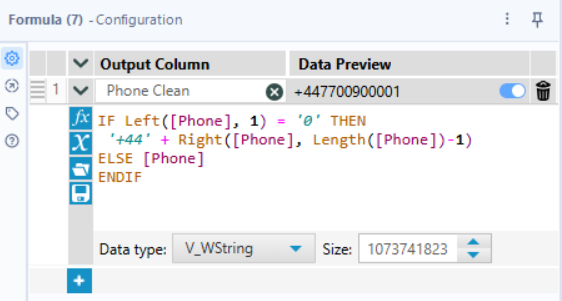
From here, use the Formula tool to standardise all phone numbers to the +44 format.
The output is shown below:
Example 3: Separate postcode from the address
Output method: Parse
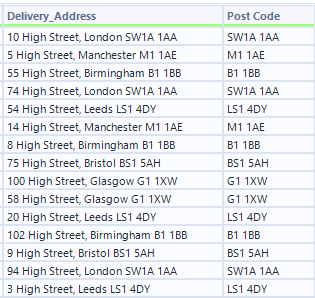
The delivery address is currently stored in one field. I want to extract the postcode into a separate column for analysis.
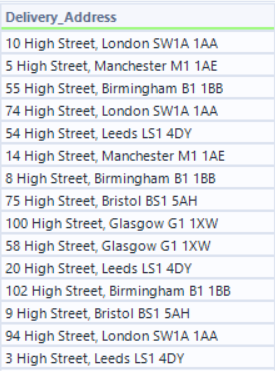
The syntax needs to find the postcode
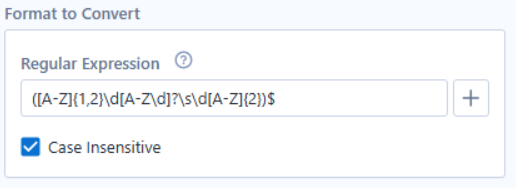
- [A-Z]{1,2} = one or two uppercase letters (e.g. M or SW)
- \d = one digit
- [A-Z\d]? = an optional letter or digit
- \s = a space
- \d = one digit
- [A-Z]{2} = two uppercase letters
- $ = the postcode must be at the end of the address
The output is shown below:
Summary
Regex is a powerful tool for cleaning and transforming data. Although the syntax may look unfamiliar at first, learning the basics will help you solve common data preparation tasks more efficiently. The best way to improve is to practise with real-world datasets and build more complex patterns over time.
Useful link
Regex 101: Test syntax to understand or troubleshoot.
Thank you for reading!