


Interactive dashboards are one of Tableau’s biggest strengths. Instead of creating multiple static visuals to answer every possible question, dashboard actions allow users to interact directly with the data and explore insights on their own. This creates a more personalized and engaging experience.
Making a Dashboard Action
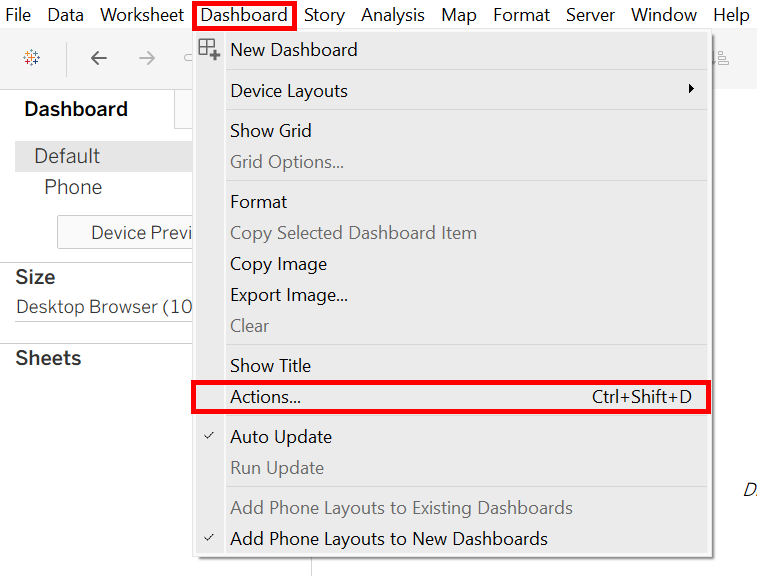
Once you have created your dashboard and added your charts or visualizations, navigate to the Dashboard menu in the top ribbon and select Actions. This opens the Dashboard Actions menu, where you can manage all actions in your workbook.
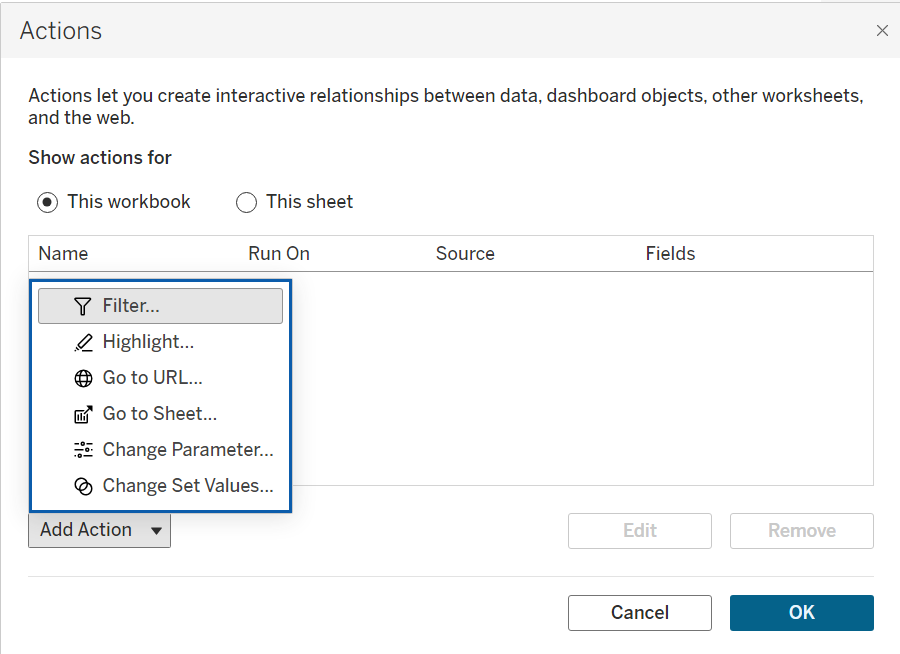
Before creating an action, you'll need to decide which type of action best fits your use case. Tableau provides several action types:
- Filter: Filter one sheet based on selections in another
- Highlight: Emphasize related marks across visualizations
- Go to URL: Open a website or external resource
- Go to Sheet: Navigate to another worksheet or dashboard
- Change Parameter: Update parameter values based on user selections
- Change Set Values: Update members of a set based on user selections
Creating a Change Parameter Action
Parameter actions allow users to update a parameter by interacting directly with a visualization. Before creating the action, you'll need to create a parameter in your workbook. Once your parameter and visualizations are set up, return to the Dashboard Actions menu and select Change Parameter from the Add Action dropdown.
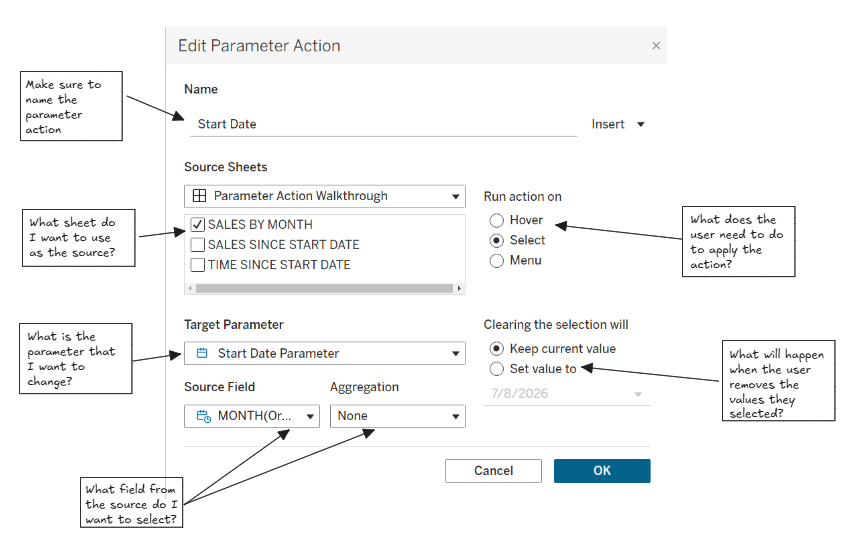
From here, you'll need to configure the action by selecting the source sheet, choosing the target parameter, and specifying which field will provide the parameter value. You can also define what happens when a user clears their selection. For this example, we will allow users to select a data point on a line chart (SALES BY MONTH) to update a date parameter value automatically (START DATE PARAMETER) . Once the action is saved, any calculations or visualizations tied to that parameter will update dynamically based on the user's selection.
Tip: Use “This sheet”
When creating dashboard actions, you might have noticed the option to select between This workbook and This sheet.

As your workbook grows, so does the number of dashboard actions. When creating an action, Tableau allows you to reference fields from either the entire workbook or only the current sheet. Using This Sheet limits the action to the worksheet you're working on, making it easier to find the right fields you need and helps keep your actions easier to understand and maintain.
As a general rule, I recommend using This Sheet whenever possible. It keeps the action configuration cleaner and can save you time when troubleshooting later.