


When building a workflow that connects to an API or scrapes data from the web, you probably don't want to repeat the request every time you test a later step.
Repeated requests can cause you to:
- Hit the API’s rate limit
- Use up your request quota or usage allowance
- Consume paid API credits
- Put unnecessary strain on the website or service
- Potentially have your access temporarily blocked
This is where Cache and Run Workflow can help.
Caching runs the workflow up to a selected tool and temporarily saves the data produced at that point. On subsequent runs, Alteryx starts from the cached data instead of rerunning all the preceding steps.
It can also be useful after a particularly slow process, such as fuzzy matching or spatial calculations, when you do not need to repeat that process while developing the rest of the workflow. However, caching is not necessarily the best solution when the main problem is simply that your dataset is very large.
How to Cache Part of a Workflow
To create a cache point:
- Run and check the section of the workflow you want to cache.
- Right-click the tool at the end of that section.
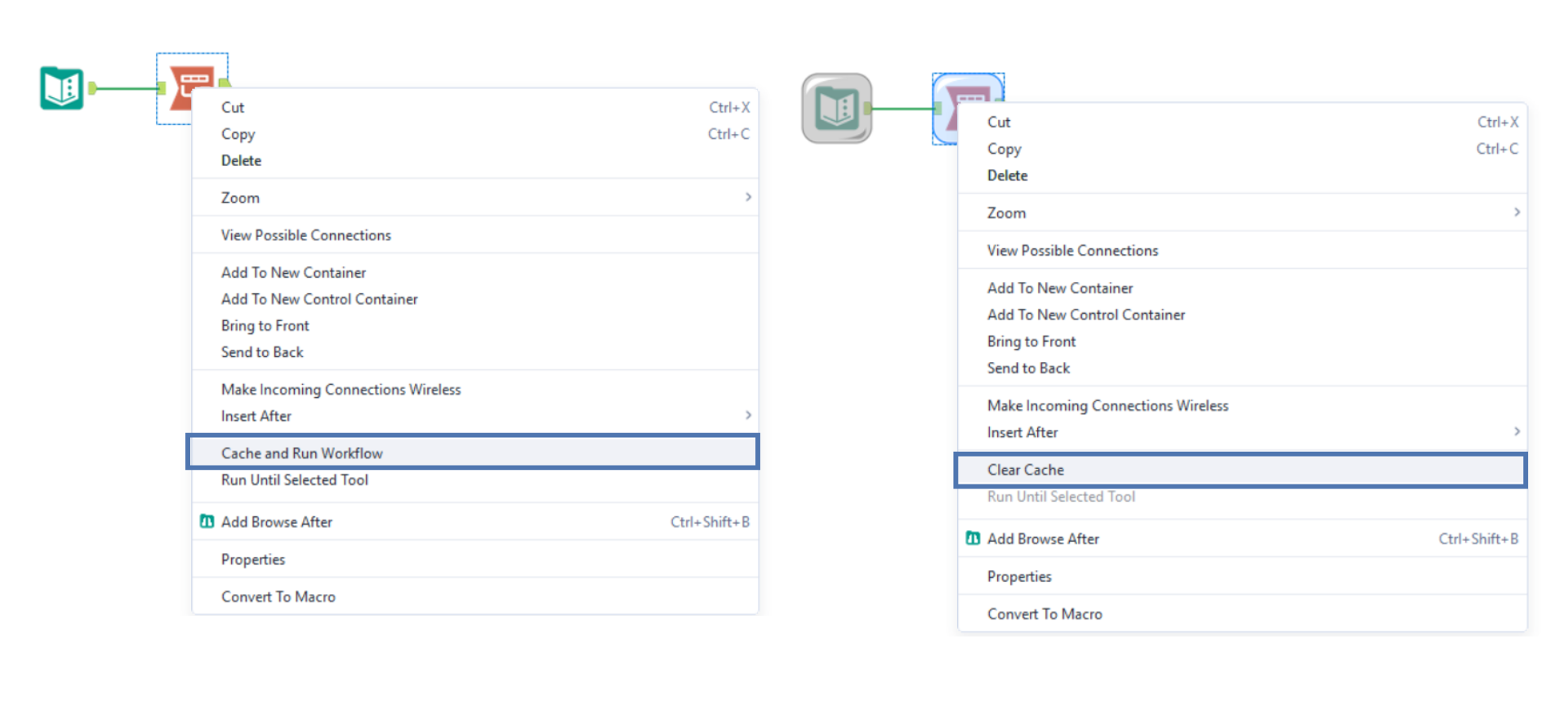
- Select Cache and Run Workflow.
- Continue building and running the tools downstream of the cache point.
Alteryx will now reuse the cached result rather than running all the earlier tools again.
To remove it, right-click the cached tool and select Clear Cache. The cache is also cleared when you close the workflow.
Where Should You Cache?
For an API or web-scraping workflow, cache the data as soon as possible after the request has been completed and the response has been converted into a usable format.
For example:
Download tool → JSON Parse tool → Cache → Remaining preparation
This allows you to inspect and work with the parsed data without sending another request each time the workflow runs.
You should still check that the API response has been successfully downloaded and parsed before creating the cache. Otherwise, you may end up caching an error message, incomplete response or incorrectly structured data.
Check Your Workflow Before Caching
For other slow processes, make sure you are happy with both the configuration and the resulting data before caching.
You can select a cached tool and view its configuration, however, changing the configuration of that tool, or another tool upstream of the cache point, will release the cache and require that section of the workflow to run again. You also won't be able to inspect the cached section’s input and output results in the same way as results produced during the latest workflow run.
It is therefore sensible to check the data carefully before creating the cache, particularly after processes such as fuzzy matching or spatial calculations.
Caching Is Not Always the Best Fix for Large Datasets
Caching uses local computing resources and creates temporary saved data. Very large caches may therefore take up significant space and are not necessarily the most efficient way to manage a workflow containing millions of records.
If the main issue is the volume of data rather than one particularly slow step, it may be better to:
- Work with a sample while developing the workflow
- Limit the number of records at the input
- Remove unnecessary columns and rows early
- Use more efficient file formats
- Test the workflow on progressively larger samples
In Summary
Use Cache and Run when you have completed a section of a workflow that there is a good reason not to repeat, particularly for API calls and web scraping where rerunning a request could cause you to hit a rate limit.
It can also save time after slower processes such as fuzzy matching and spatial calculations, provided you have checked that their configuration and output are correct.
However, caching should not be treated as a general fix for inefficient workflows or extremely large datasets. Cache strategically, and only once you are confident that the preceding steps are producing the result you need.