


When first using sets and parameter for interactivity you might notice that when a value/dimension is selected it greys out everything else.
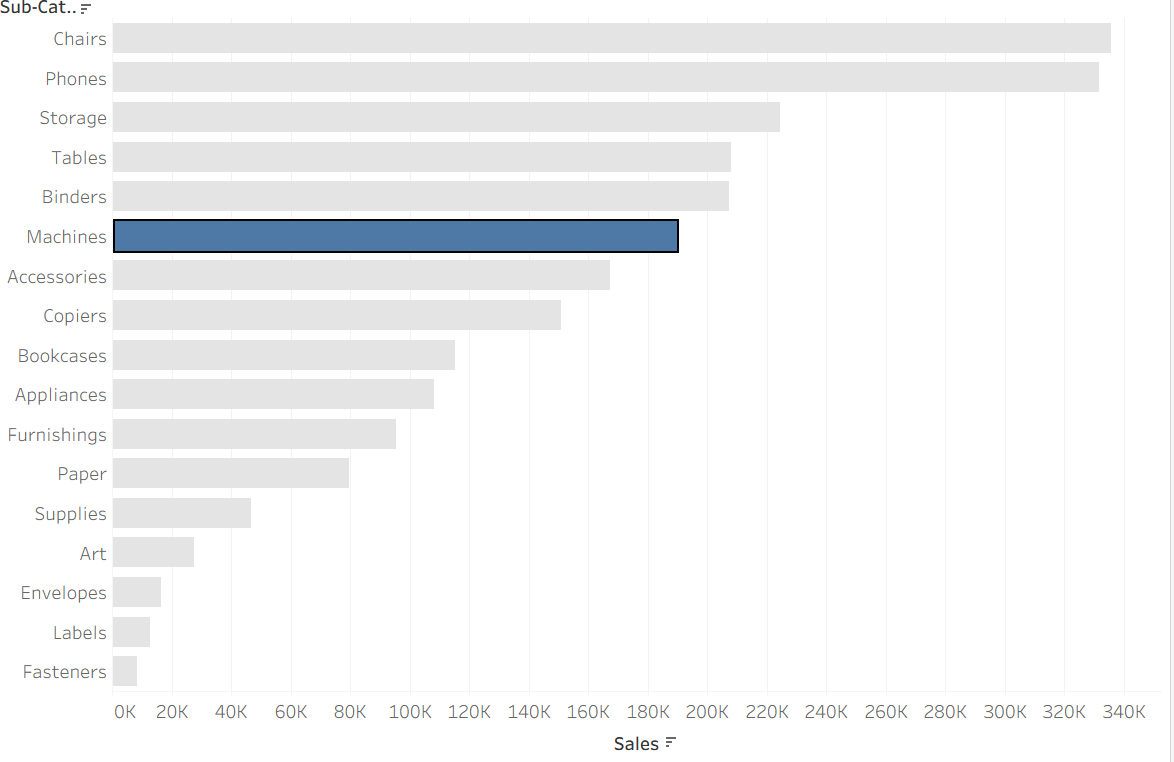
In order to get the output we can insert a dummy highlight to get the result below:
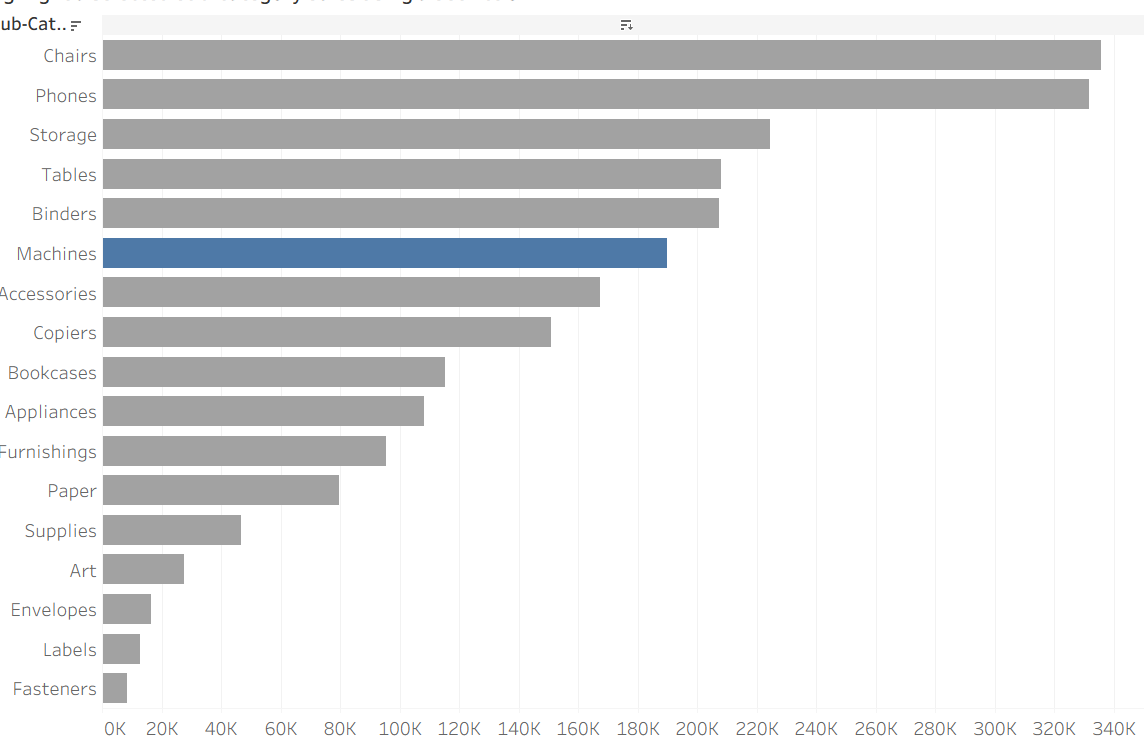
- Create a calculated field name it dummy highlight and insert a string. You can add anything you want but be mindful as you may forgot to remove the dummy highlight from tool tips! A safe bet is a space (" ").
- Then add the dummy highlight onto detail of the the marks card.
- Set up a highlight action.
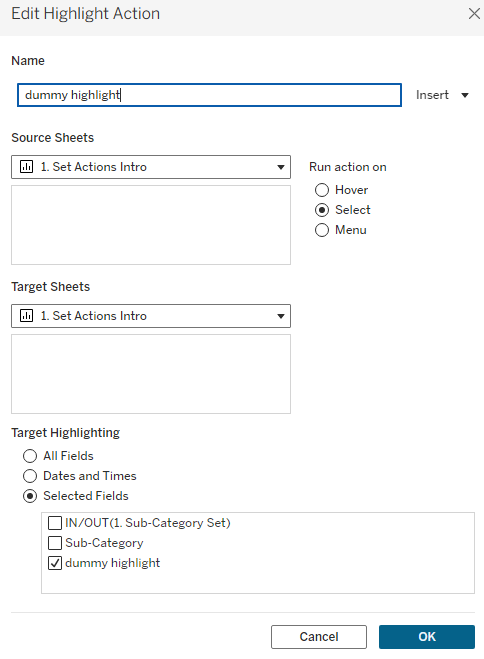
Now when you select a dimension the others wont be greyed out.
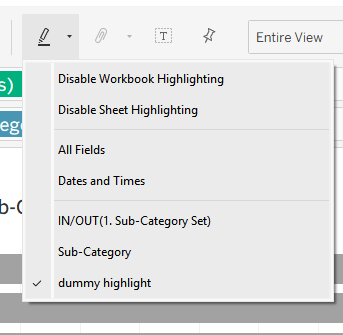
There is also a short cut but it does not name the highlight in you actions page so you may need to go in and rename it.
The Logic
The trick works by creating a fake match that Tableau can never actually find. When you click a Category, you tell Tableau to highlight every other Category that also matches that blank space " ". Because every Category is technically tied to that same blank label, Tableau tries to highlight everything at once. Since highlighting everything is the same as highlighting nothing, the chart stays perfectly bright and colourful. This effectively tricks Tableau into skipping the ugly grey-out effect, keeping your dashboard clean while your Set or Parameter actions do the heavy lifting in the background.