


Bad data moving downstream is a data team's worst nightmare, and manual checks rarely catch every bad record before it hits production (and shouldn't be asked to). By integrating data validation into GitHub Actions, you transform your repository into an automated safeguard. Every push, dataset update, or pull request automatically triggers a cloud runner to validate your data and value boundaries before anything gets merged.
In this guide, we'll walk step-by-step through setting up a complete, automated validation pipeline from scratch using Python, Pandas, and GitHub Actions.
Step 1: Set Up the Repository
- Determine the Repository: If you are building a new data project from scratch (or following along with this tutorial as a standalone project), make a new repository in GitHub. If you're adding features to an existing project, use your existing repo.
- Clone the repository: While you can edit individual text files directly on GitHub.com, creating folder structures, adding binary files (like
.xls), and writing Python scripts is significantly faster and cleaner in a local code editor like VS Code. Cloning also allows you to runpython validate_data.pydirectly on your machine to test that your validation logic works before pushing changes to GitHub.
To clone your repository, go to your repository page on GitHub. Copy the HTTPS URL provided (you might need to click the green Code button to see it). Then, open Terminal and Navigate to the folder where you want to store the project using cd (e.g., cd Documents). Once there, type git clone followed by the URL you copied, and hit Enter.

You should see an output showing Cloning into.... You might see a warning about cloning an empty repository, no need to worry about that. Before advancing to Step 2, move into the newly created folder using cd.
Step 2: Set Up Your Data and Validation Script
We need to define the dataset we want to check and write a Python script that tests its integrity. I'll be using Sample Superstore Orders in .csv format for this tutorial.
Once the Action is fully set up, pushing to or pulling from main will trigger the data validation workflow.
- Create a data folder in your repository containing your CSV file(s) ( I'm using
Sample - Superstore - Orders.csv). To do this, make sure you are in the repo on terminal and entermkdir data.

- Now bring your data in. You can do so from the terminal by copying the file to the data folder we just created (see below) or by uploading a file on the GitHub website.

- Commit the data so that it exists in your repository:
git add data/Sample - Superstore - Orders.csv
git commit -m "Added dataset"
git push origin main- Create the validation script: Open VS Code and create a script named
validate_data.py. Copy the code below into it:
# validate_data.py
import sys
import pandas as pd

def run_validations():
    print("Loading Superstore Orders dataset for Pandas validation...")

    # Load the dataset
    file_path = "data/Sample - Superstore - Orders.csv"

    try:
        df = pd.read_csv(file_path)
    except FileNotFoundError:
        print(f"\ERROR: File '{file_path}' not found.")
        sys.exit(1)

    errors = []

    # Check required columns exist
    required_cols = {
        "Row ID", "Order ID", "Order Date", "Customer ID",
        "Segment", "Category", "Sales", "Quantity", "Discount", "Profit"
    }
    missing_cols = required_cols - set(df.columns)
    if missing_cols:
        errors.append(f"Missing required columns: {missing_cols}")

    # Check primary key is unique
    if "Row ID" in df.columns and df["Row ID"].duplicated().any():
        duplicate_count = df["Row ID"].duplicated().sum()
        errors.append(f"Found {duplicate_count} duplicate 'Row ID' values.")

    # Range and boundary checks
    if "Sales" in df.columns and (df["Sales"] <= 0).any():
        errors.append("Found non-positive values in 'Sales' column.")

    if "Quantity" in df.columns and (df["Quantity"] < 1).any():
        errors.append("Found 'Quantity' values less than 1.")

    if "Discount" in df.columns and not df["Discount"].between(0.0, 1.0).all():
        errors.append("Found 'Discount' values outside the valid range [0.0, 1.0].")

    # Check allowed categorical values
    valid_segments = {"Consumer", "Corporate", "Home Office"}
    if "Segment" in df.columns:
        invalid_segments = set(df["Segment"].unique()) - valid_segments
        if invalid_segments:
            errors.append(f"Found invalid values in 'Segment': {invalid_segments}")

    valid_categories = {"Furniture", "Office Supplies", "Technology"}
    if "Category" in df.columns:
        invalid_categories = set(df["Category"].unique()) - valid_categories
        if invalid_categories:
            errors.append(f"Found invalid values in 'Category': {invalid_categories}")

    # Evaluate and output results
    if errors:
        print("\nDATA VALIDATION FAILED:")
        for err in errors:
            print(f"  - {err}")
        sys.exit(1)  # Exit code 1 flags a failure in GitHub Actions
    else:
        print("\nALL SUPERSTORE DATA CHECKS PASSED SUCCESSFULLY!")
        sys.exit(0)  # Exit code 0 signals success

if __name__ == "__main__":
    run_validations()
You can customize this for the fields, ranges, etc. of your particular data file(s).
Step 3: Define Dependencies in a requirements.txt
In order to run, GitHub Actions needs to know which Python packages to install in its virtual runner environment.
- Create a requirements file: Again in VS Code, create the
requirements.txtfile in your repository. Include the following line:
pandas>=2.0.0Step 4: Create the GitHub Actions Workflow File
GitHub Actions looks for workflow configuration files written in YAML inside a special directory structure: .github/workflows/.
YAML (which stands for YAML Ain't Markup Language) is a simple, human-readable text format used to write configuration files. In GitHub Actions, your .yml file serves as the instruction manual that tells GitHub's servers when to trigger your pipeline, what environment to set up (like Python), and which validation scripts to run.
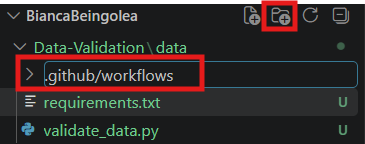
- In VS Code, in the base of your project, create the nested folders:
.github/workflows/.
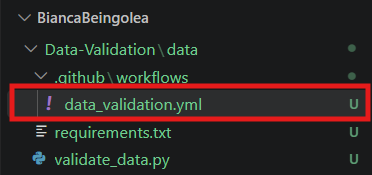
- Inside that directory, create a new file named
data_validation.yml.
Add the following configuration:
name: Data Quality Checks

# Triggers: Run when code or data is pushed, or when a PR is opened against 'main'
on:
  push:
    branches: [ "main" ]
  pull_request:
    branches: [ "main" ]

jobs:
  validate-data:
    runs-on: ubuntu-latest

    steps:
    # Step 1: Check out the repository code into the GitHub runner environment
    - name: Check out repository code
      uses: actions/checkout@v4

    # Step 2: Set up Python in the runner environment
    - name: Set up Python
      uses: actions/setup-python@v5
      with:
        python-version: '3.11'

    # Step 3: Install required libraries
    - name: Install dependencies
      run: |
        python -m pip install --upgrade pip
        pip install -r requirements.txt

    # Step 4: Run the data validation script
    - name: Run Data Validation Checks
      run: |
        python validate_data.py
Step 5: Test the Workflow
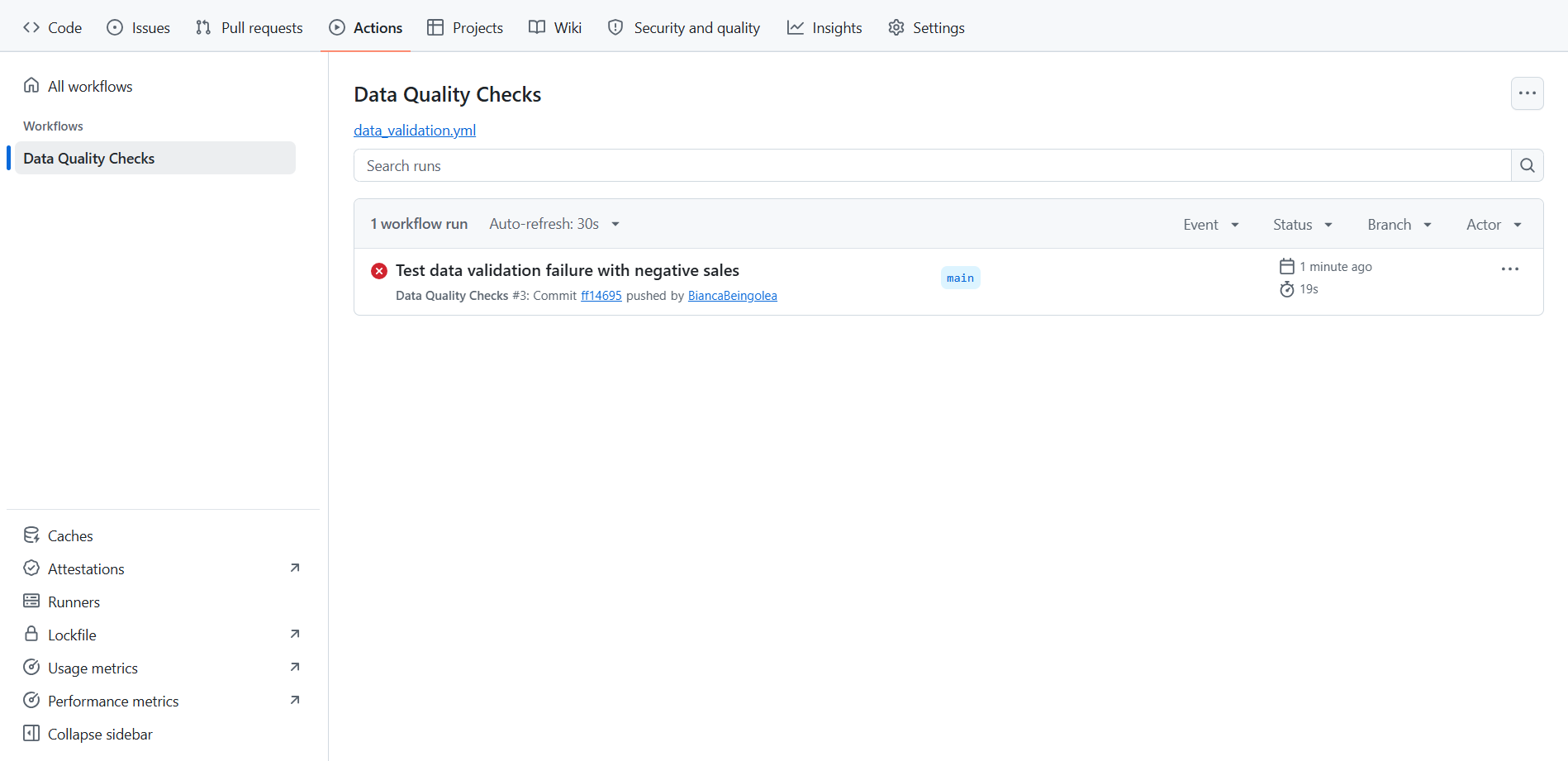
- Go to your repository on GitHub.com and click on the Actions tab at the top. You might see a workflow run in progress (but don't worry if you don't, workflows will appear with push/pull requests). Click on it to expand the live output log for each step (
Check out repository code,Install dependencies,Run Data Validation Checks). - Commit all three new/modified files (
validate_data.py,requirements.txt, and.github/workflows/data_validation.yml):
git add .
git commit -m "Add automated data validation workflow"
git push origin main
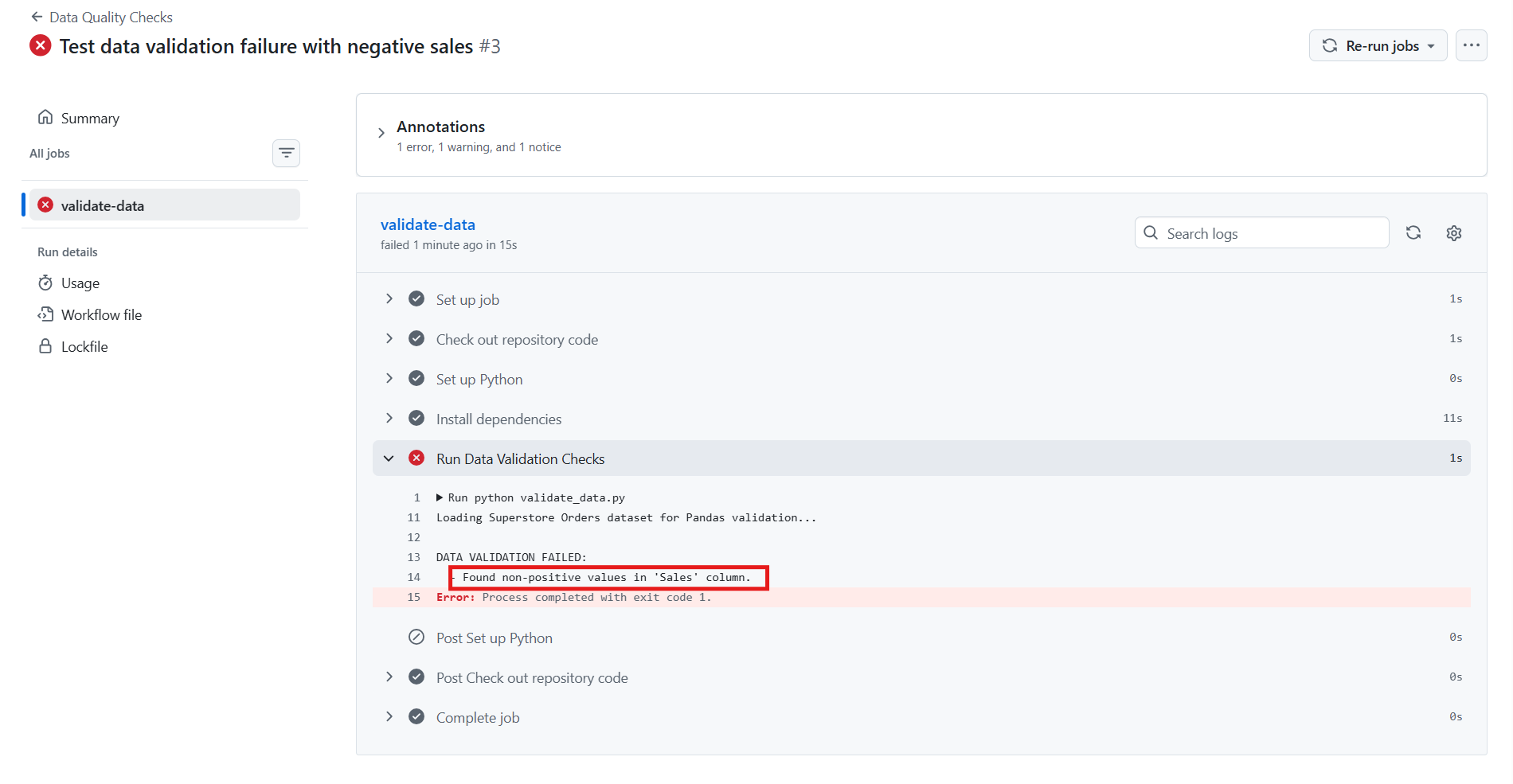
For testing purposes, I made the first Sales value in the data negative and committed the file again. As expected, the test failed:
Removing the minus sign and re-committing led to passing the test:
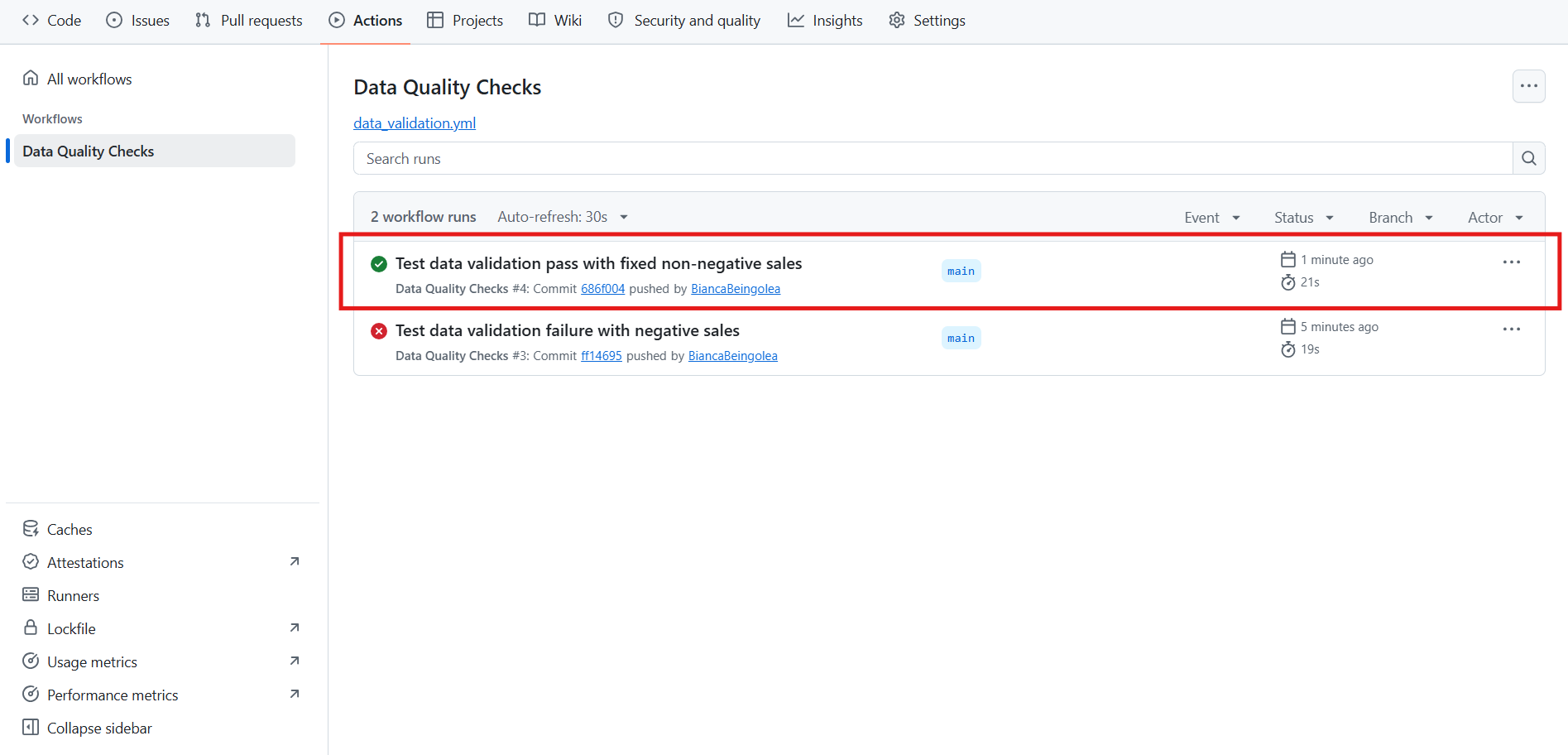
Our validation workflow is working!
How This Protects Your Team
Now, whenever you or a teammate submits a pull request to add new data or update code, GitHub automatically runs the data_validation.yml pipeline against the proposed branch. If bad data is pushed (e.g., negative sale amounts or duplicate IDs), a red 'X' is attached onto the pull request, allowing project owners to block merging until the data issues are fixed.
You can check out my own repository here
Hope this helps!