


After my fourth week at The Data School, I’ve quickly learned a lot about data prep. At this point I feel pretty comfortable in Tableau Prep, having practiced with lots of the Preppin’ Data challenges. However, after an introduction to Power BI and Power Query, I suddenly felt out of my depth with handling data in this new software. I decided to work on changing this, by repeating some of the Preppin’ Data challenges in Power Query. Follow below to see how I did them in each software…
2021, Week 1
I decided to start with the easier January challenges which are designed as an introduction to Tableau Prep. Here I will go through the challenge from Week 1, 2021. I had already completed this in Tableau Prep, so followed these same steps in Power Query.
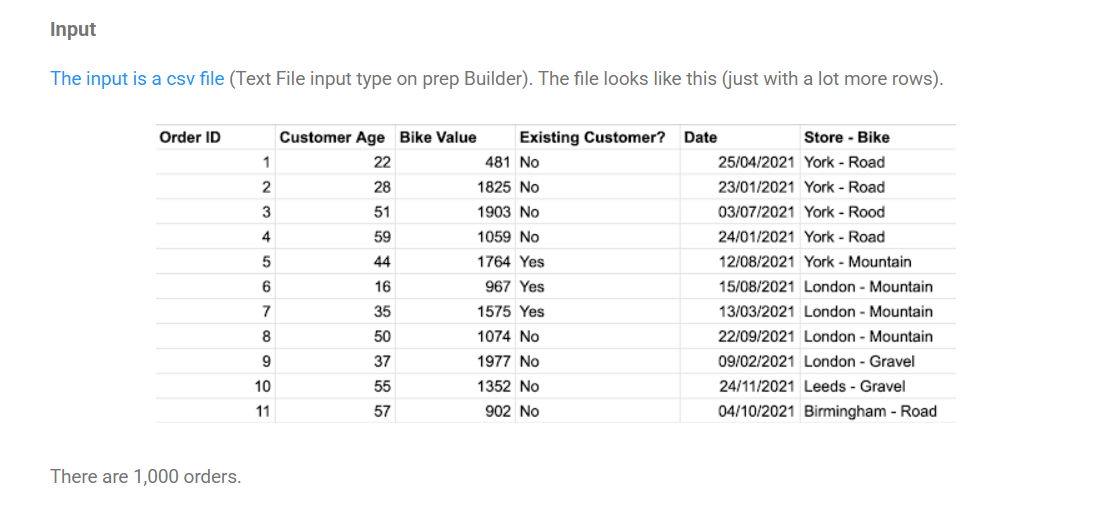
This weeks challenge aimed to get from this input table:
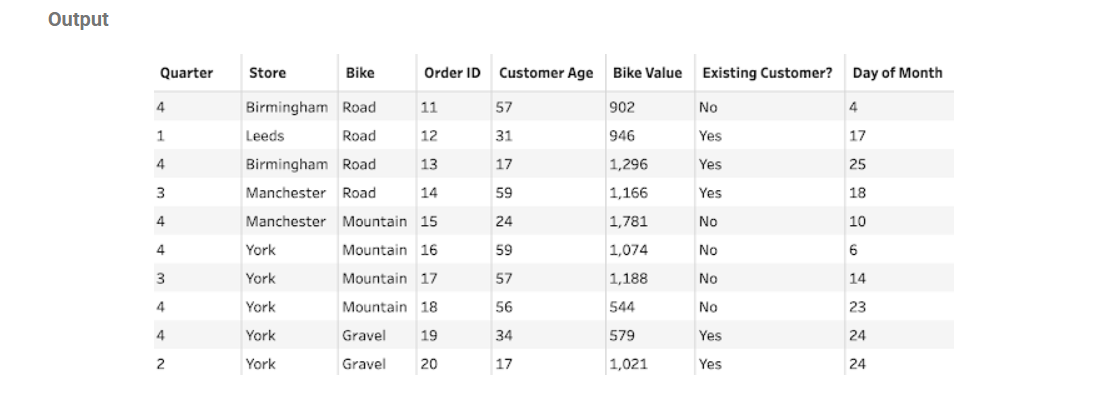
To this output table (which has 8 data fields and 990 rows):
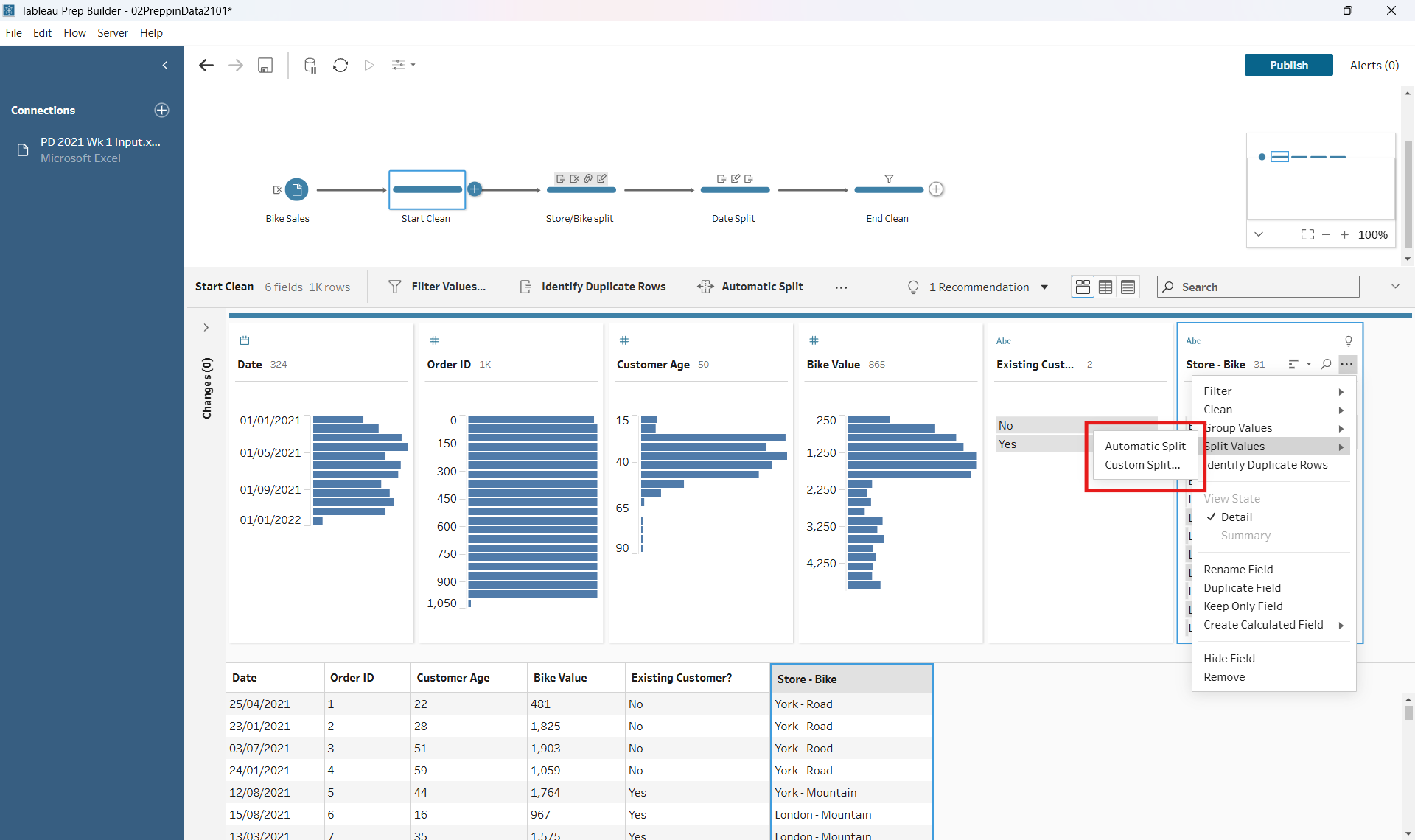
Step 1: Split Store-Bike Column
- In Tableau Prep I did this using the ‘Automatic Split’ function, and tidied up the names of the new columns.
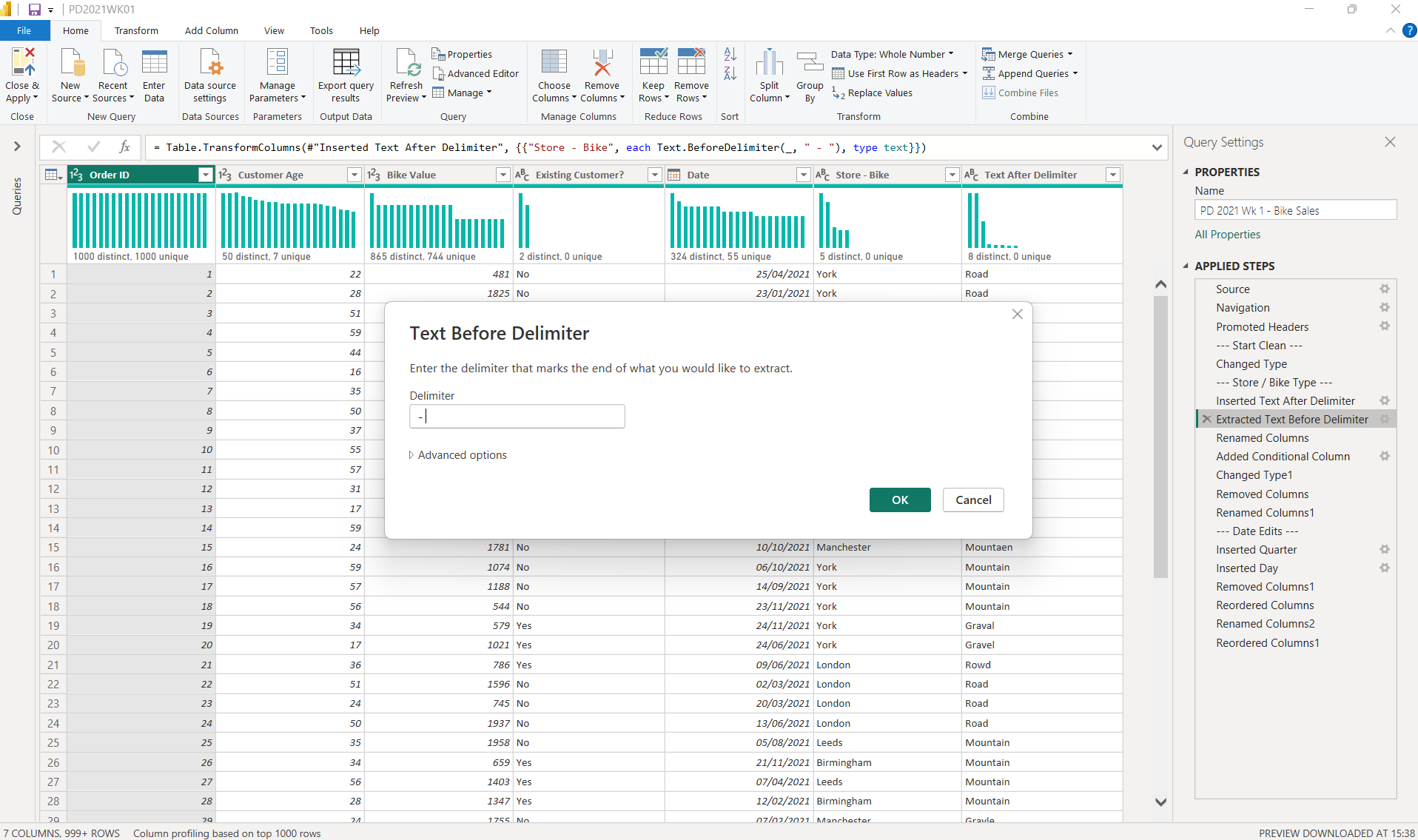
- In Power Query I extracted the text before and after the delimiter, using the delimiter ‘ - ‘
Step 2: Clean Spelling Mistake
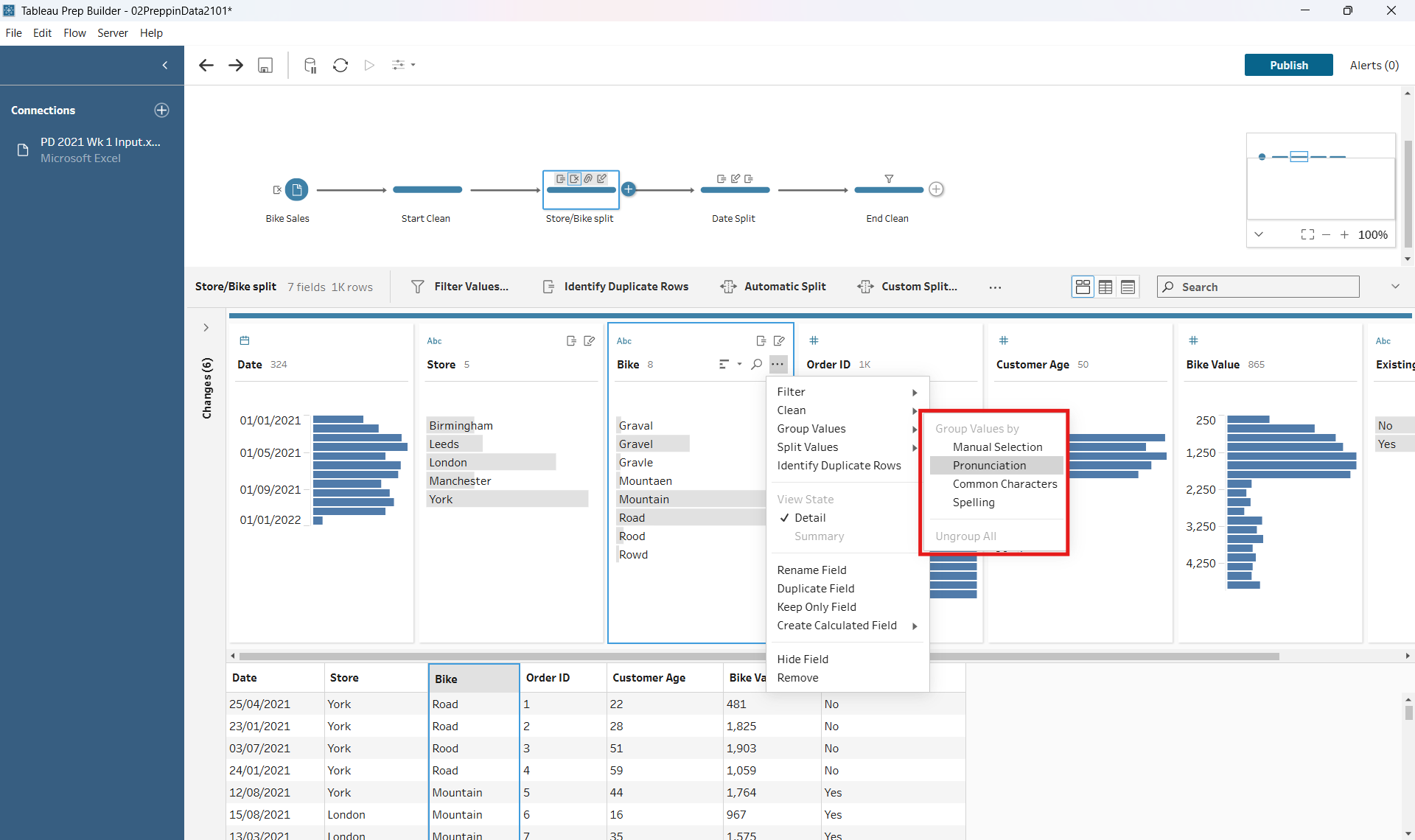
- After this, I cleaned up the spelling mistakes in the Bike Types column. In Tableau Prep this can be done very simply, by using ‘Group Values’ in the drop down and selecting ‘Pronunciation’, ‘Common Characters’ or ‘Spelling’ Usually a combination of these will group the words nicely to clean up any spelling mistakes.
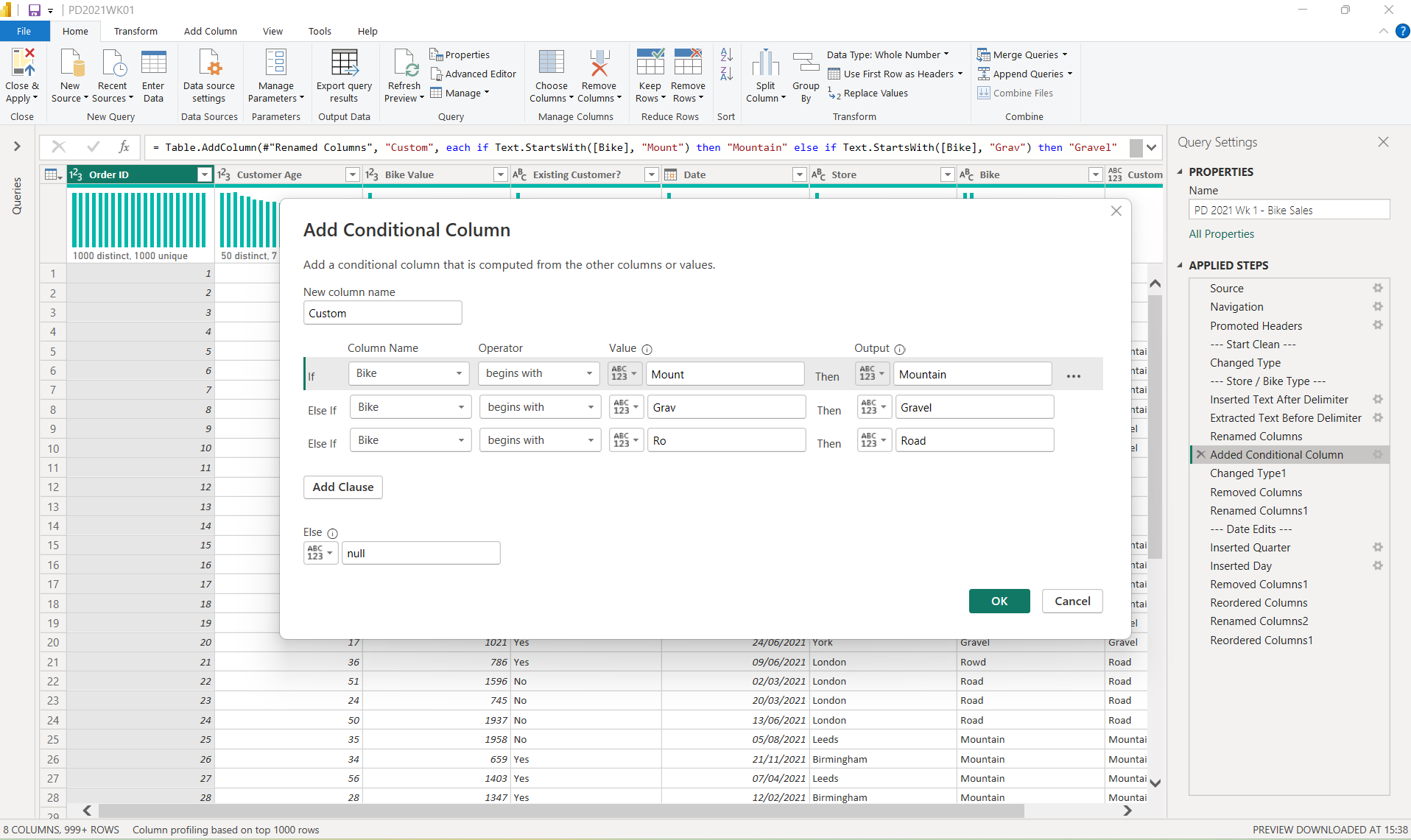
- Unfortunately Power Query doesn’t have the same ‘Group by’ function that Tableau Prep has, so I had to find a way around this. I did this by adding a ‘Conditional Column’, stating what the words should begin with. Luckily given the spelling issues in this data set, this was an effective work around.
Step 3: Split Date to Day and Quarter
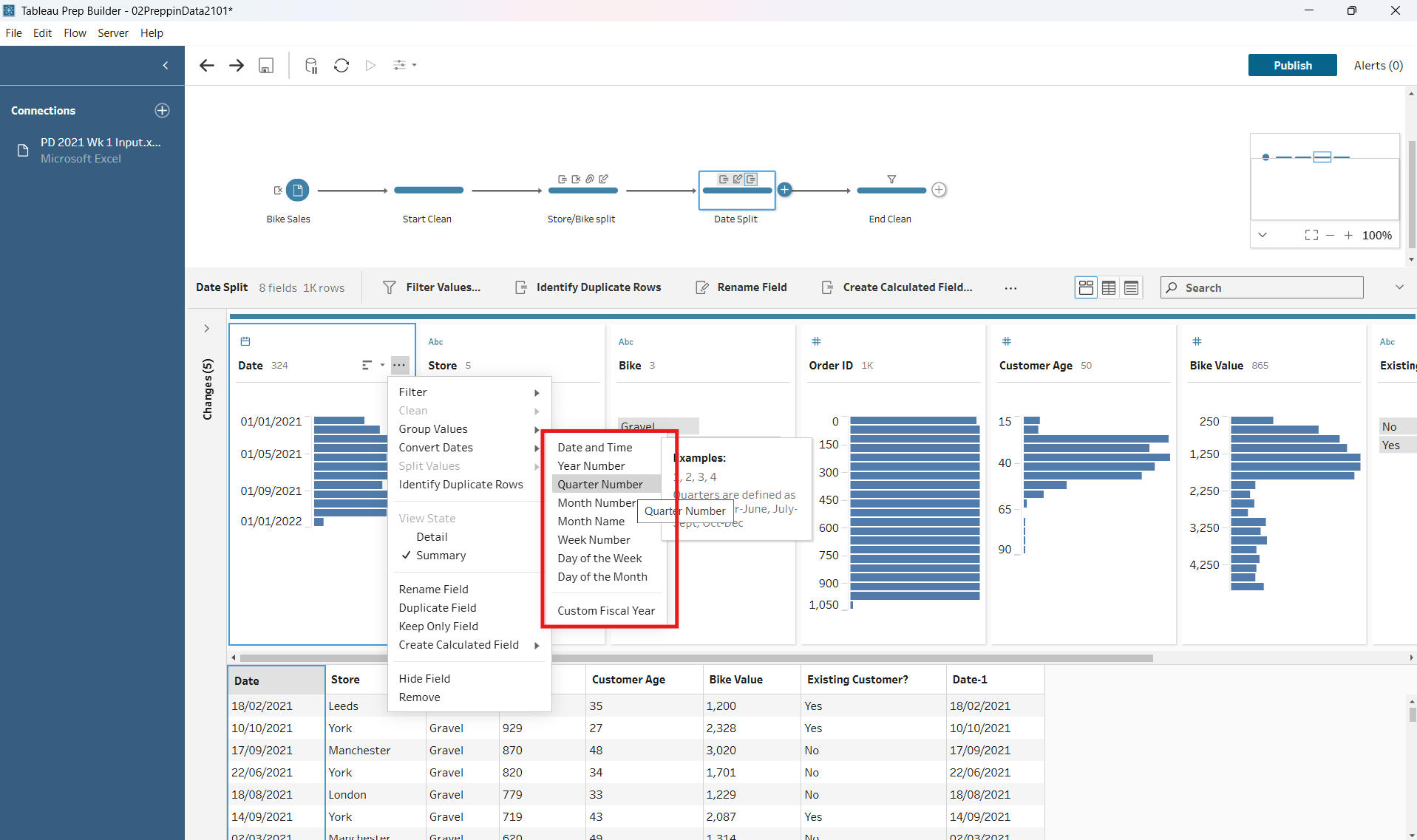
- Next I changed the date into ‘Day of Month’ and ‘Quarter’. To do this, I duplicated the date field, and then used the ‘Convert Dates’ drop down option on each column
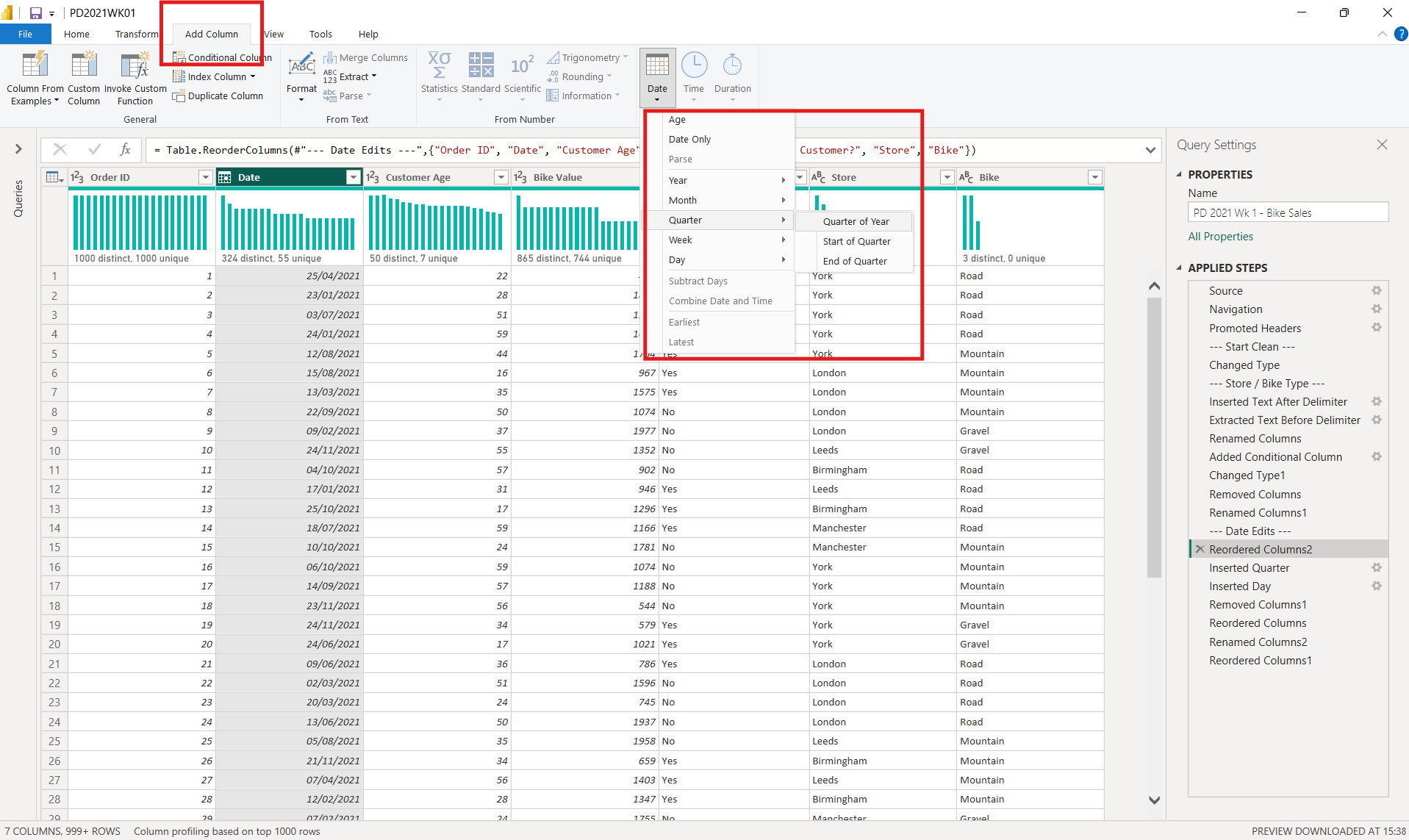
- In Power Query it’s slightly quicker to do this than Tableau Prep, as you don’t need to duplicate any columns. I simply went into ‘Date’ format under ‘Add Column’ and selected Quarter and Day respectively.
Step 4: Filtering
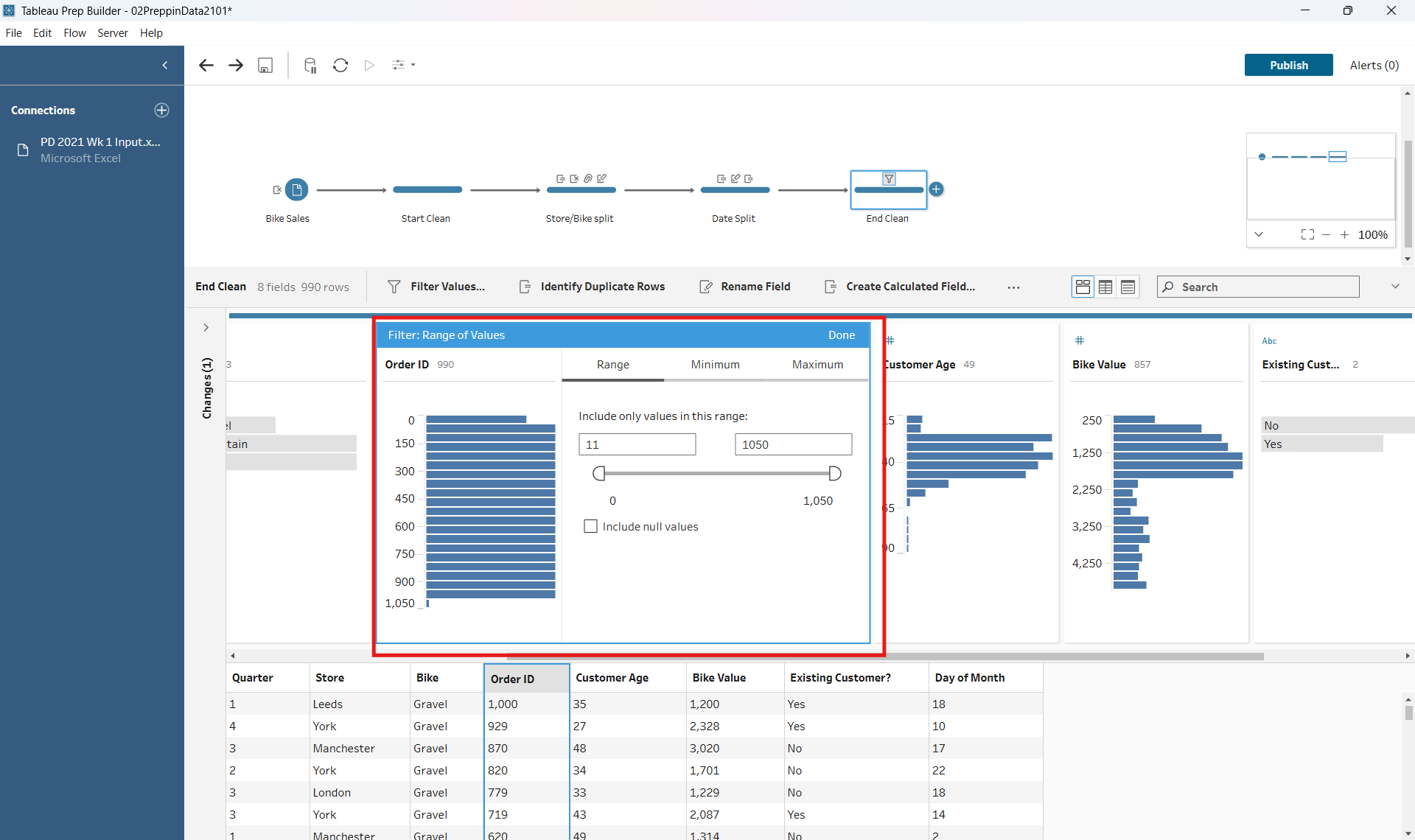
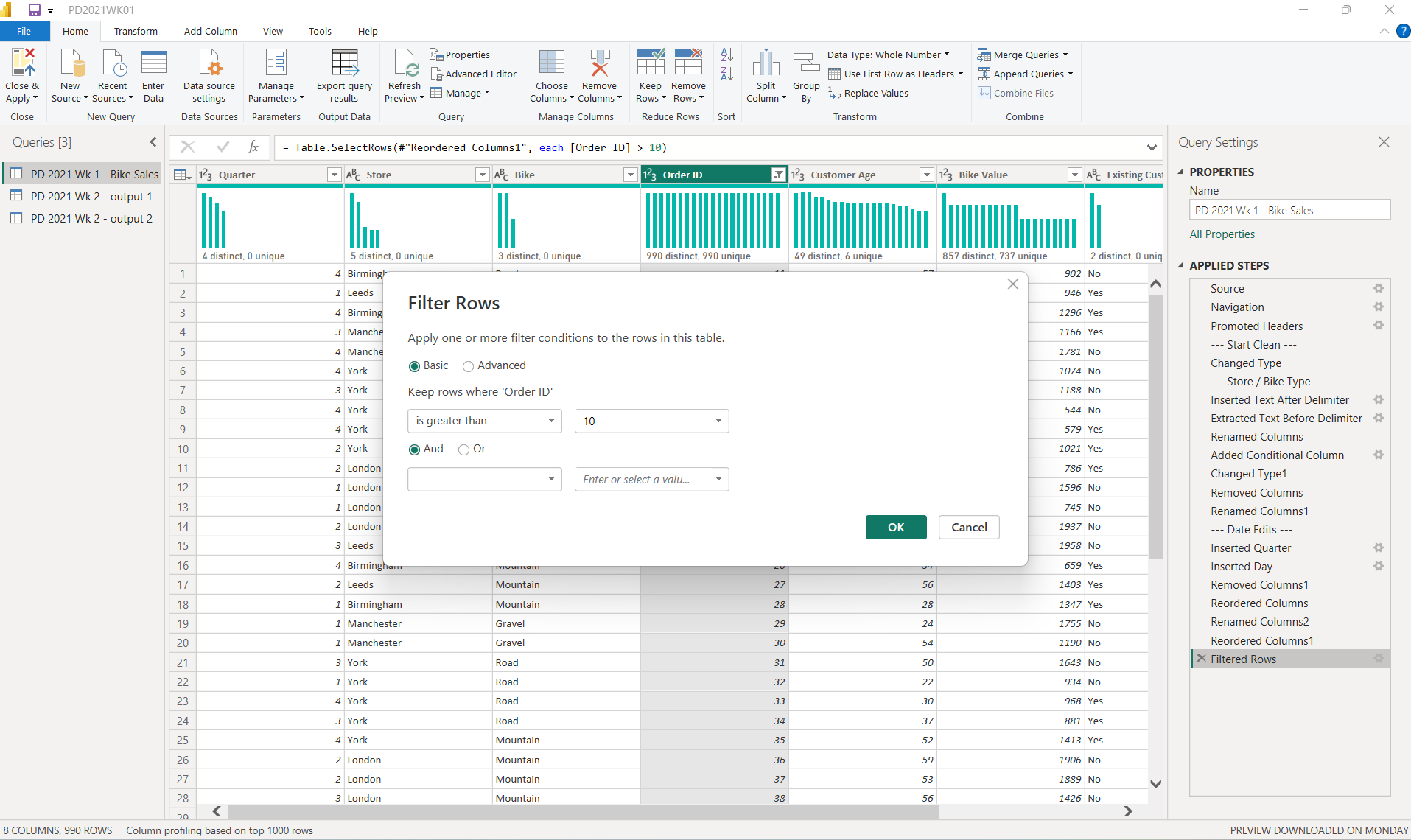
- Finally, following the instructions on the challenge, I filtered the data to not include the first 10 orders.
Step 5: Final Clean
- I finished by cleaning up my columns and checking a few rows of data against the challenge to see that I'd got to the right outcome.
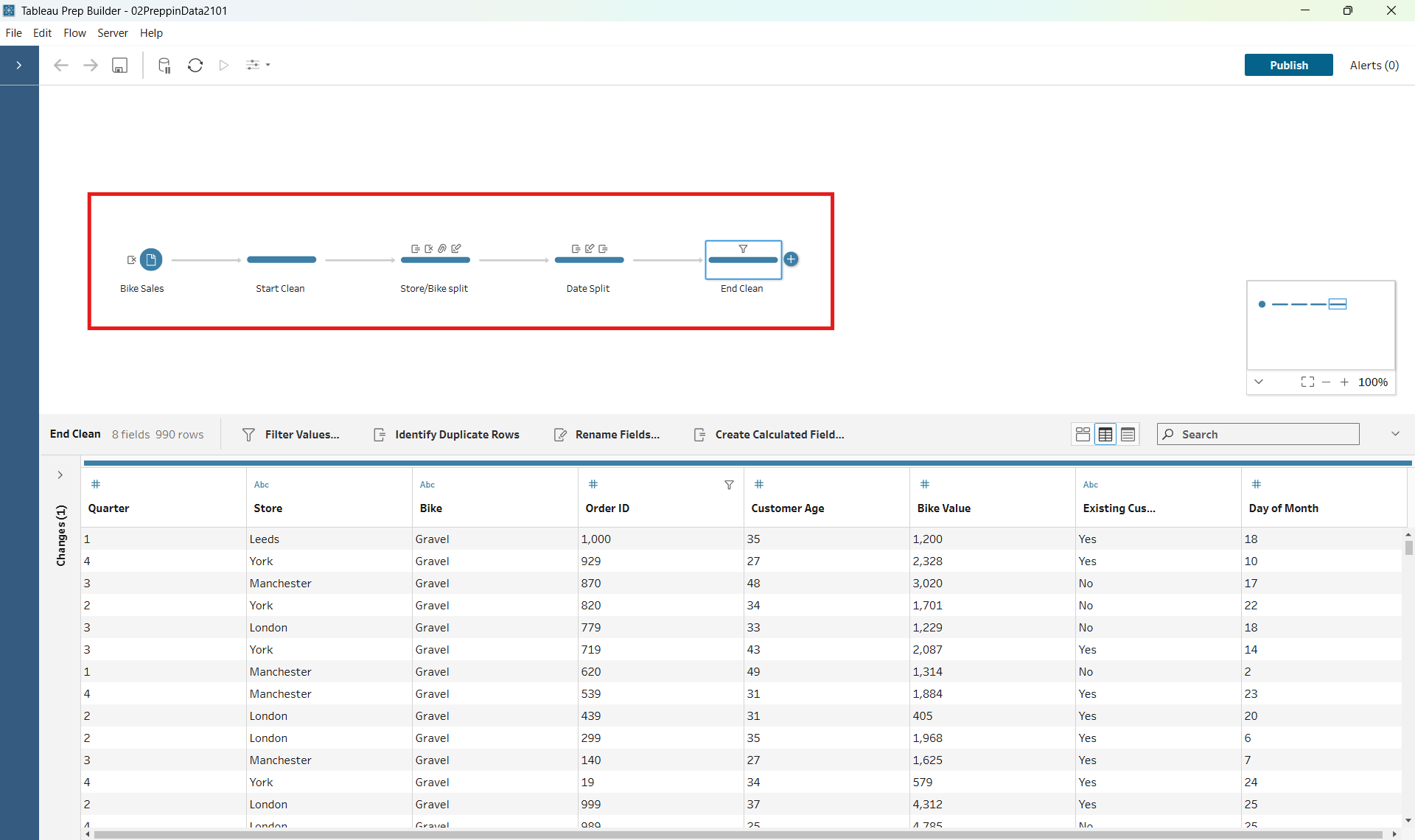
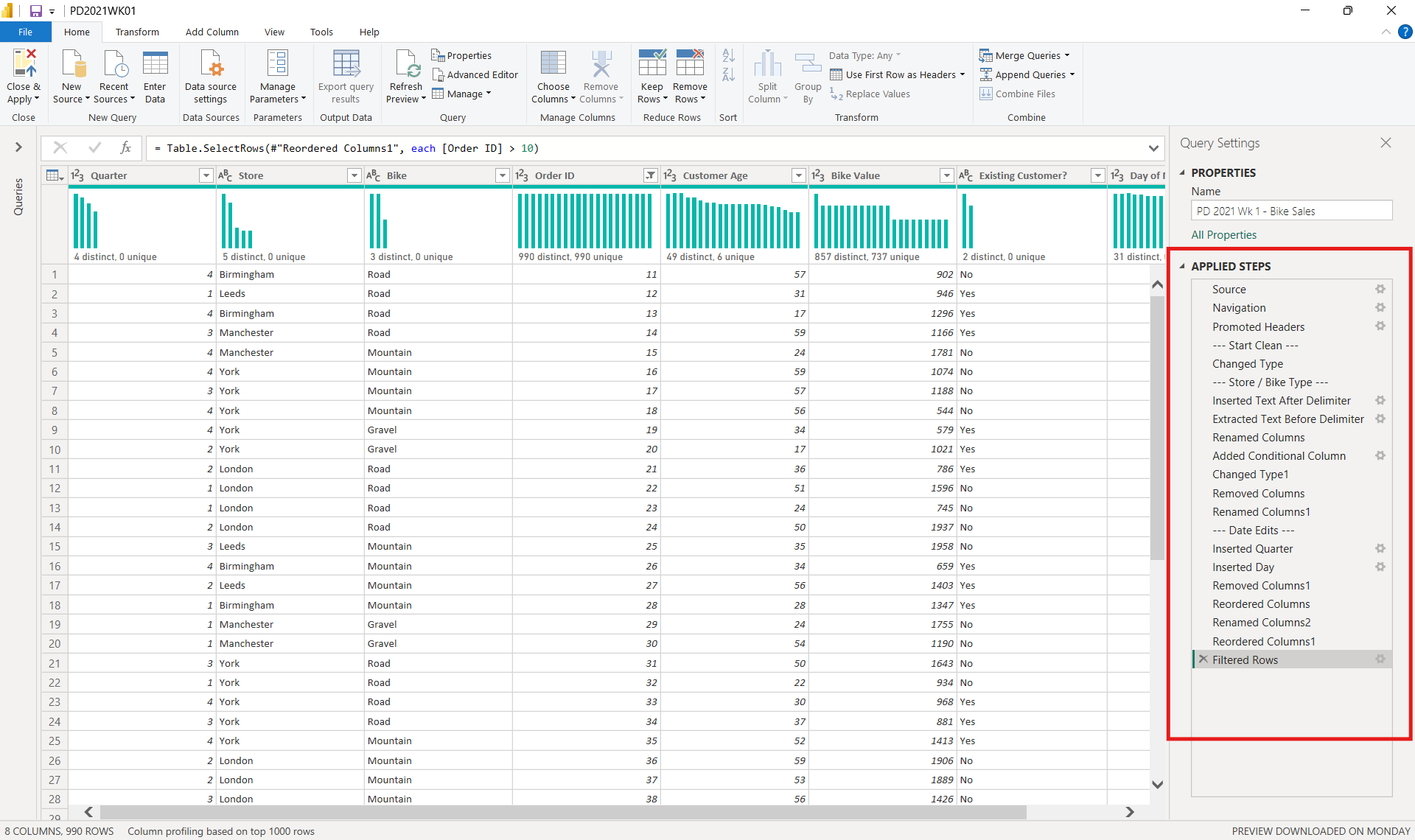
- My final flows in Tableau Prep and Power Query looked like this:
Comparing my process for this in Power Query and Tableau Prep meant thinking about some of the functions differently, and was a good way to begin getting my head around this new software.
Keep an eye out to see how I attempt some harder challenges in Tableau Prep and Power Query...