


As I continue to explore what Fabric can do/ capable of. I started to get curious as to if it was possible to combine a newer feature (Translytical task flows ) with what I have learnt so far.
Spoiler Alert- It's one where I had to work through a lot of workarounds, but it can be done!
What is a Translytical task flow?
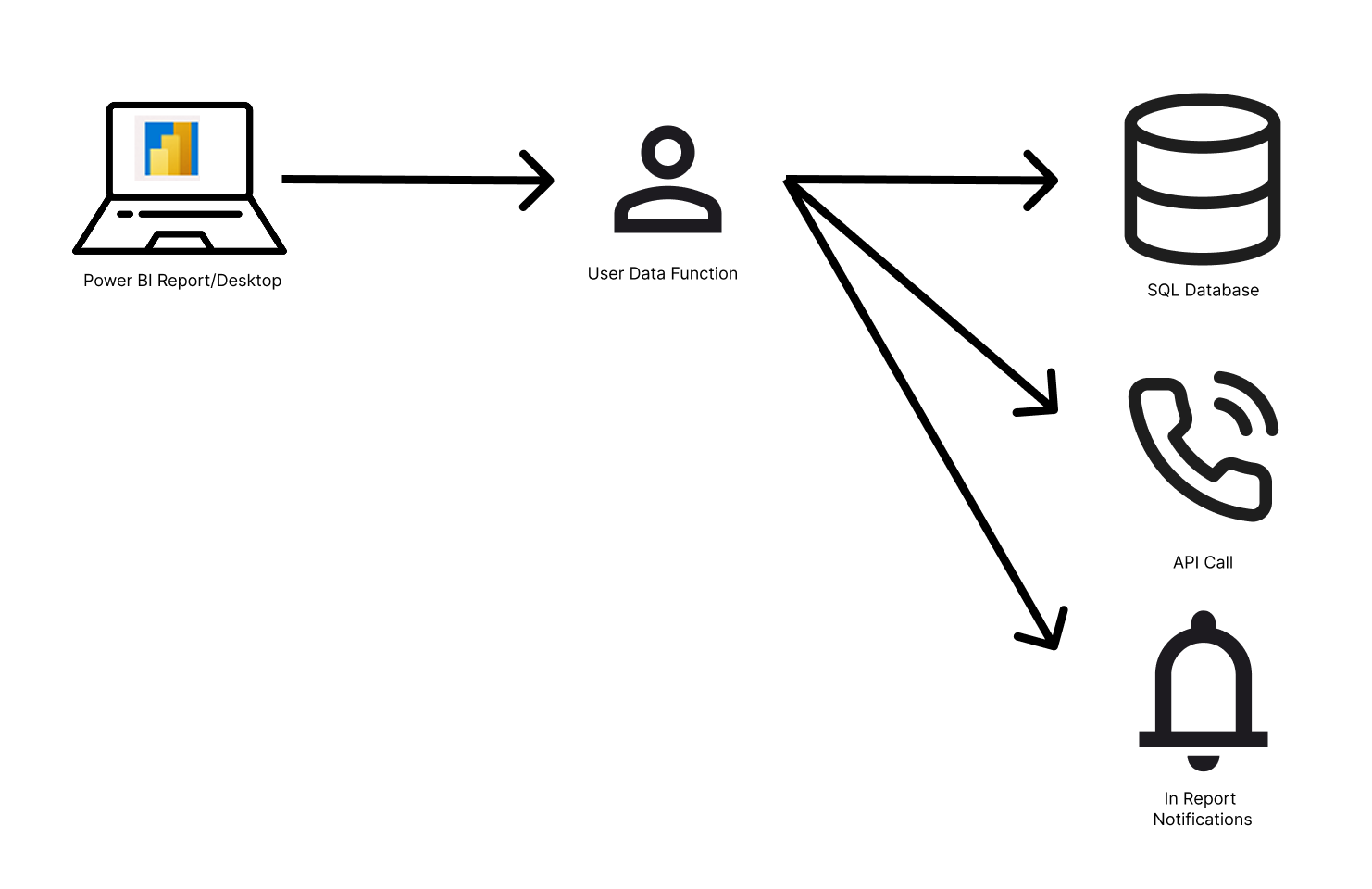
A Translytical Task flow is a way to allow comsumers/ users of a report to add inputs and annotations, as well as update and feed data back to the original database.
This allows users to actively engage with reports, further allowing them to provide necessary context and distribute knowledge across an organisation.
With the release of this feature in June 2026. Some features are still in preview.
But I was curious as to whether it were possible to write to a delta table within a Fabric Lakehouse. As this could then be used to create a schema within the Lakehouse dedicated for commentaries, or status context information to be organised in one place.
The process of A Translytical Flow

The Process of Establishing a flow with a lakehouse
Objectives of this Experiment
I wanted to...
- Understand Fabric a bit better, as going into this experiment I had little knowledge of the set-up of Fabric
- See if there is another way to make Translytical Flows work within Fabric outside of a SQL Database.
The Process
Overview - Summary
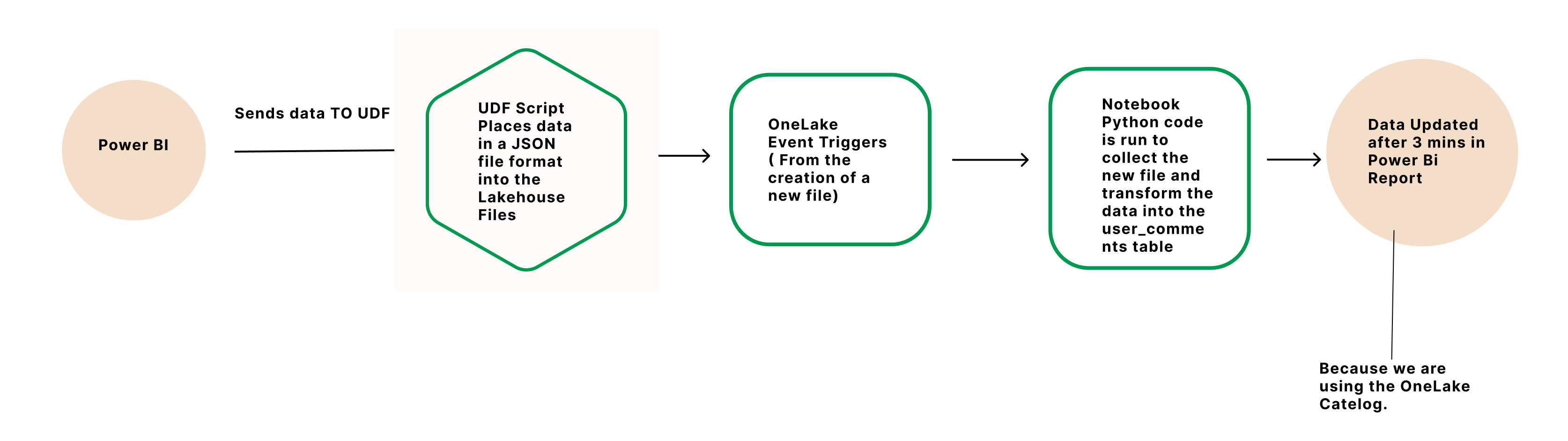
Tutorial - Step by Step of my process
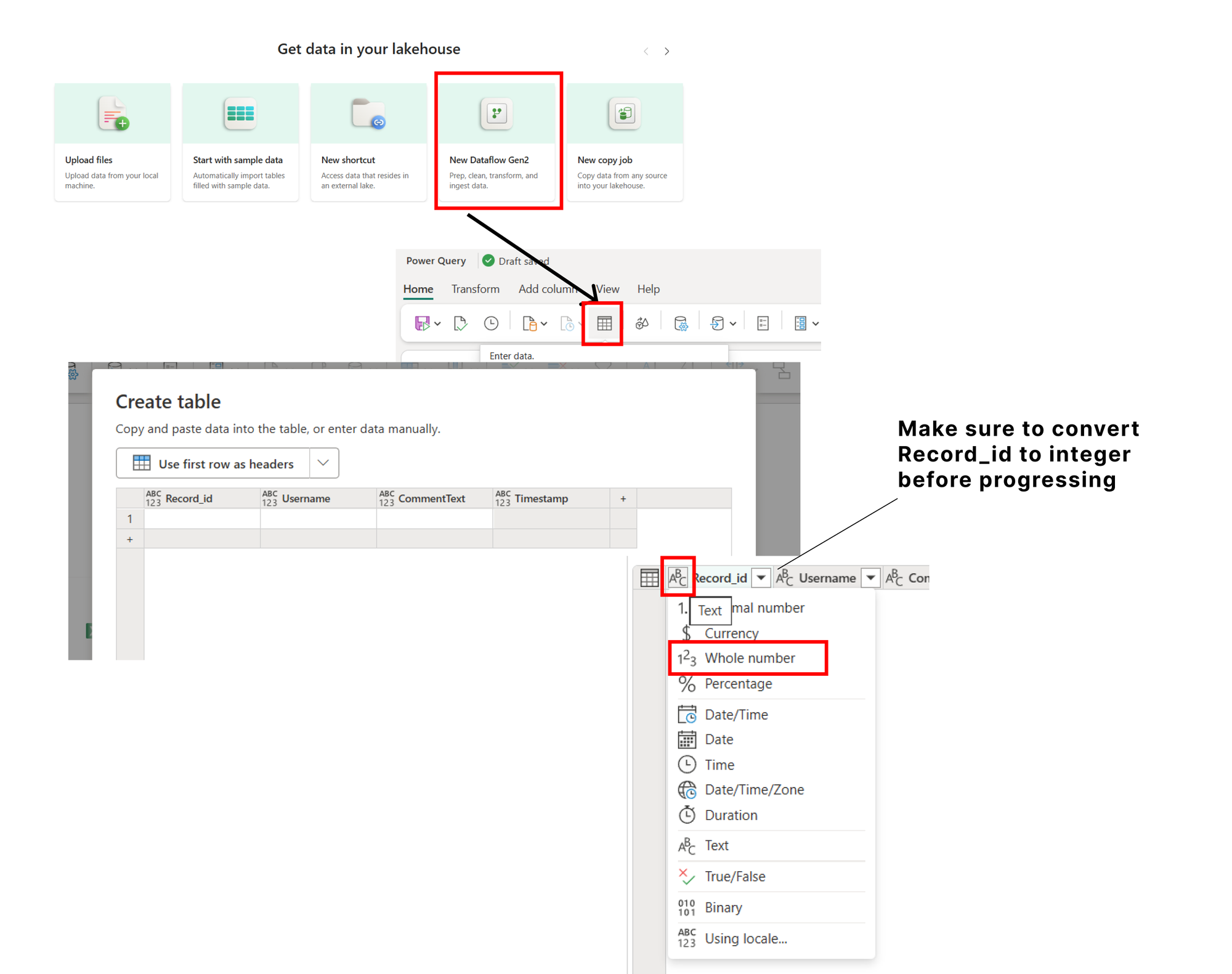
Step 1: Create a table in the lakehouse and label it User Comments.
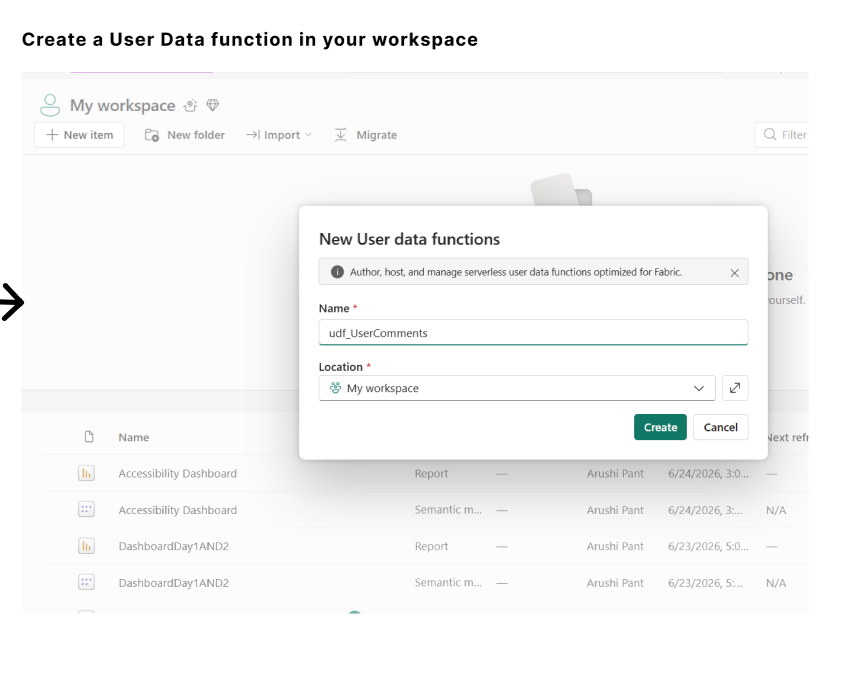
Step 2: Creating the User Function
I created a User Data Function in the same workspace as my lakehouse (Refer to the Last blog to see how to set up a Lakehouse: https://www.thedataschool.co.uk/arushi-pant/creating-a-data-lakehouse-in-fabric/ ) by clicking on New Item -> User Data Function.
Writing out the Script & Connecting User Data Function to the Lakehouse
- I had to click Manage Connections and connect this to the created Lakehouse.
- I then had to write out the Python Script that defines what the user Data Function does.
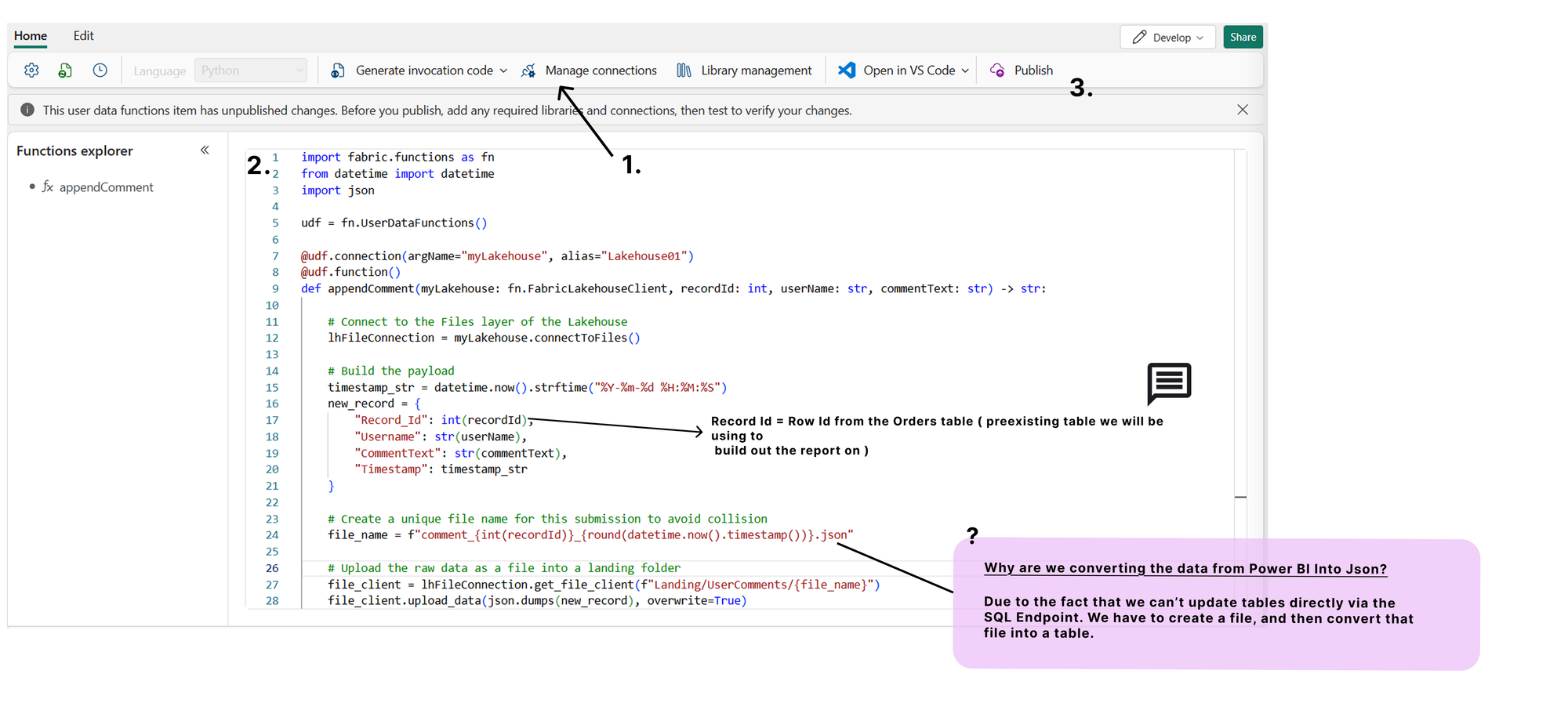
User Data Function Py Script Used.
import fabric.functions as fnfrom datetime import datetimeimport json
udf = fn.UserDataFunctions()
@udf.connection(argName="myLakehouse", alias="Lakehouse01")@udf.function()def appendComment(myLakehouse: fn.FabricLakehouseClient, recordId: int, userName: str, commentText: str) -> str: # Connect to the Files layer of the Lakehouse lhFileConnection = myLakehouse.connectToFiles() # Build the payload timestamp_str = datetime.now().strftime("%Y-%m-%d %H:%M:%S") new_record = { "Record_Id": int(recordId), "Username": str(userName), "CommentText": str(commentText), "Timestamp": timestamp_str } # Create a unique file name for this submission to avoid collision file_name = f"comment_{int(recordId)}_{round(datetime.now().timestamp())}.json" # Upload the raw data as a file into a landing folder file_client = lhFileConnection.get_file_client(f"Landing/UserComments/{file_name}") file_client.upload_data(json.dumps(new_record), overwrite=True) file_client.close() lhFileConnection.close() return "Comment file successfully dropped into Lakehouse landing folder!"
Purpose of this user function
To collect the parameters/data sent to the function by Power BI and convert it into a JSON File.
Further Parameters Being fed to the function
- Name of the commenter - Written in the Form within the Report (Username)
- The comment - The comment that the user has written. (CommentText)
I proceeded to publish my UDF so that we can then call this within our reports.
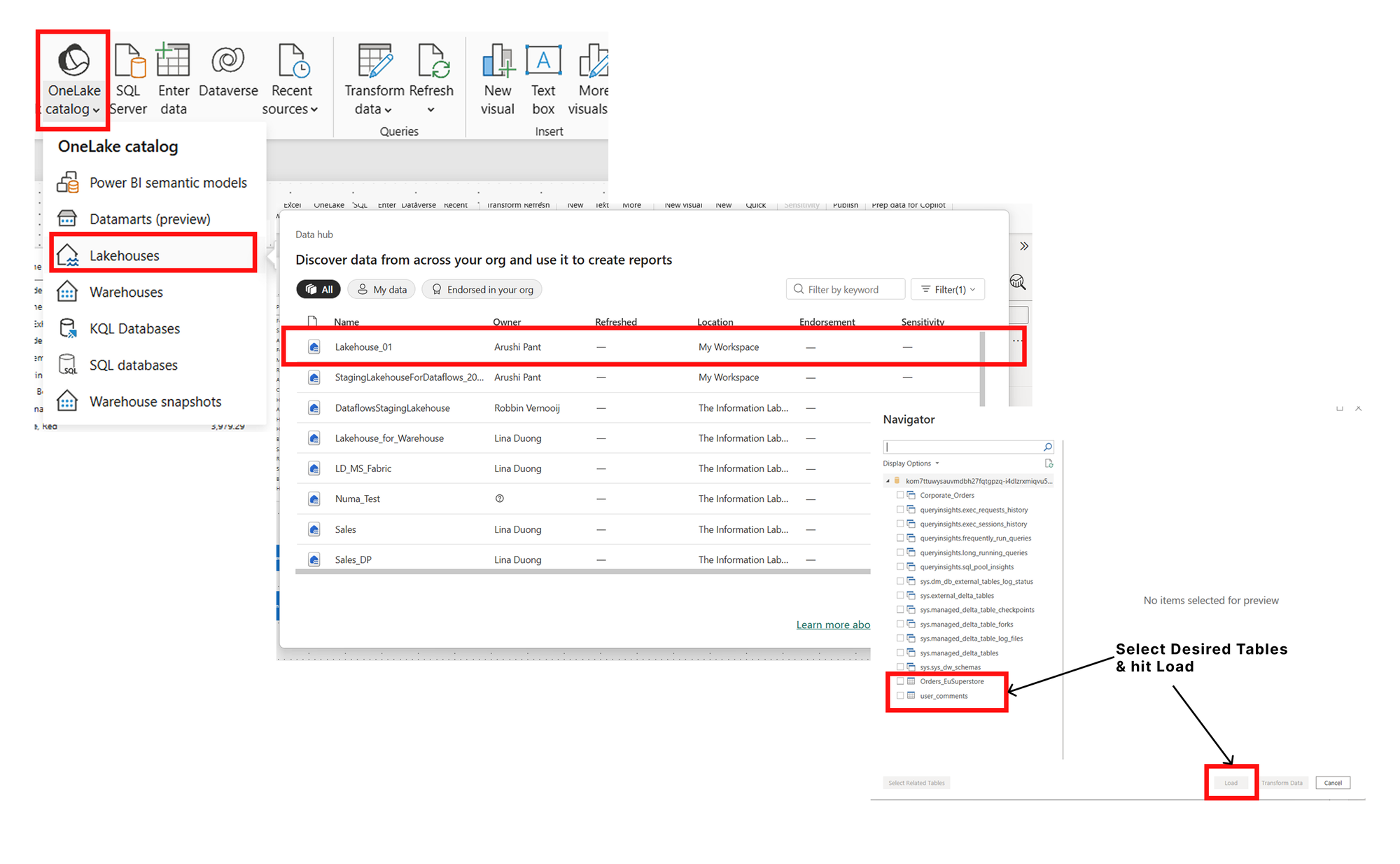
Step 3 : Connecting to the data from Lakehouse to Desktop
As mentioned before, because we are unable to use the Lakehouse Endpoint to update the underlying tables, we have to connect directly to the tables within the Lakehouse
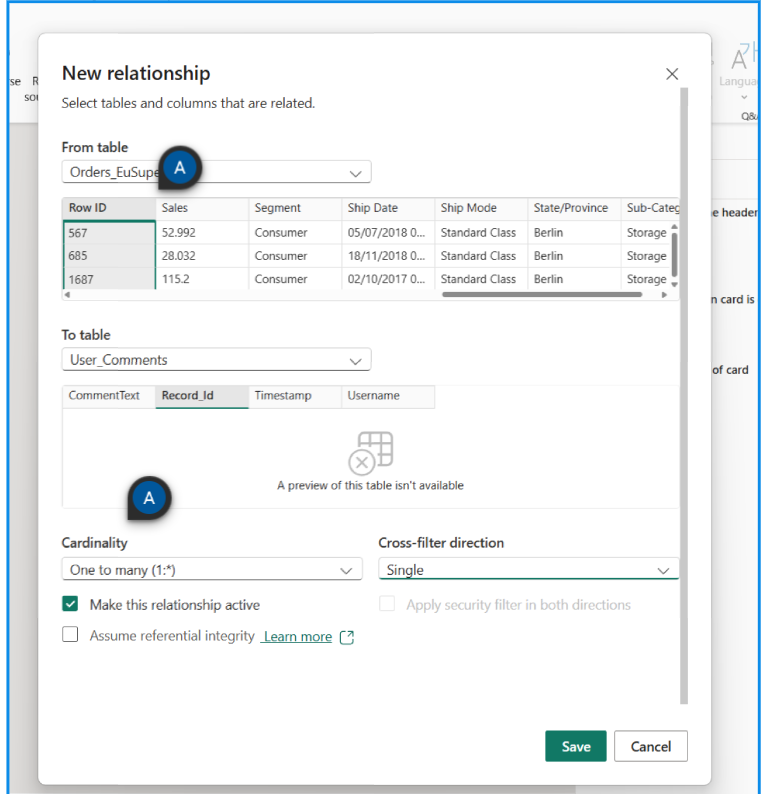
Step 4 : Establish Relationship between Tables
In the modelling section of my report, I assigned a relationship between the two tables so that when a user clicks on an order, the comment is assigned to that order. (For this scenario)
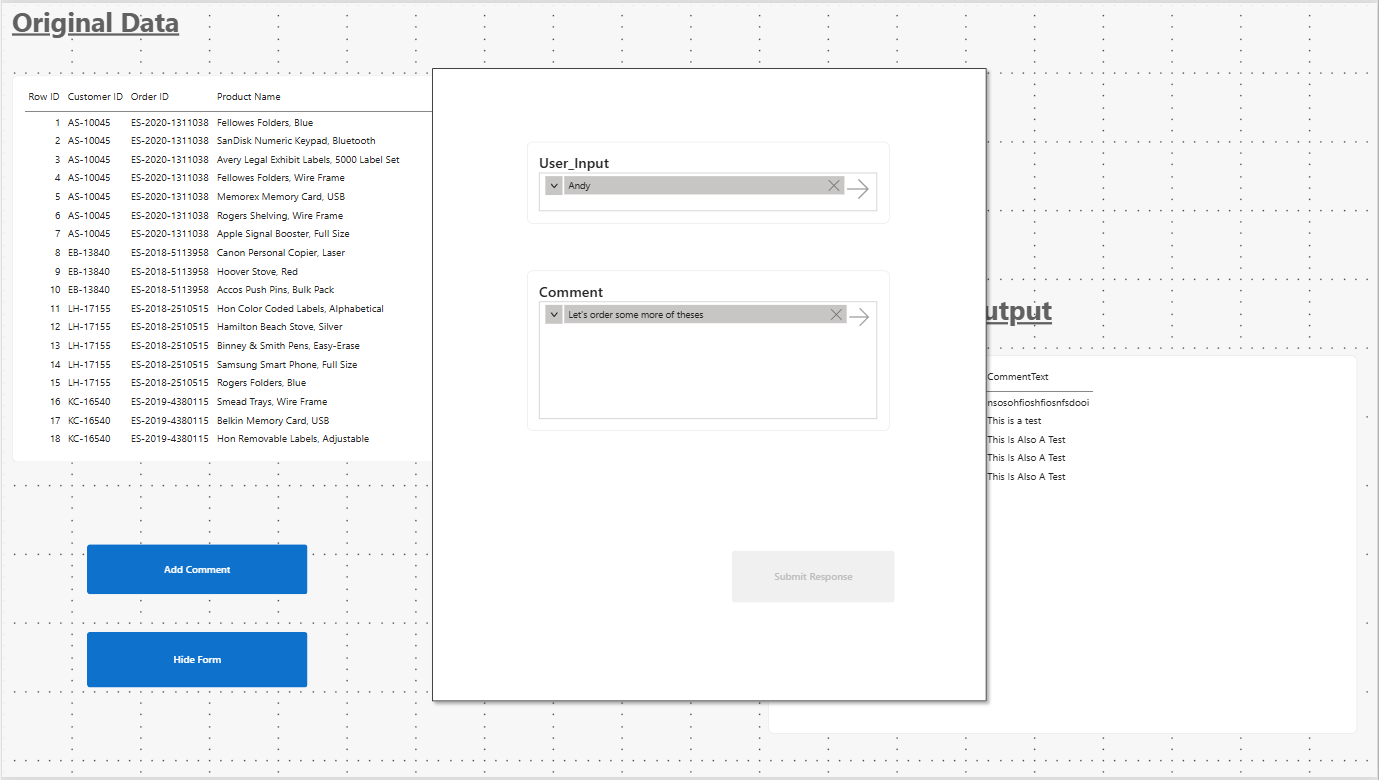
Step 5 : Build out the form the user will use and configure settings so that input data is sent to the User Data Function.
Building out the report
- After populating the Report Page with 2 tables, the first being the orders table, and the second being the User comments table. I then created a form that the user can input their name and the corresponding comment. Which I later configured bookmarks for.
Creating Disconnected Tables
- Because of the way Text Slicers work in Power BI. It is difficult to pass a word through without it filtering the data in the report.
- To resolve this, I created 'Dummy Fields' that hold whatever the user types.
- When configuring the 2 Text Slicers, I now used the fields from the dummy tables, which remain disconnected in the Data model.
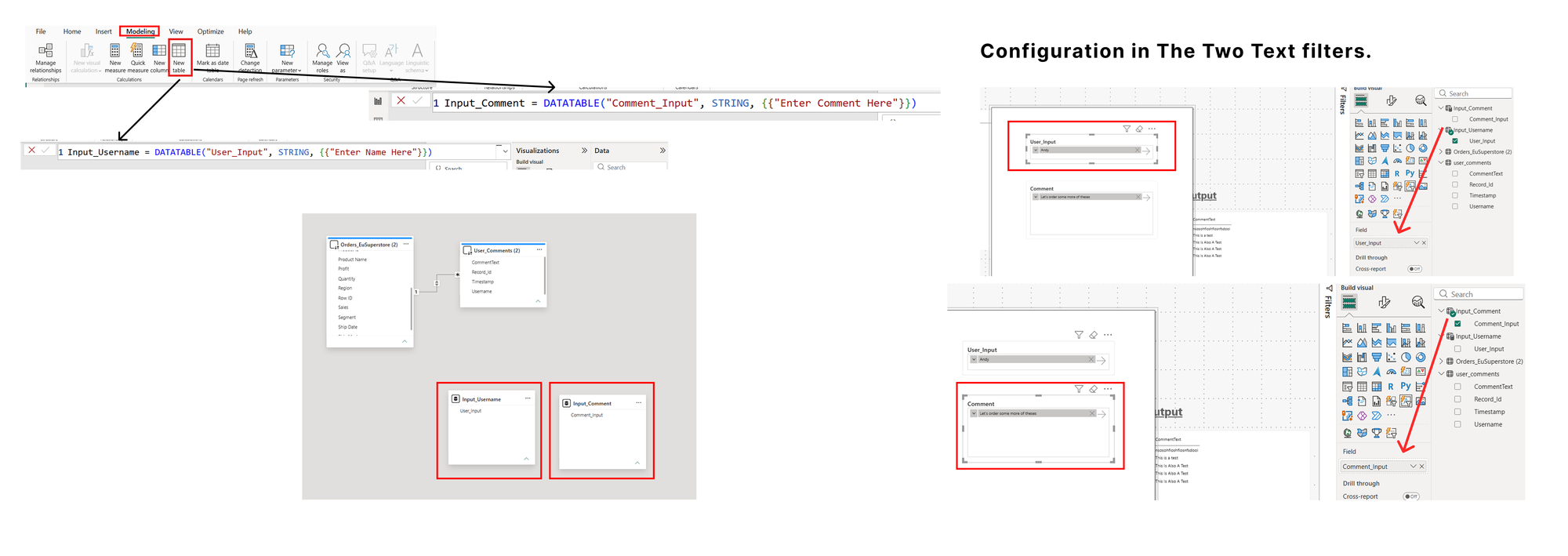
Configuration ( Linking the inputs from the report to the UDF)
- I first created a blank button on my form to essentially send the inputs of the form to the UDF. I then looked to configure the button.
- In the Format Pane of the Submit button, there should be a toggle for Action I made sure this was on.
- Then under the 'type' dropdown, I selected "Data Function"
- I then selected the specific user data function name, not the user Data function item from the lakehouse.
- In the Format Pane of the Submit button, there should be a toggle for Action I made sure this was on.
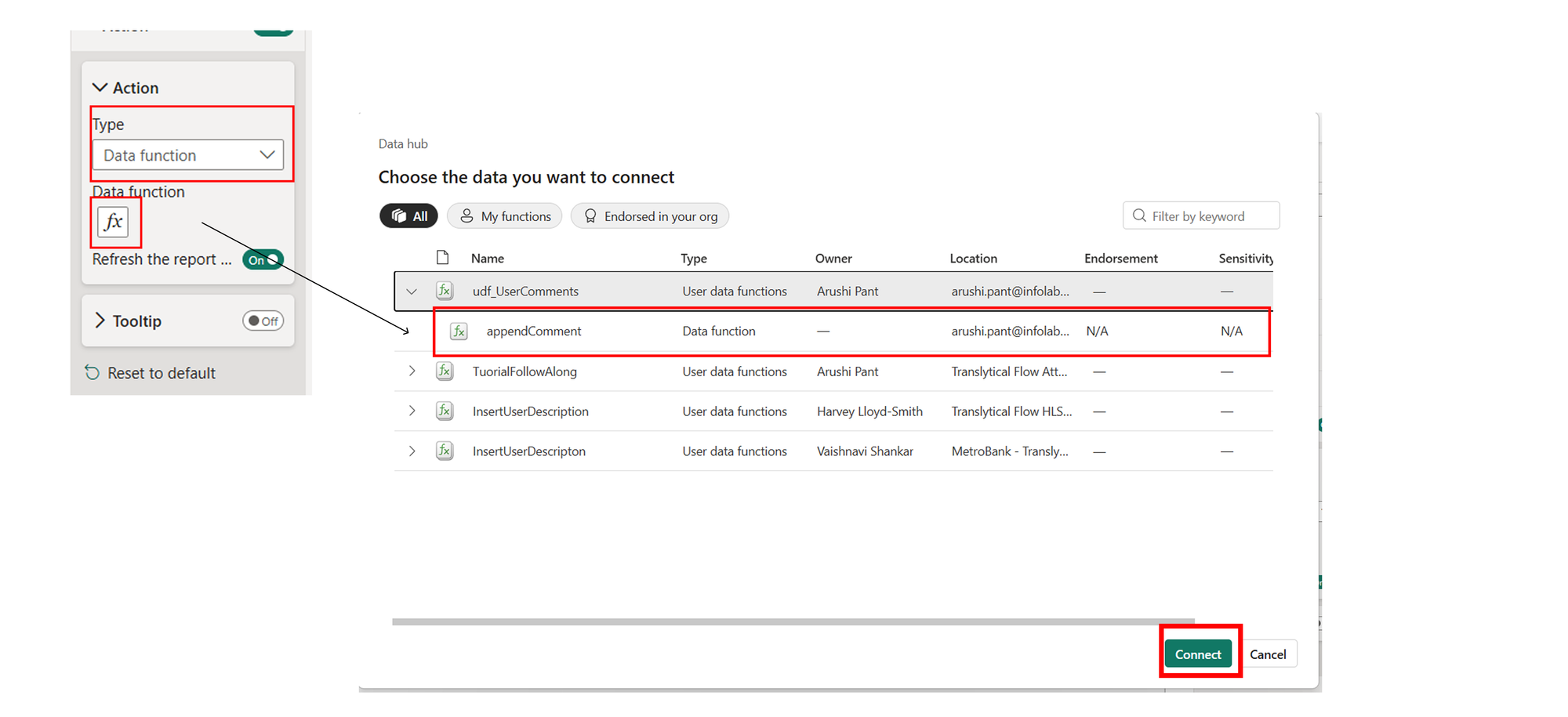
The action drop-down should now populate with the parameters ( fields) needed for the UDF.
I assigned the values as follows:
- Record = RowID from the Orders Table (use the fx button on the left of the dropdown here)
- userName - User_ input from the dropdown
- commentText -Comment - From the Dropdown.
Step 6: Updating the Table In Fabric.
Once data has been sent and a new JSON File has been created in the "Landing folder " in the Lakehouse. I now needed to find a way to convert the contents of the file into the user_comments table made in the first step.
This was done via 2 items within Fabric ( that were relatively new to me )
- Notebook
- Pipeline - To run the conversion script in the notebook every time a new landing file from the Power BI Report is created.
The Conversion script
Within my workspace, I had to create a new item 'Notebook'. I then had to assign the source in the explorer pane (left-hand side) to the lakehouse created. I then ran this script to test if it made the conversion successfully.
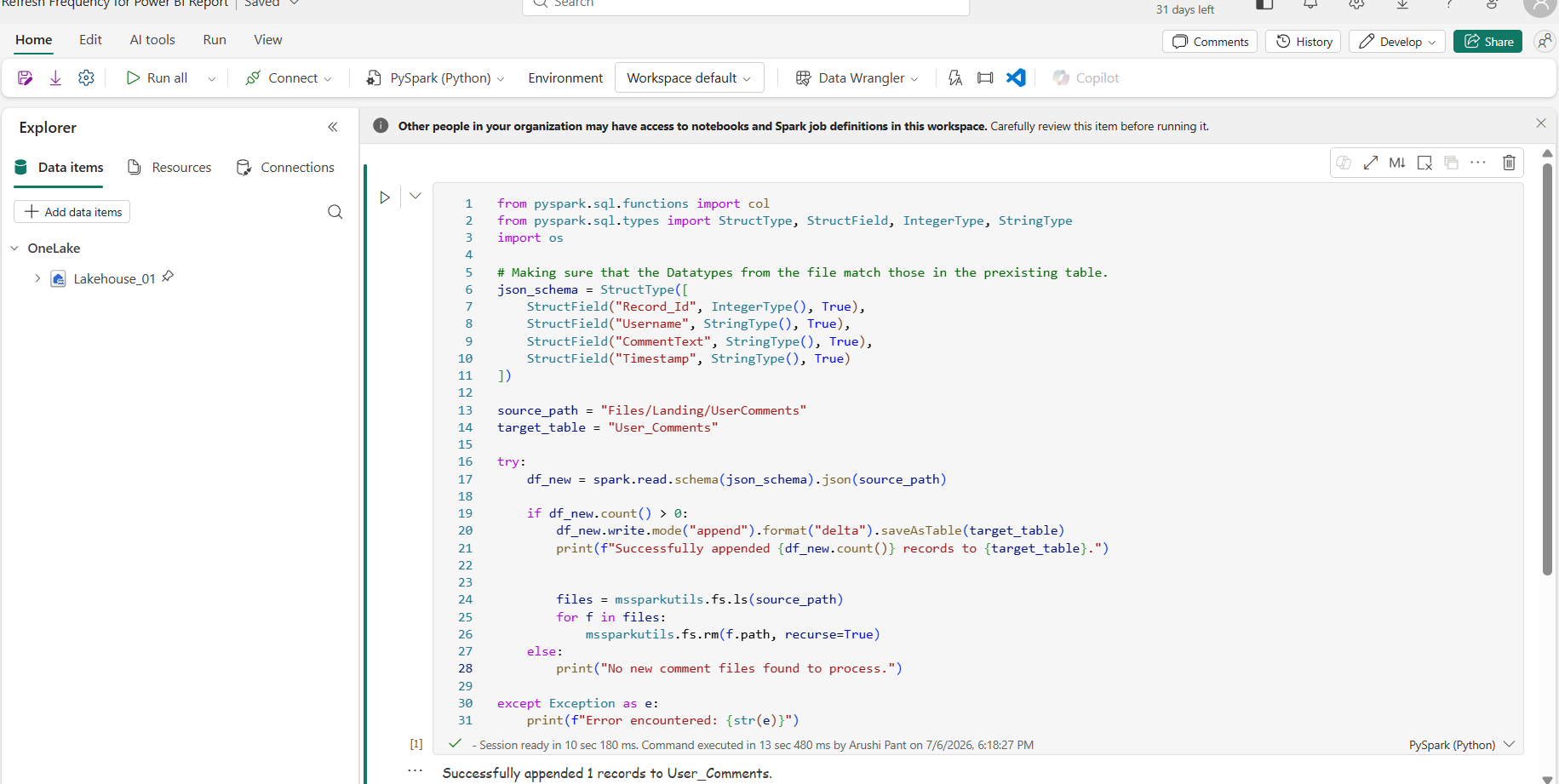
PySpark(Python) used
from pyspark.sql.functions import colfrom pyspark.sql.types import StructType, StructField, IntegerType, StringTypeimport os
# Making sure that the Datatypes from the file match those in the prexisting table.json_schema = StructType([ StructField("Record_Id", IntegerType(), True), StructField("Username", StringType(), True), StructField("CommentText", StringType(), True), StructField("Timestamp", StringType(), True)])
source_path = "Files/Landing/UserComments"target_table = "User_Comments"
try: df_new = spark.read.schema(json_schema).json(source_path) if df_new.count() > 0: df_new.write.mode("append").format("delta").saveAsTable(target_table) print(f"Successfully appended {df_new.count()} records to {target_table}.") files = mssparkutils.fs.ls(source_path) for f in files: mssparkutils.fs.rm(f.path, recurse=True) else: print("No new comment files found to process.") except Exception as e: print(f"Error encountered: {str(e)}")
Automation Pipeline
Again, because we are unable to update the SQL Endpoint of the Lakehouse. We would have to run this script every time a user enters data in a Power BI Report. To overcome this obstacle, I have to establish a trigger so that when a new file is created in the Landing folder, it tells Fabric to run the conversion script.
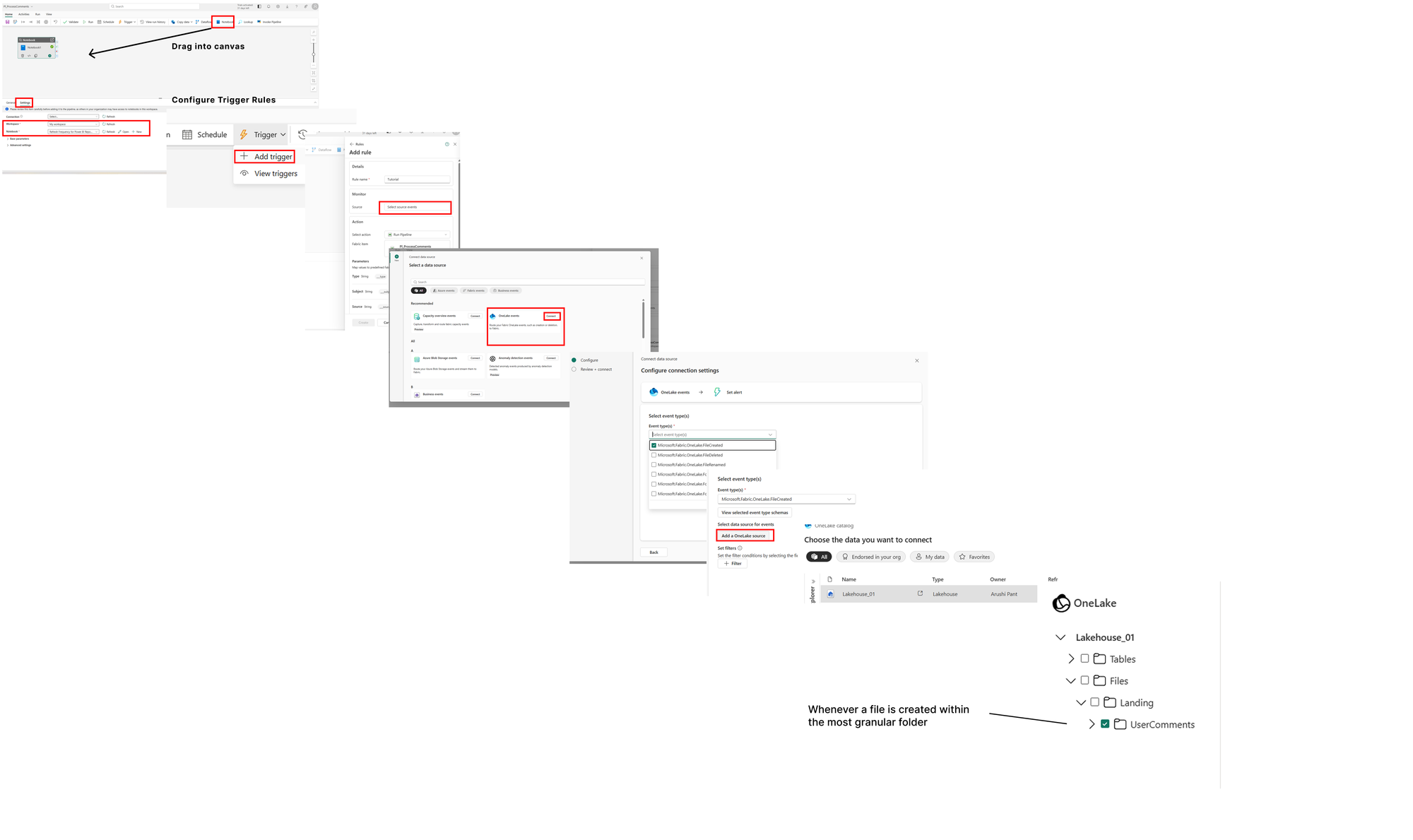
And it's all done! We can now publish the report to Fabric, and we have a flow from a Lakehouse.
Final Output
Reflections
What went well
- This process was incredibly valuable. It deepened my understanding of Microsoft Fabric and introduced me to several features and capabilities that I hadn't previously explored. It also gave me hands-on experience with OneLake, connecting Fabric items, implementing automation, and working with Python scripting.
- As a result, I feel much more confident using Fabric and have gained a greater appreciation for its capabilities. The experience has also inspired me to continue exploring the platform and learning more about the wide range of features and solutions that Microsoft Fabric could support.
My Findings
I wouldn't recommend this approach if you require instant feedback, such as displaying user comments immediately after they are submitted.
This limitation is largely due to the way Direct Lake operates and how data is stored within a Fabric Lakehouse. For smaller experiments or lightweight write-back scenarios, a Fabric SQL Database is currently the more practical starting point. Using a SQL Database removes the need for the automation and file conversion steps required by this approach. Just ensure that you connect to the SQL Database itself rather than the SQL Analytics Endpoint.
If you're committed to using a Lakehouse, this method provides a viable workaround for writing data despite the read-only endpoint. However, as demonstrated, it comes with a noticeable performance trade-off and is significantly slower than writing directly to a SQL Database.
Something interesting I learnt from this experiment is that, because the automation is driven by Python scripts, additional processing can easily be incorporated into the workflow. For example, you could perform data cleansing using Pandas before pushing the data in the tables, or run sentiment analysis with an agent for classification as positive, negative, or neutral.
Finally, it's worth noting that write-back functionality is not exclusive to Microsoft Fabric. There are also write-back extensions that are worth exploring.
For example: SuperTables Apps for Power BI do have a write-back feature as well.
 Chinouk Hendriksen
In conclusion, this was a very fun experience, and excited to see further developments of write-back functionality across BI Tools!